

technitium-console
A modern administration console for Technitium DNS Server. Everything the stock console does, with blocking in one place, light and dark themes, and a layout that works on your phone.
| Dashboard | Blocking |
|---|---|
 |
 |
Latest: v1.3.1 for Technitium DNS Server 15.5.x and 15.6.x, with a Dashboard that moves in real time and compares periods, Allowed and Blocked as one Blocking section, a light theme, plus LDAP, the zone file editor and everything else 15.5 and 15.6 brought. What's new · Which console for which server · Installing · Technitium in Docker
It replaces the console the server ships with. Install it and the DNS service
behaves exactly as before; remove it and you are back to the original. Nothing on
the server side changes: this console talks to it only through its documented
/api endpoints.
- Every feature of the stock console: zones, settings, DHCP, apps, logs and administration, through the same 132 API endpoints, with Technitium's own users and permissions.
- A Dashboard that answers at a glance: every figure with its trend and its change against the previous period, a week by hour, and charts that open Query Logs on what you click.
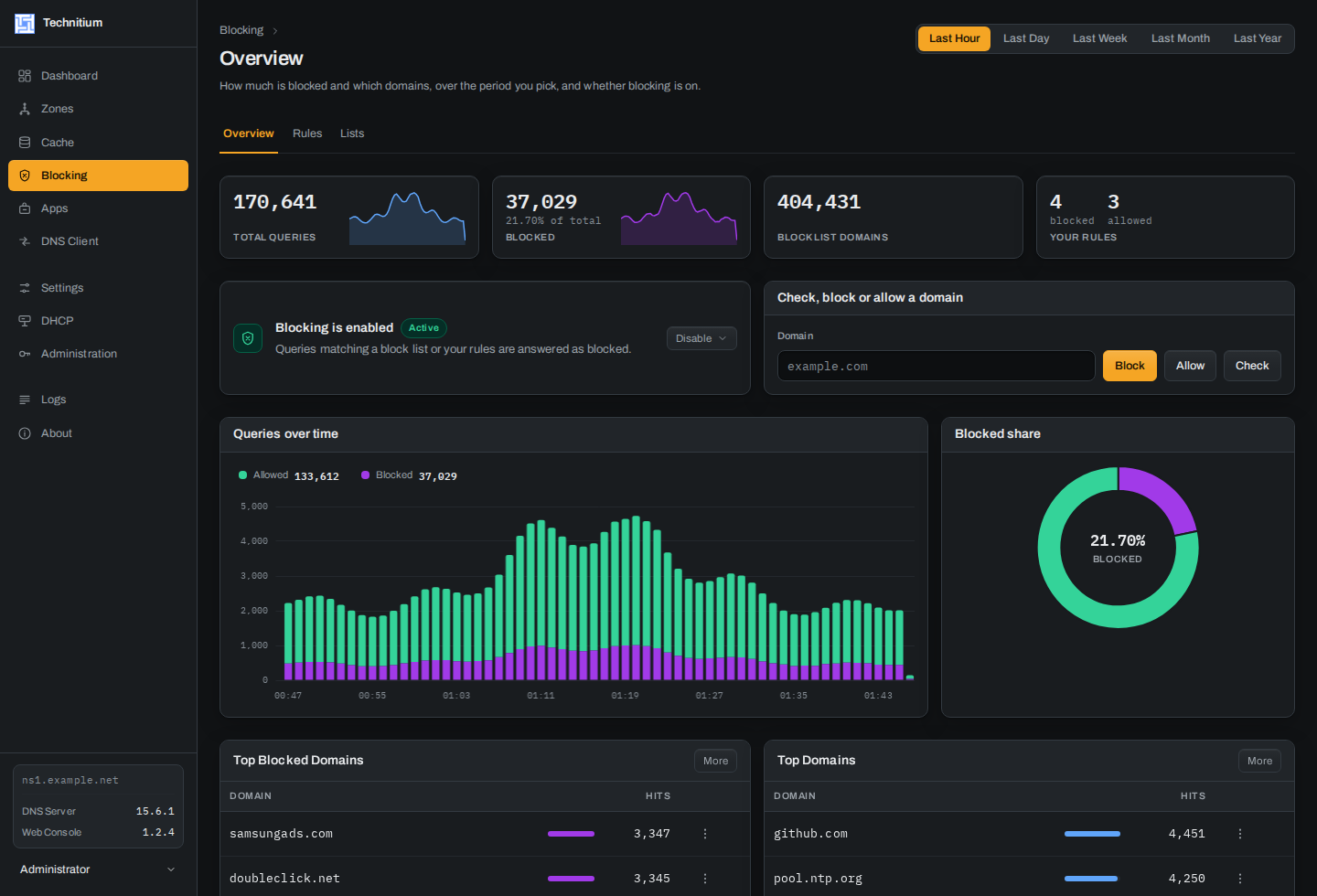
- Blocking in one place: what it is doing, your own rules and your lists, and a check that tells you why a domain is blocked, below.
- Light, dark or your system's theme, measured for contrast in both.
- Works on a phone: no section scrolls sideways at 390 px.
- Nothing extra to run: no backend, no database, no second login. It installs into the server's web folder or a Docker volume, and removing it brings the stock console back.
Blocking, in one place
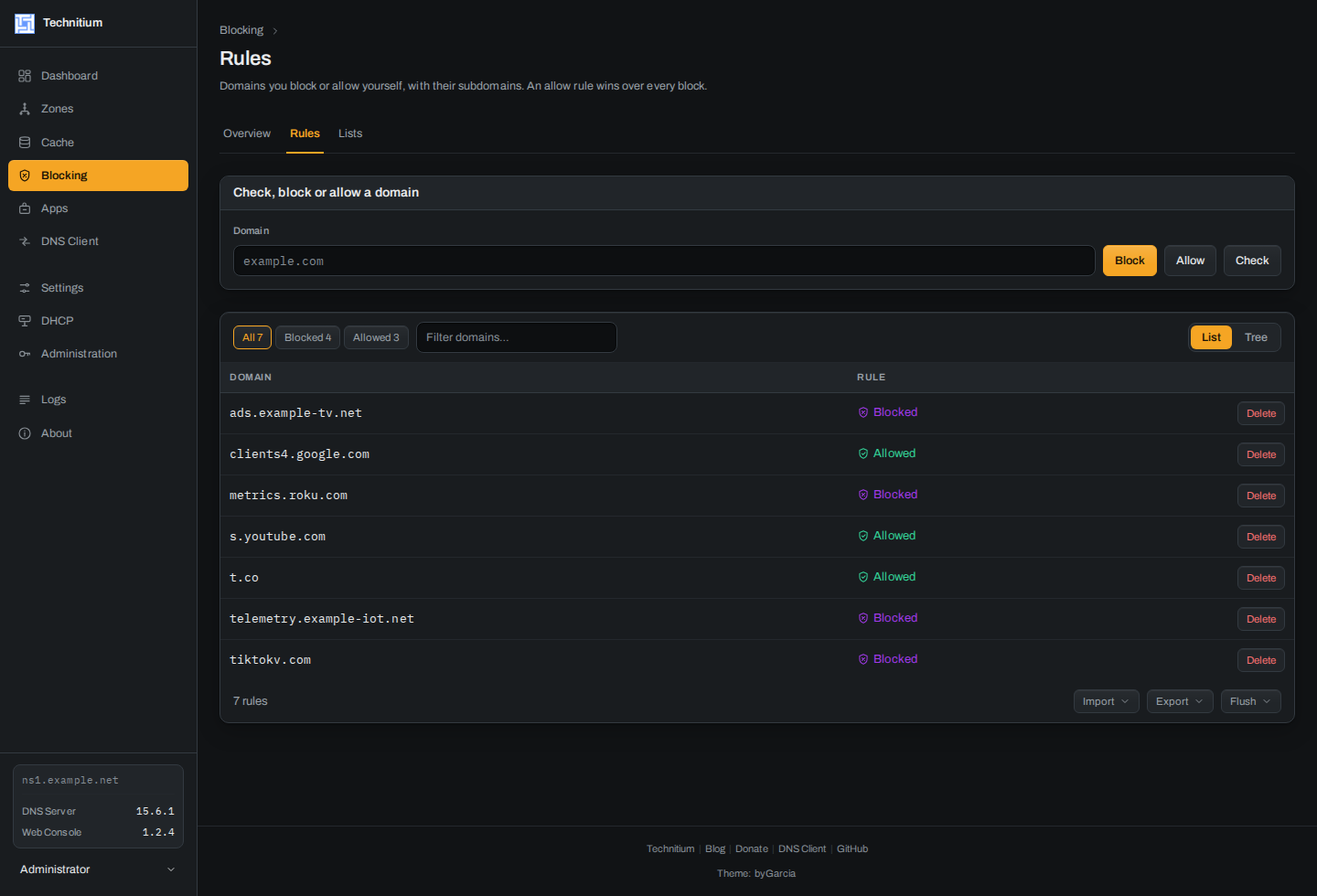
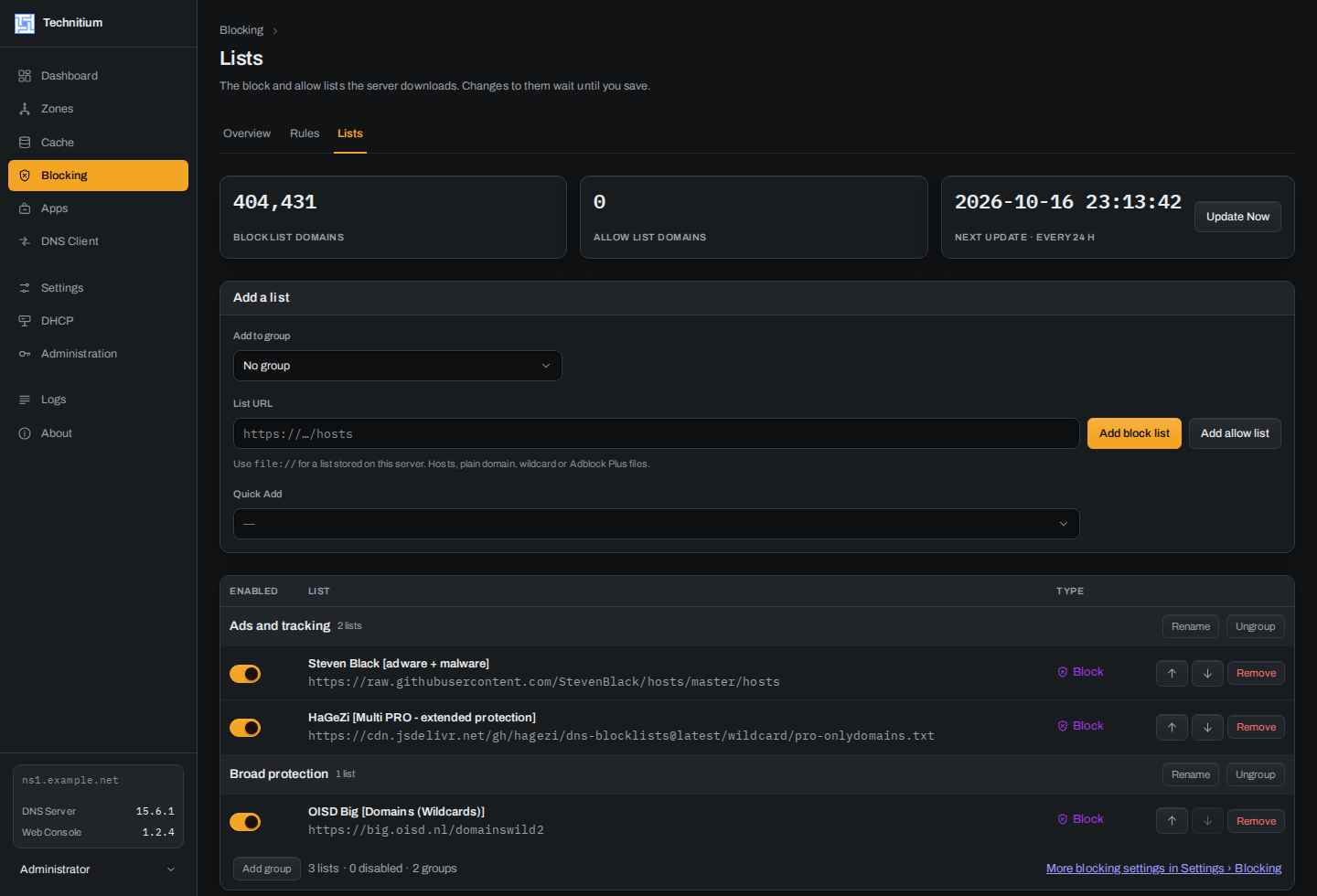
The stock console spreads blocking over three places: Allowed and Blocked are two separate domain trees, and the block lists sit in Settings › Blocking. This console brings them together in one Blocking section, with what blocking is doing, your own rules and your lists each in one place. It is the one part of the console that goes beyond a new look:
- Overview shows what blocking is doing: Total Queries and Blocked with their trend, the blocked share, allowed against blocked over time, the top blocked domains and the last ten blocked queries. Disable blocking for one of the stock console's eight durations and see when it comes back.
- Rules puts every domain you blocked or allowed by hand in one table, filtered, searchable and paged however many there are. The domain tree you already know is one switch away.
- Lists turns your block and allow lists into rows, each with its readable name, an Enabled switch and Remove. Add one by URL or with Quick Add, update them all with Update Now, and nothing changes until you Save.
- Check a domain and see whether this server blocks it and why: which block lists, which of your rules, or which allow rule lets it through.
- Group your lists under named headings, saved as plain comment lines, so the stock console still reads them.
- Undo a rule you deleted from the Rules table, and see in the sidebar when blocking is off or paused.
- Block or allow a domain from Overview or Rules, or from the menu on any row of Top Domains and Top Blocked Domains.
| Rules | Lists |
|---|---|
 |
 |
What it looks like
| Zones | Settings |
|---|---|
 |
 |
| Cache, and the tree in Blocking › Rules | Apps |
|---|---|
 |
 |
| Query Logs | Login |
|---|---|
 |
 |
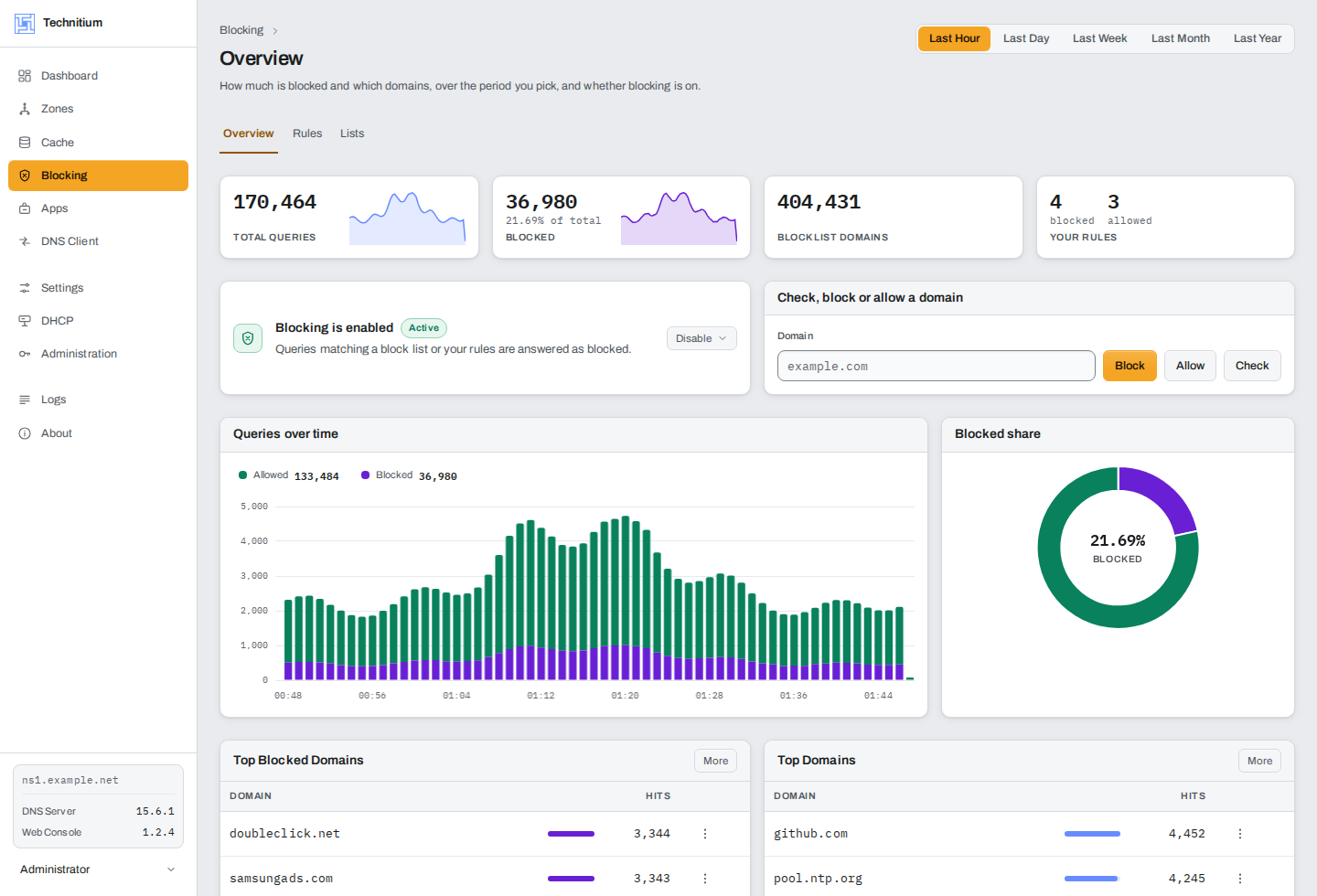
Light or dark, or whatever your system uses, from Change Theme in the account menu, as in the stock console. Both themes are measured: every text colour reaches 4.5:1 on every surface it is drawn on.
The domain tree is one component, shared by Cache and by the Tree view of Blocking › Rules, and the screens it served used to be indistinguishable. The tree is the object you came to look at, so it is a column and not a box; the path says where you are; and the colour on the records panel is the one that already means cached and blocked in the Dashboard chart and in the Logs rows.

It works on a phone. The stock console overflows horizontally on a 390 px screen in twelve of its sections. This one does not overflow in any: the tables reflow, the navigation collapses, and the actions stay reachable. That was not a side effect. It was a defect found by measuring every section at 390 px and fixed one by one.
Safe to put in front of your DNS
Design only. Zero functionality. That is the rule the whole project is built on, and it is worth stating plainly because it is unusual:
Any behavioural difference from the upstream console is a bug, even when it looks like an improvement.
Same controls, same steps, same wording, same validation order. If a feature was missing before, it is still missing. If a confirmation asked twice, it still asks twice. You are changing how the console looks, not what your DNS server does. That is the only reason it is safe to put a third-party interface in front of infrastructure.
A few deliberate exceptions are written down rather than slipped in: Blocking,
above; the Dashboard's comparisons with the previous period, its week by hour and
its jumps to Query Logs; and the login cover beside the stock form. They call only
endpoints the server already has, and each of their files declares the words that are
its own; /allowed/ and /blocked/ still land. Their limits, and the other
deliberate deviations, are in
CONVENTIONS.md.
How thoroughly
| Checked against | Technitium DNS Server 15.6.2 |
| Sections | 11 |
| Routes, each a real URL | 34 |
| API endpoints the stock console calls, and this one calls too | 132 of 132 |
| Sortable columns kept | 64 of 66, and the two missing are declared |
| Dialogs, checked one by one | 44 |
| Tests | 1,838 |
Every figure in that table comes from a script in dev/ (check-endpoints.mjs,
check-parity-sort.mjs, dialog-inventory.sh) and not from this paragraph.
Parity is not asserted, it is measured. dev/ brings up two instances of the
official Technitium image side by side (one serving this console, one
untouched), and the scripts in there compare them: the controls present on each
screen, the state the server is left in after fourteen real actions, the sortable
columns, the dialogs, the CSS classes nobody uses.
cd dev && docker compose up -d # this console on :5380, the stock one on :5381
Installing
One command, on the machine where the DNS server runs:
curl -sSL https://raw.githubusercontent.com/byGarcia/technitium-console/main/install.sh | sudo shTechnitium in Docker? See Docker: a small image puts the console in a volume, and this command, run on a Docker host, prints the exact steps for your containers.
On Technitium 15.5 or later with systemd, it gives the console its own folder
and configures the detected service automatically. The first install restarts
the DNS service once to switch folders; updates do not restart it. On older
versions or with --no-configure-service, it asks the running server for its
web root, saves the console you have now, and replaces it without a restart.
To go back at any point:
curl -sSL https://raw.githubusercontent.com/byGarcia/technitium-console/main/install.sh | sudo sh -s -- --uninstallThe managed systemd install switches back to the server's stock console before removing its folder. Replacement installs restore the copy the installer kept. Nothing is downloaded to undo either one.
It works with whichever install you have, because it does not guess: the
running server is found by what it executes, and a systemd unit is accepted only
when it names that same DnsServerApp.dll. If it cannot identify one exact
unit, it leaves service configuration alone and uses the web root it discovered.
Your custom lists are kept, on the way in and on the way out. Any
json/*-custom.json you wrote by hand is left exactly where it is, including
one you write months after installing, which no backup could contain.
Nothing else on the server is touched. Configuration, zones, users, logs and
/etc/resolv.conf come out of an install and an uninstall byte for byte the
same. On systemd with Technitium 15.5 or later, it also owns one clearly named
drop-in under /etc/systemd/system; uninstall removes it again.
The installer requires root-owned files and folders. The console, backup,
installer state and every parent folder must be writable only by root (the root
group counts as root, so a stock web root left 0664 by Technitium's own archive
is accepted). Symbolic
links, hard links, special files and newline-containing names are refused before
publication. A service-owned stock console can still be used with a dedicated
/opt/technitium-console folder when no custom lists need copying. If custom
lists need migrating from an unsafe tree, copy them yourself after inspecting
them into a fresh root-owned tree. Changing ownership on an existing tree cannot
revoke files another account already has open. For Docker, mount the console
volume read-only in the DNS server.
An interrupted run cannot leave you without a console. Files go in before any are taken out, and every page is published after the assets it names, so at every moment the server has a whole console to serve: the old one or the new one. Anything a killed run left behind is cleaned up by the next one.
Options
--version <tag> to pin a release, --from <path> to install
from a tarball you already downloaded, --dir <path> to say where the web root
is, --url <base> if your web console does not answer on
http://127.0.0.1:5380, --yes to skip the confirmation, and
--no-configure-service to leave systemd untouched and use the server's own
web root unless you selected another folder yourself.
If the backup was taken from a different version of the DNS server than the one
now running (which happens when the server was updated in between), the
uninstall stops and says so rather than putting an old console in front of a new
server. --restore-mismatched-backup overrides that, and --yes deliberately
does not.
Linux only. Windows installs are laid out differently and have their own installer; this script does not try to handle them.
On Technitium v15.5 or later: give the console a folder of its own
Since v15.5 the server can be told to serve its web console from another folder,
with DNS_SERVER_WEB_SERVICE_WWW_FOLDER_PATH. Do that, and a server update no
longer puts the stock console back: its own www/ is left untouched and this one
lives somewhere the update does not write.
On a systemd install, the one-line installer does this itself. It identifies the
unit from the running DnsServerApp.dll, publishes the complete console into
/opt/technitium-console, adds
/etc/systemd/system/<unit>.d/technitium-console.conf, and then restarts the
unit once. It verifies that the restarted process has the expected environment
and serves the new assets. If that fails, it removes the drop-in and restarts
back onto the stock console.
Updates publish into the same folder without restarting the DNS service.
--uninstall carries custom lists back, removes only an unchanged drop-in,
restarts onto the stock console, verifies it, and only then removes the folder.
If you edited the drop-in after installation, uninstall leaves it and the
console untouched rather than deleting administrator-owned configuration.
On Proxmox VE with the community script (technitiumdns from
community-scripts): run the
one-line installer inside the container (pct enter <id>). It detects
technitium.service; the script's own Update no longer touches the console,
since it lives in its own folder.
For Docker, see Docker: the image does all of this with a volume.
Without the variable (before v15.5, or if you prefer not to set it), the console replaces the files in the server's own
www/. Technitium restores its console when it updates, so run the installer again afterwards.
Keeping it up to date
Each console release is checked against one Technitium release: every action it sends, every text
and every control, compared with that server's own console. When you update the server, update the
console with it: run the installer again (on Docker,
docker compose pull technitium-console && docker compose up -d technitium-console). It needs no restart, and
the changelog says which console goes with which
server.
Docker
If Technitium runs in Docker, the console comes as a small image that copies it into a volume and exits. Your DNS server keeps running the official image: it mounts that volume and is told to serve it. It needs Technitium DNS Server 15.5 or later, the first version that can serve a folder of its own.
Only the technitium-console lines below are new. Add them to your compose file: the variable
and the volume mount on your server, the technitium-console service, and the technitium-console
volume at the end. The rest stands for what you already have: the config lines are your own
/etc/dns mount, so keep it exactly as you have it.
services:
  dns-server:
    image: technitium/dns-server:latest
    # ports, hostname, restart… as you have them
    environment:
      - DNS_SERVER_WEB_SERVICE_WWW_FOLDER_PATH=/opt/technitium-console
    volumes:
      - config:/etc/dns
      - technitium-console:/opt/technitium-console:ro

  technitium-console:          # copies the console into the volume, then exits
    image: ghcr.io/bygarcia/technitium-console:latest
    volumes:
      - technitium-console:/target
    restart: "no"

volumes:
  config:
  technitium-console:
docker compose up -d
That restarts the DNS server once, because its environment changed. The console shows up a second or two later, when the copy is done; until then the page is empty. If the copy ever fails, the server starts anyway: nothing waits on it.
Updating restarts nothing:
docker compose pull technitium-console && docker compose up -d technitium-consoleOnly the copier runs again, and the server picks the new files up by itself. A plain
docker compose pull && docker compose up -d also updates the DNS server when there is a new image
of it, and that does restart it.
Pinning a version: use a release number instead of latest: X.Y.Z for exactly that
release (ghcr.io/bygarcia/technitium-console:1.2.0), X.Y to follow its fixes (:1.2). To go
back, pin the older one and update. Images start at 1.2.0.
ghcr.io/bygarcia/technitium-console:develop is built from every push to the develop branch,
for trying changes before they are released; it is not for production. Pin a release instead.
If publishing an image fails or is cancelled halfway, X.Y.Z (or develop-<sha7>) can be left
published before the check that every platform carries exactly the console it was built from.
latest, X.Y and develop move only after that check, so they never point at such an image.
Custom lists (json/*-custom.json, the files upstream's www/json/readme.txt describes) are
kept in the volume across updates. To edit them by hand, use a folder on the host instead of the
volume (./technitium-console:/opt/technitium-console:ro on the server and
./technitium-console:/target on the copier) and write them in ./technitium-console/json/.
The folder can hold your lists before the first run. The copied files belong to root, so editing
them takes sudo. Removing it is the last of the steps below.
Without Compose:
docker volume create technitium-console
docker run --rm -v technitium-console:/target ghcr.io/bygarcia/technitium-console:latest
then add -e DNS_SERVER_WEB_SERVICE_WWW_FOLDER_PATH=/opt/technitium-console and
-v technitium-console:/opt/technitium-console:ro to your server's docker run, and re-create it
once. To update, run docker pull ghcr.io/bygarcia/technitium-console:latest and then the second
command again.
Removing it:
- Keep any
json/*-custom.jsonyou edited: they are in the volume, or in the folder if you use one. - Take the variable and the
technitium-consolevolume line out of your server, remove thetechnitium-consoleservice, and remove thetechnitium-console:entry under the top-levelvolumes:. docker compose up -d --remove-orphans. The server restarts once, back on the console its image ships, which was never touched.docker volume rm <project>_technitium-console(docker volume lsshows the exact name). With a folder on the host instead, delete it now, once the server no longer mounts it; its files belong to root:sudo rm -rf ./technitium-console.
Without Compose: re-create your server without the
-e DNS_SERVER_WEB_SERVICE_WWW_FOLDER_PATH=/opt/technitium-console and
-v technitium-console:/opt/technitium-console:ro you added (it restarts once, back on its own
console), and then docker volume rm technitium-console.
The one-line installer on a Docker host, without --dir, does not install anything. It reads
your containers and prints these steps with your own container, service, file and volume names,
and with --uninstall, the way out. It does not write into a container because a container's own files are
replaced every time it is recreated: a console copied into one with docker exec is gone after
the next image update, and the installer says so if you try.
Servers before 15.5, and why not an image mount
Before 15.5 the server cannot serve another folder, so the console goes into a folder on the host mounted over the container's own web root:
curl -sSL https://raw.githubusercontent.com/byGarcia/technitium-console/main/install.sh | sudo sh -s -- --dir /opt/technitium-consolevolumes: - /opt/technitium-console:/opt/technitium/dns/www:ro
then re-create the container once. To update, run the same command again. To remove it, take the
mount out and re-create the container first, and only then delete the folder. Emptied while still
mounted, it would leave the server serving nothing. The same command with --uninstall prints
these steps for your container. Moving to 15.5 or later and the image is the better way.
An image mount (type: image, Docker Engine 28 and Compose 2.35 or later) is not offered: it
is read-only, so no custom lists; every update would recreate the DNS container; older engines,
like those on many NAS boxes, do not have it; and this image carries the release's tarball, not an
unpacked folder.
Building
npm install
npm run build        # emits into dist/
npm run dev          # Vite development server
npm test             # 1,647 tests
npm run typecheck
npm run lint
React 19.2, TypeScript 6.0, Vite 8.2. npm, not pnpm or yarn, so building this needs nothing installed beyond Node.
Before changing anything, read CONVENTIONS.md. It holds the rule above, the upstream behaviours discovered along the way, and four constraints the server imposes that will let you break production while development looks fine.
PRODUCT.md says what this owns and what it refuses to become, and CONTRIBUTING.md how to run the two-instance harness.
Status
Feature-complete against Technitium DNS Server v15.5.1 and verified against it: the LDAP Authentication tab, the zone file editor and the removal of Auto Prefetch that v15.5 brought are all here. Version 1.0.0 was built against v15.4 and cannot save Settings on a v15.5 server; use 1.1.0 or later there. Not merged upstream: the maintainer closed the pull request because he is not a frontend developer and could not maintain the stack through future releases, and suggested shipping it as an installable alternative console instead. This repository is that.
Contributing
CONTRIBUTING.md has how to run the two-instance harness and what a good change looks like here. A vulnerability is not a bug report: SECURITY.md has its own private route, and it also says which parts belong upstream instead. Everybody taking part is held to the Code of Conduct. Releases are listed in CHANGELOG.md.
❤️ Support
This console is free and stays free, and it will never ask your DNS server for anything it does not already answer. If it made the machine your whole network resolves through nicer to look at, there is GitHub Sponsors, Ko-fi, Liberapay and PayPal. A star or a good bug report is worth just as much.
And if you have not already: Technitium DNS Server is the thing doing the actual work here, written and maintained by one person. It takes donations too, and that is the more useful place to start.
Licence
GPL-3.0-or-later, the same licence as Technitium DNS Server, whose console this replaces. See LICENSE.
This is an independent project, not affiliated with or endorsed by Technitium. The Technitium name and logo belong to Technitium and are used here only to identify the software this console is built for.