
Resolvr

Running Home Assistant? Resolvr is also available as an add-on, with your Home Assistant sign-in and a sidebar entry: get the add-on (setup is in Home Assistant add-on below).
A monitoring dashboard for Technitium DNS Server — live query traffic, clients, cache, zones, DHCP, and blocking, with its own login and role-based access, built for people who run a home or small-office DNS resolver and want a clean view into what it's doing without living in Technitium's own admin console.
dns · technitium · dns-server · dashboard · self-hosted · homelab · monitoring · dns-monitoring · ad-blocking · vue3 · typescript · docker · sqlite · express

What it does
-
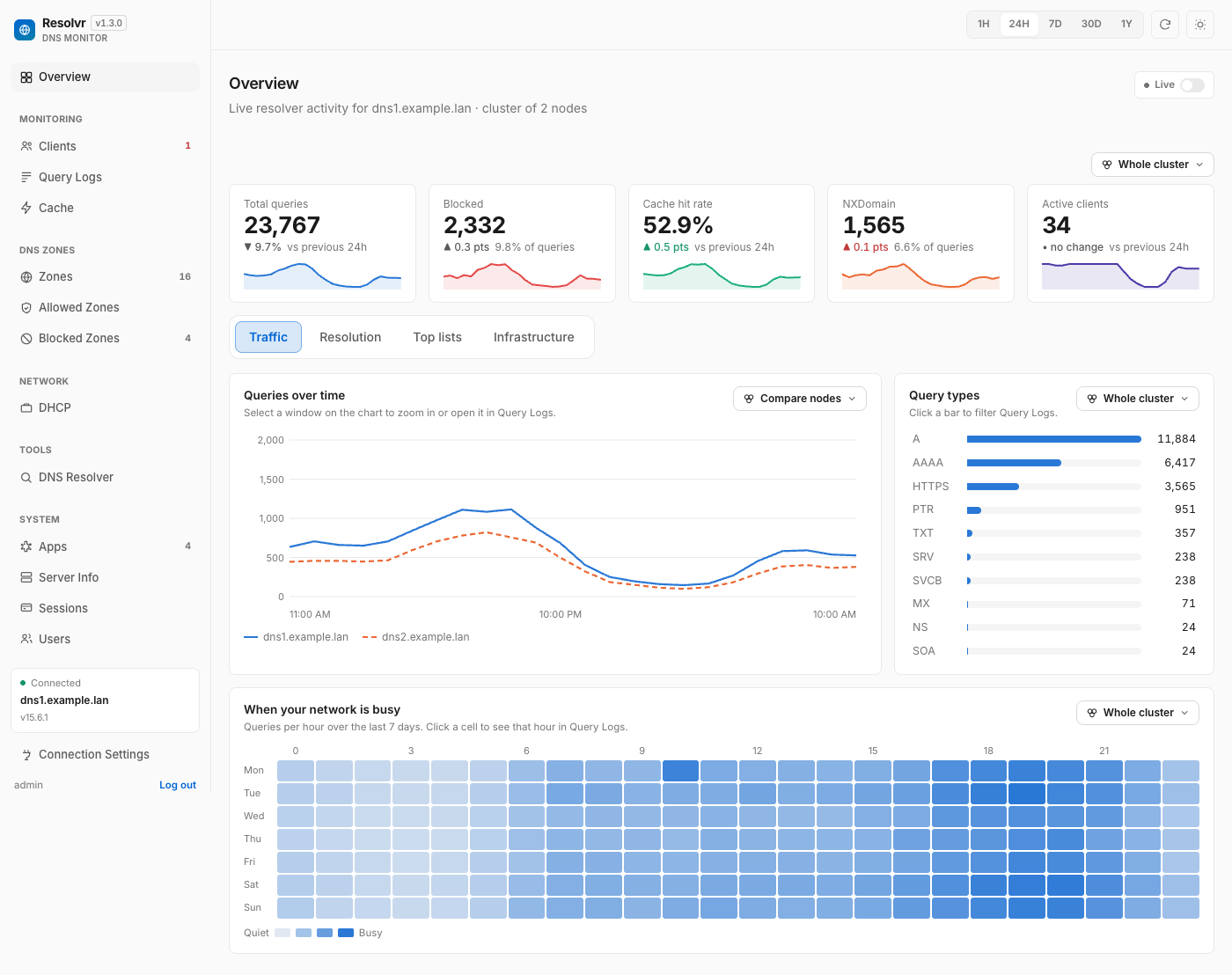
Overview in four tabs, all read from your Technitium server. Stat tiles above the tabs show change against the previous period.
- Traffic — queries over time (toggle series, stack allowed vs. blocked, drag to select a window and open it in Query Logs), query types, and a 7-day "when is my network busy" heatmap.
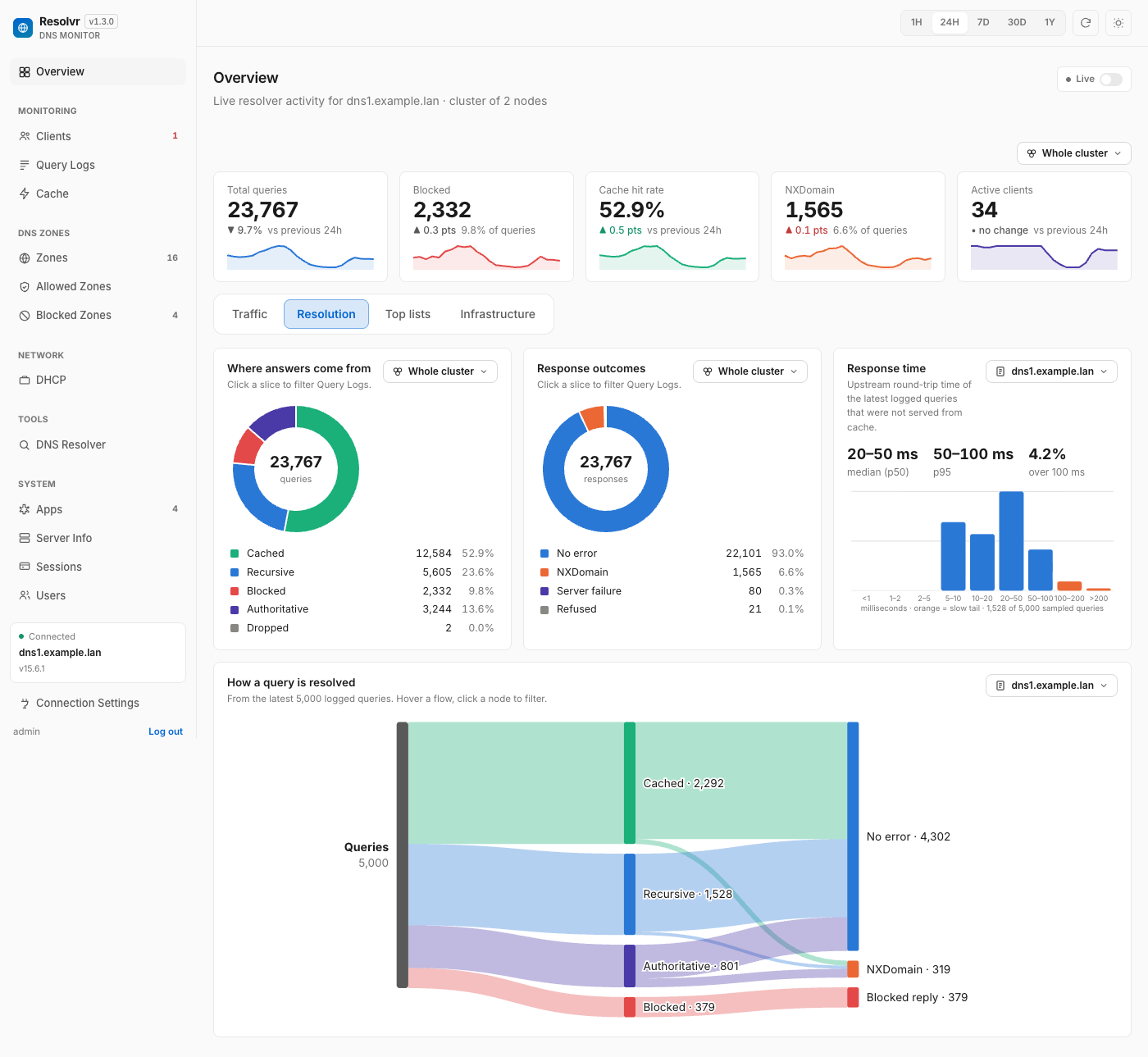
- Resolution — where answers come from (cache, upstream, blocked, authoritative), response outcomes, upstream response time, and a flow diagram of how queries get resolved.
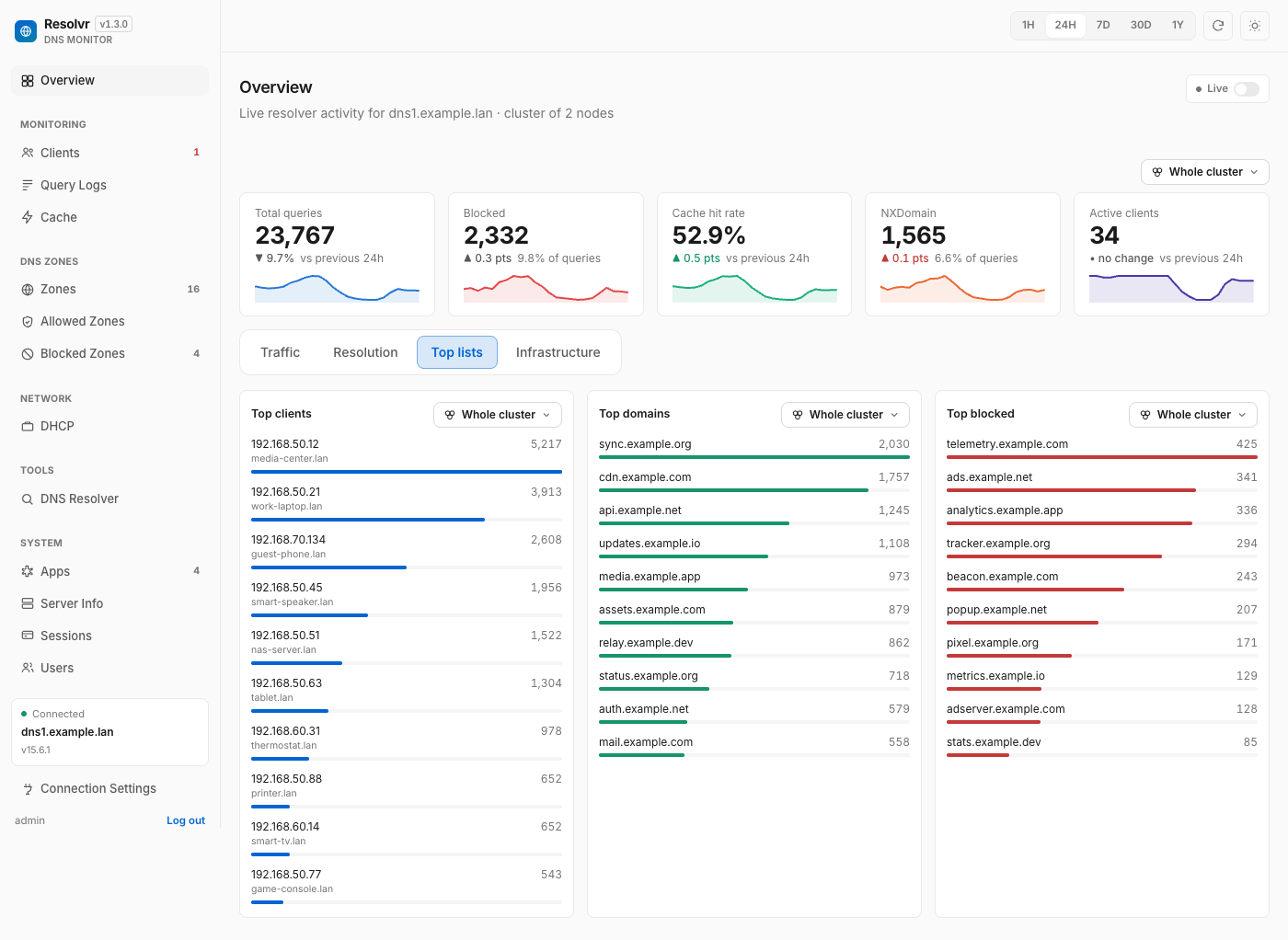
- Top lists — top clients, top domains, top blocked domains.
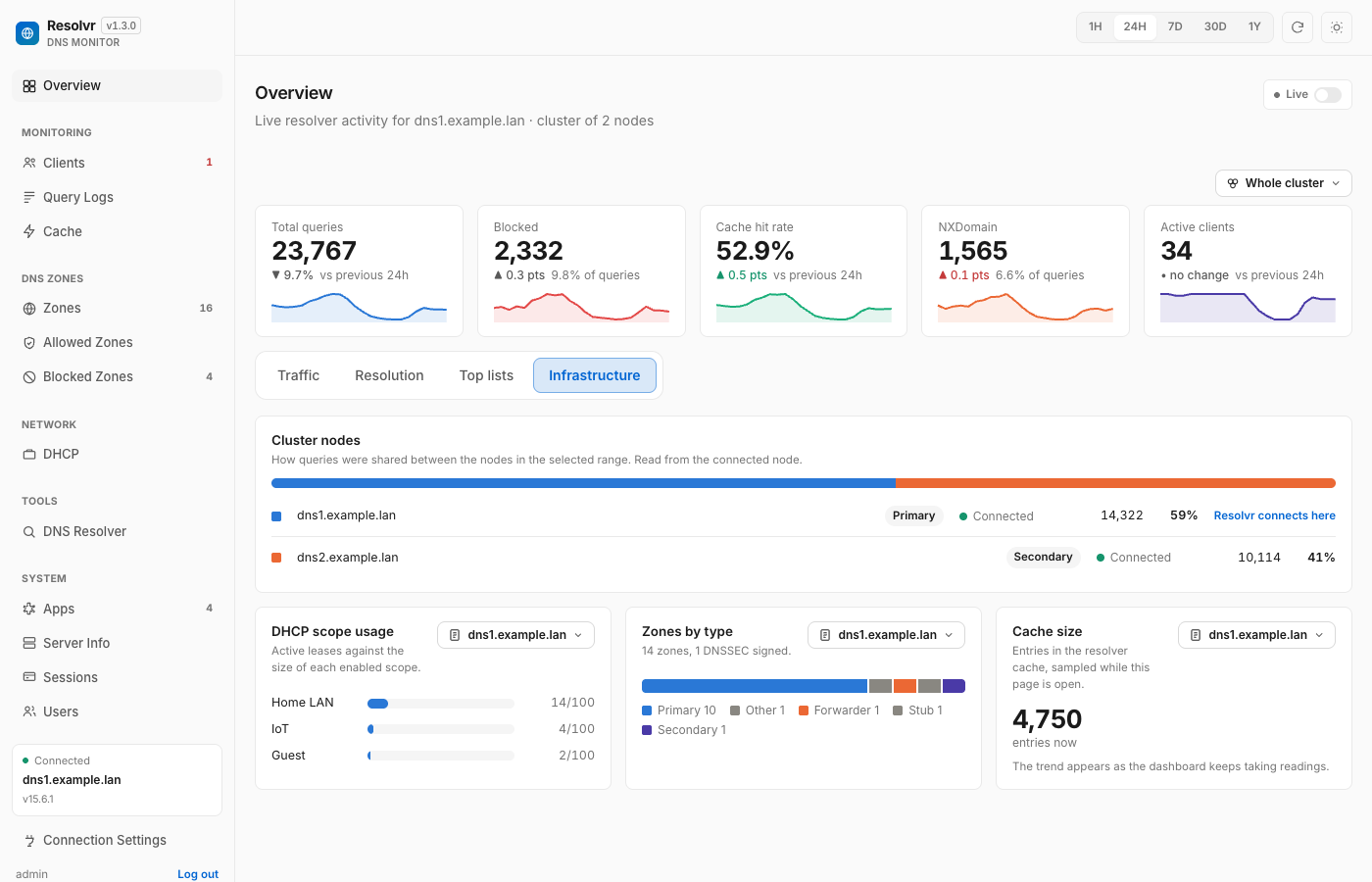
- Infrastructure — DHCP scope usage, zones by type, cache size over time.
Every chart is clickable and jumps to Query Logs filtered to what you clicked.
-
Clients — pick any device and see its queries, block rate, DHCP lease, activity, top and blocked domains, protocols and latest queries. A traffic-share bar and a recent-activity grid show who is busy; search, filter (heavy blocking, rate limited, new, quiet) and sort the list.
-
Query Logs with real filtering — client IP, query name, response type, protocol, RCODE, record type, and a time window — plus a per-host "allowed vs. blocked" breakdown, CSV export and a live-tail toggle.
-
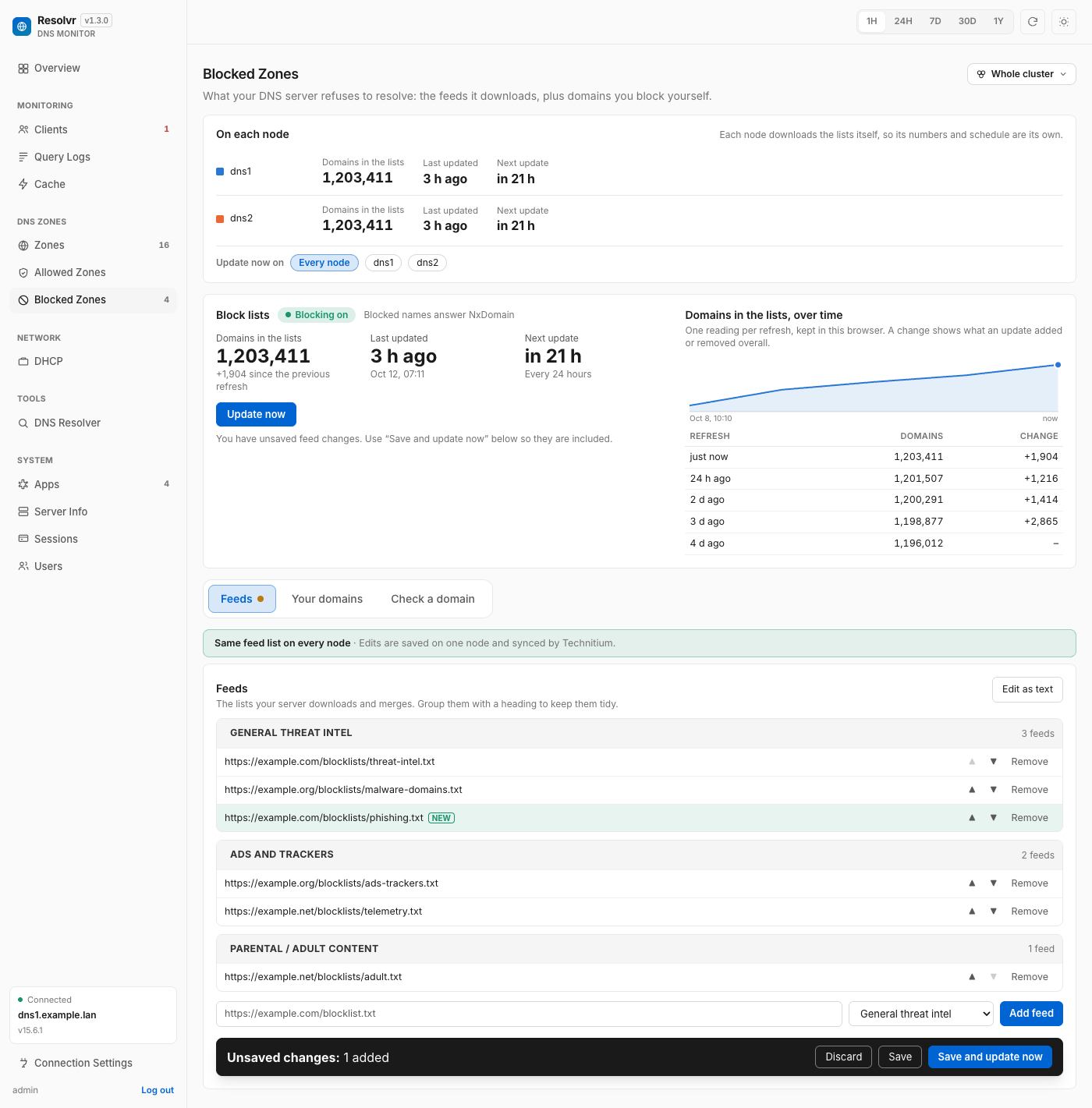
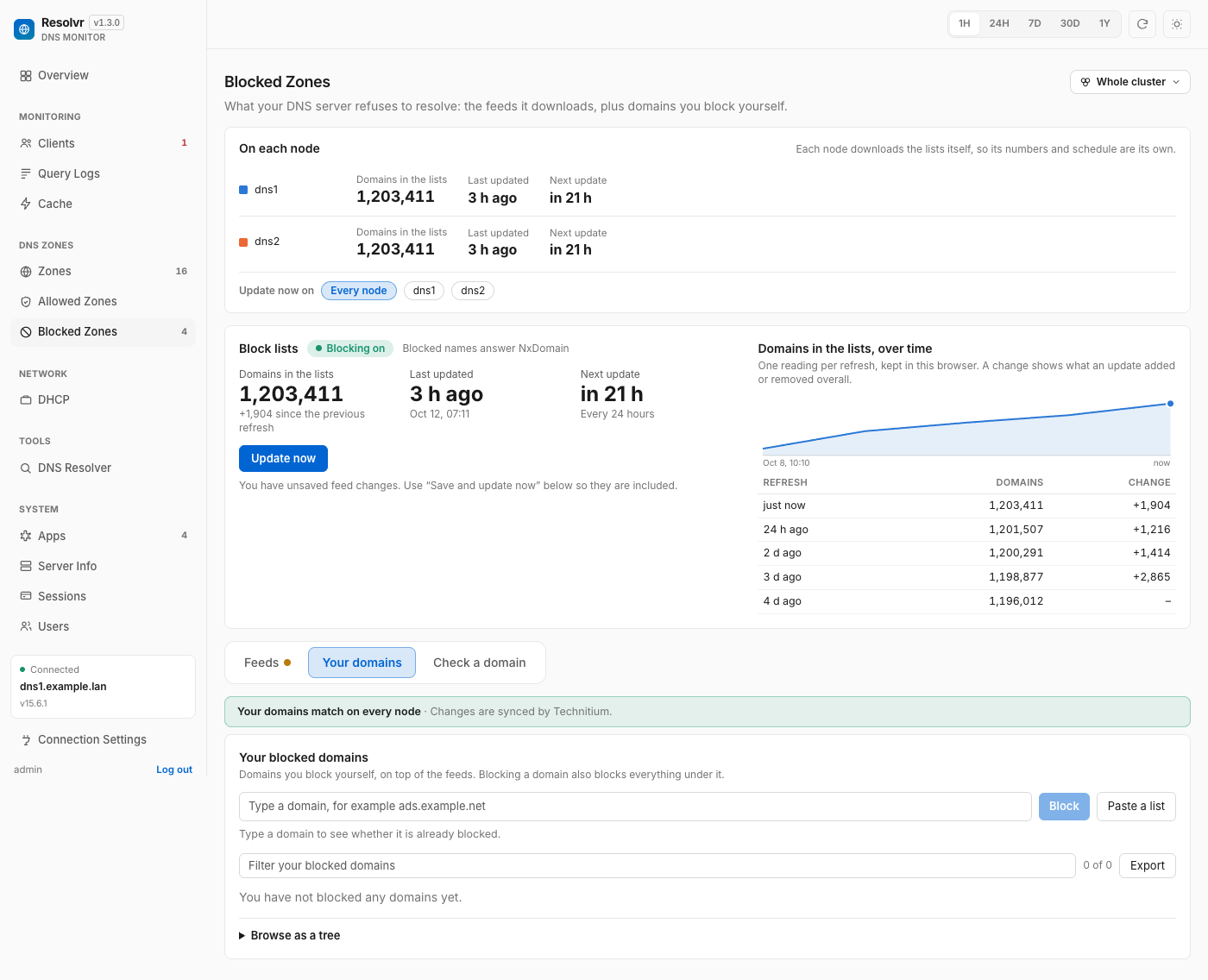
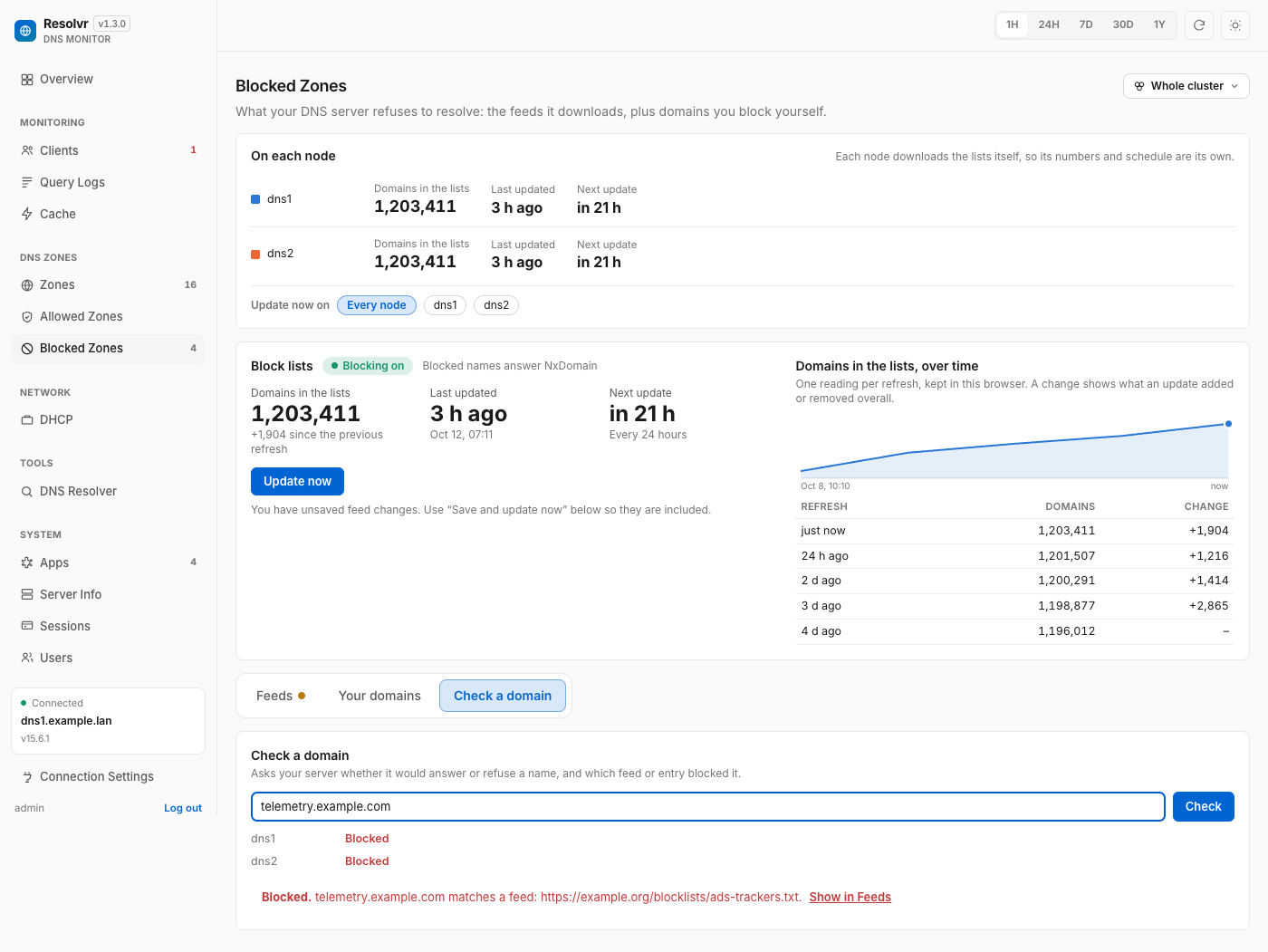
Blocked Zones — a status card showing when the block lists were last updated and when the next update is, with an Update now button and a history of how many domains the lists held after each refresh. Below it, three tabs: Feeds (add, remove, reorder and group the feeds you subscribe to, with one save bar), Your domains (a searchable list of domains you block yourself, with paste-a-list and undo), and Check a domain (asks your server whether a name is blocked, and which feed blocked it).
-
Technitium clusters — when the server you connect to is part of a Technitium cluster (v14 and later), Resolvr shows every node. A standalone server looks exactly as before, with none of the cluster additions.
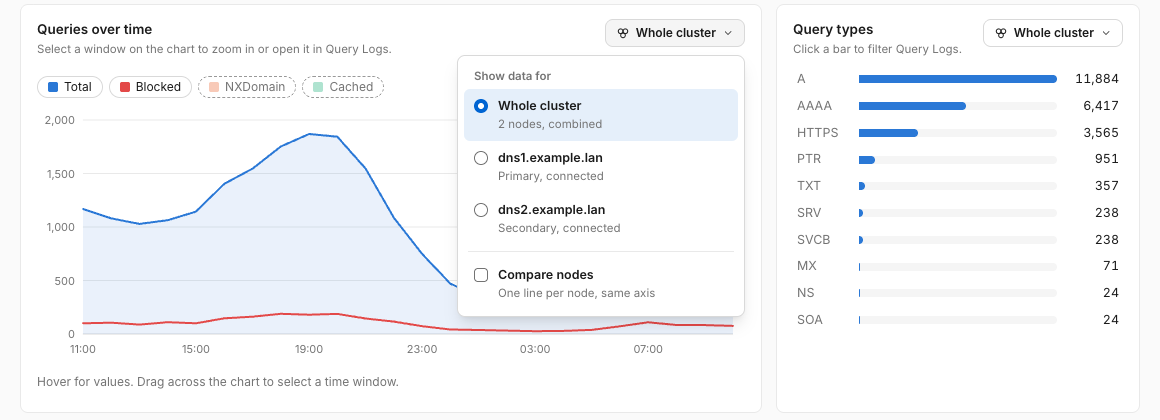
- Scope on every panel. Each Overview panel has a scope chip: Whole cluster (Technitium's aggregate statistics) or any single node. Panels fed by statistics default to the whole cluster, so one connection to any node covers all of them; response time, the resolution flow, DHCP, zones and cache are kept per node by Technitium, so those panels pick a node. Each panel remembers its choice in your browser.
- Overview. Compare nodes on Queries over time draws one line per node, and Infrastructure gains a Cluster nodes panel with each node's role, state and share of traffic.
- Clients. One scope for the whole page, so the list and the selected client agree. Each client's queries are merged from every node's query log, with a split bar per client, an Answered by strip, a By node activity view, a Node column in the latest queries, and a One node only filter that finds devices not using the second node.
- Query Logs. The nodes' logs are merged by time, with a Node column, per-node entry counts, an unreachable-node banner, and an export that merges every node into one CSV. Technitium pages each node's log separately, so merged paging stops at 1,000 rows; narrow the filters or export to go further, or pick a single node to page as deep as before.
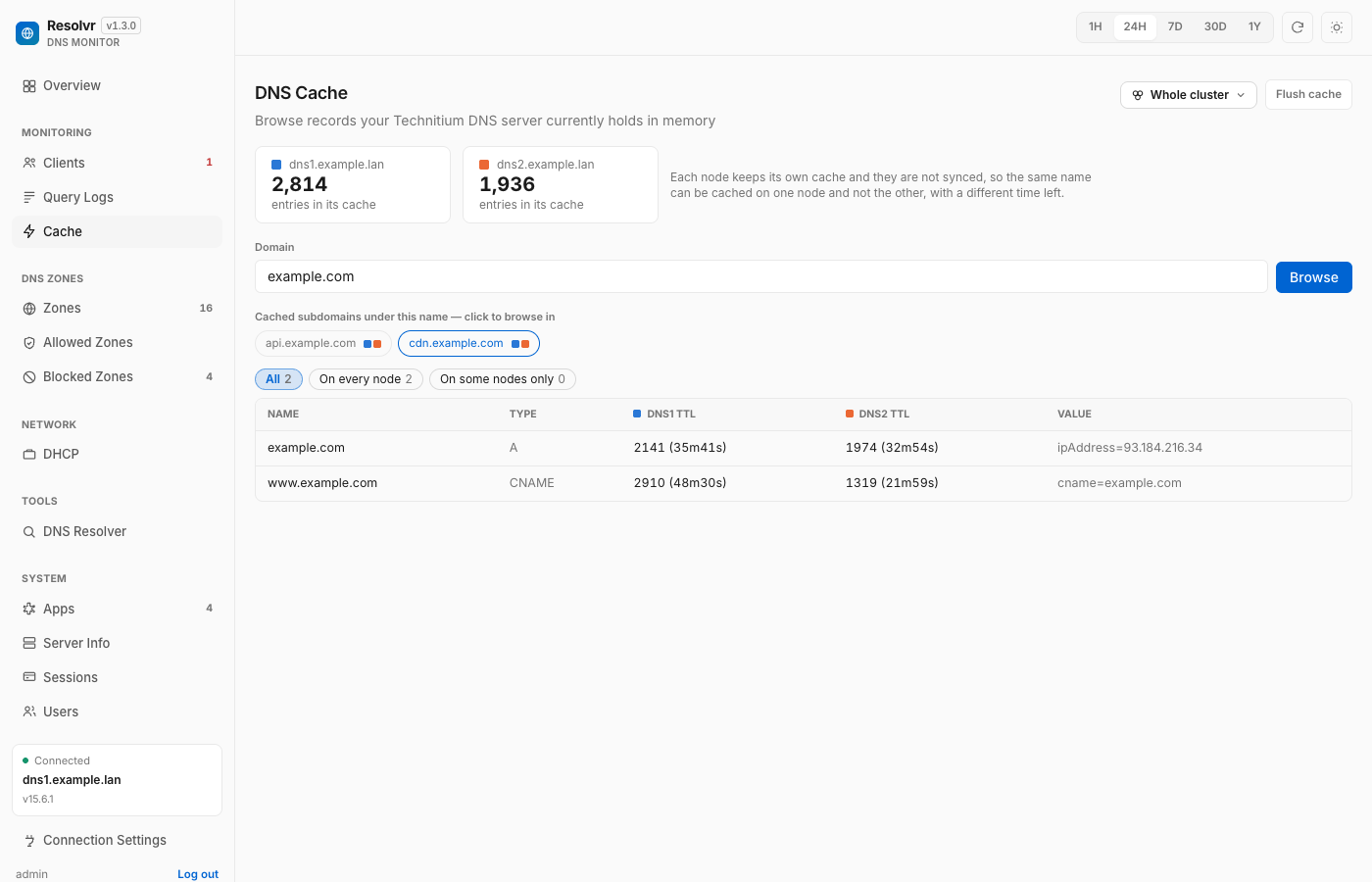
- Cache. The nodes' caches side by side (each node keeps its own and they are not synced): a time-left column per node, "not cached" where a node lacks a record, which node holds each subdomain, and a filter for records held on only some nodes. Flush asks which node to clear; the others are not touched.
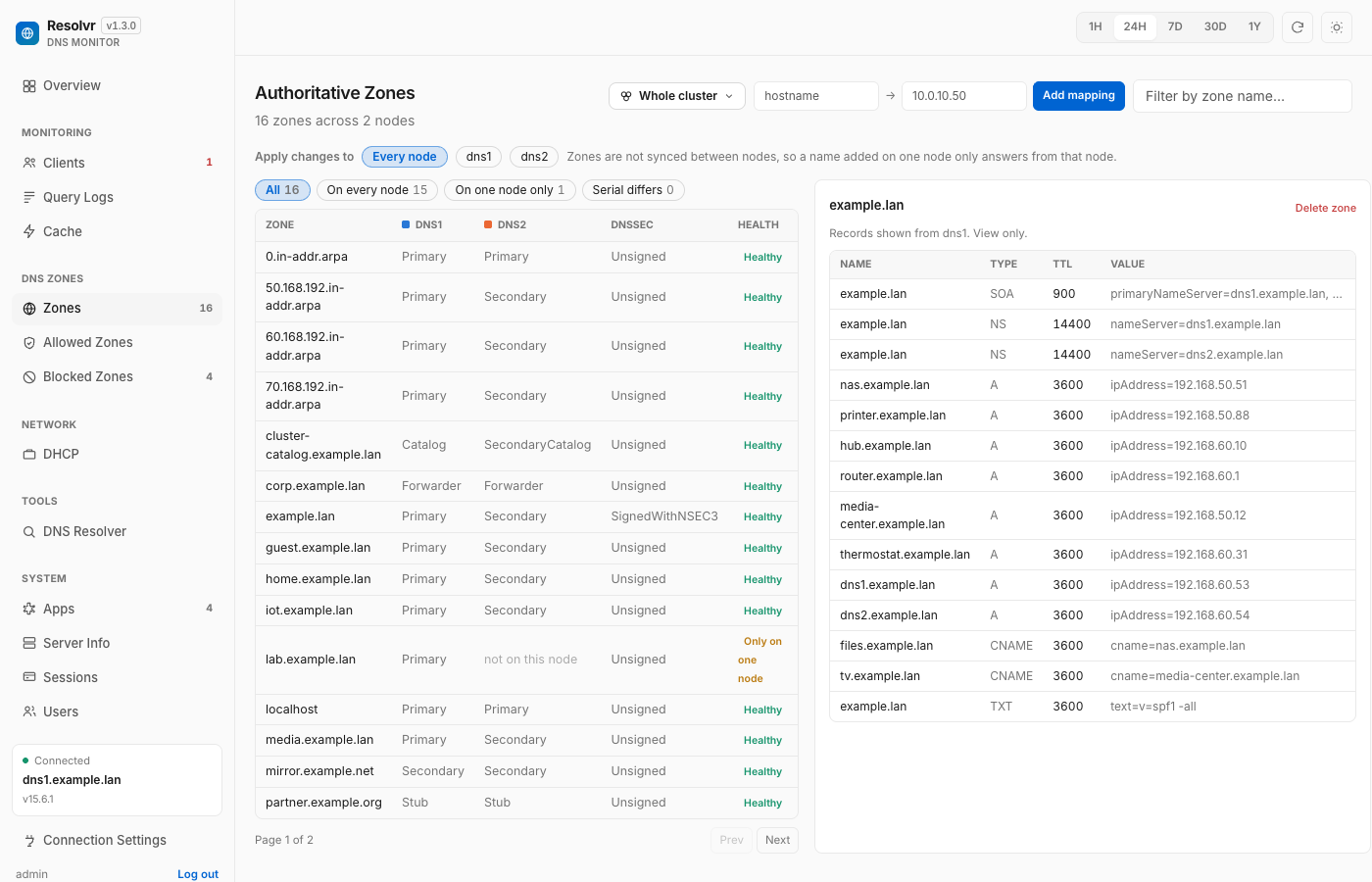
- Zones. Zones differ per node (only catalog zones are shared), so they are matched up by name with a type per node and flagged only on one node or serial differs. Add mapping and Delete ask which node(s) to apply to, every node by default.
- Allowed Zones and Blocked Zones. Technitium syncs these, so the pages show whether each node has caught up: a sync strip, per-node presence and counts, update schedule and Update now per node, whether the feed lists match, and a domain check that answers for each node.
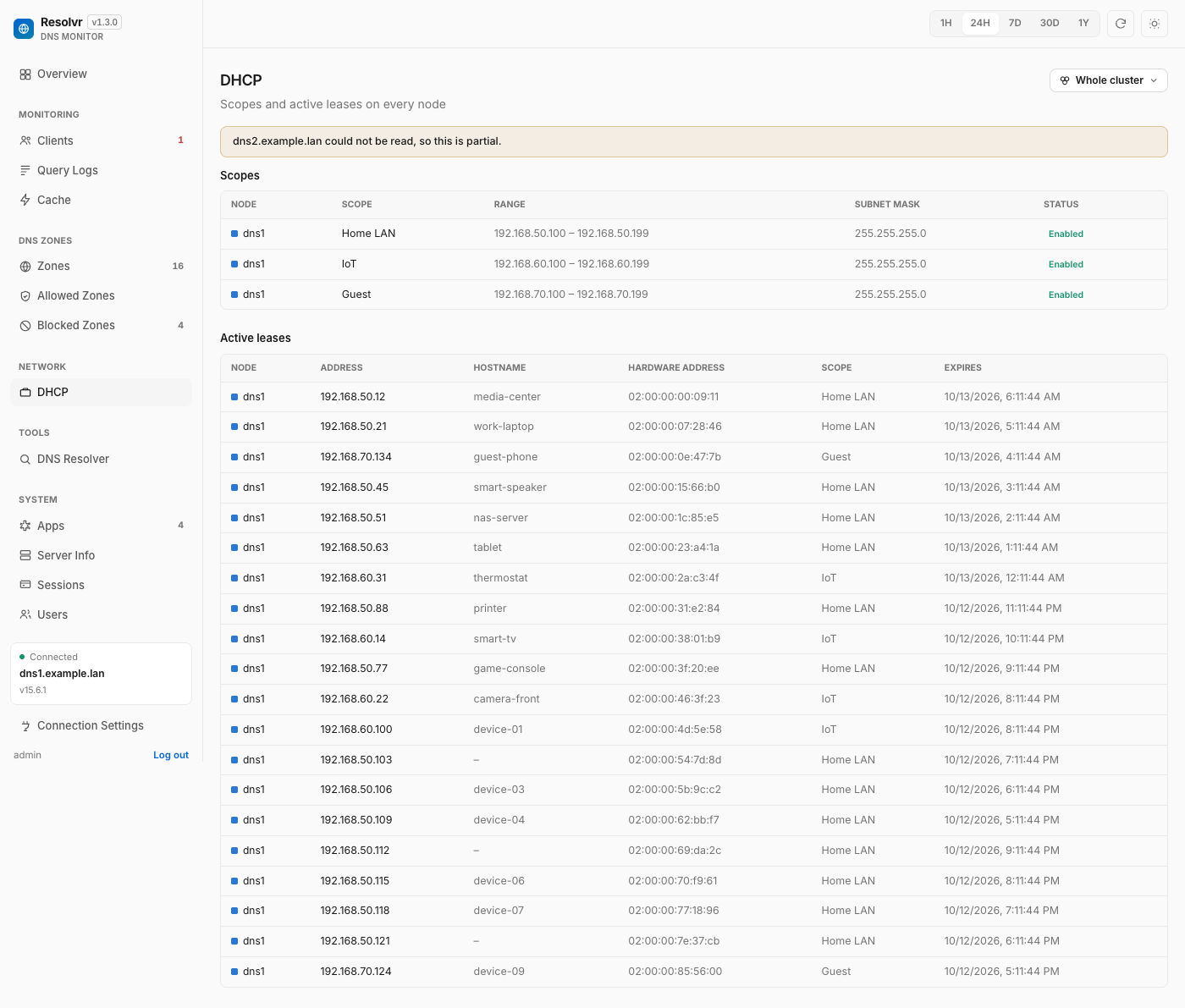
- DHCP. Scopes and leases are per node, so they are merged with a Node column, with a warning when the same scope range is defined on more than one node.
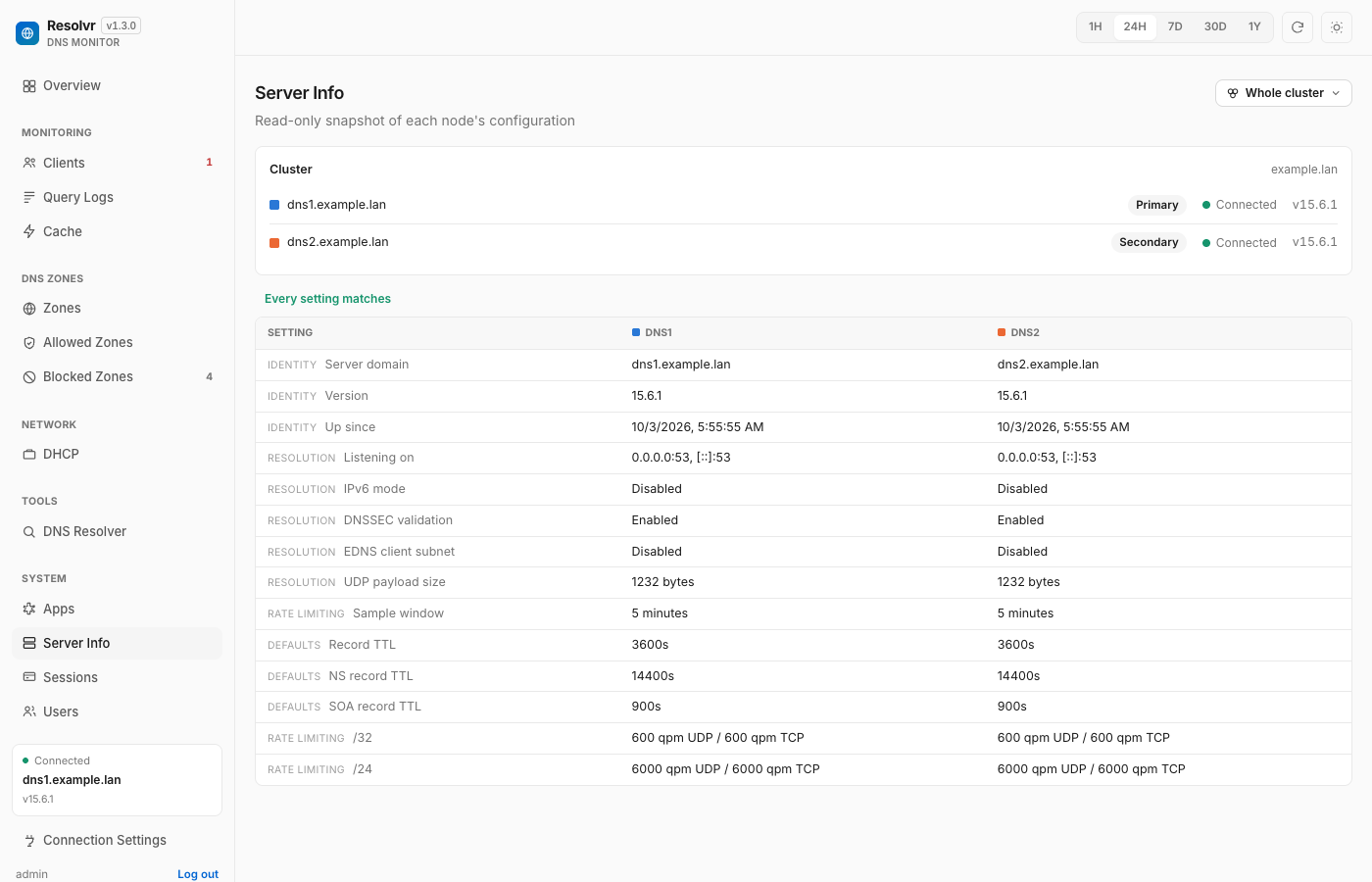
- DNS Resolver, DNS Apps, Server Info, Sessions. The resolver asks every node and says whether they agree. Apps shows each app's version on every node and not installed where missing, and uninstall asks which node. Server Info adds a Cluster card (roles, state, versions) and a side-by-side settings comparison that flags what differs. Sessions are merged with a Node column and revoked on the node a session is on.
- Unchanged. Users (Resolvr's own accounts) and Connection Settings are not Technitium cluster data.
-
Its own users and roles — Admins can manage users, edit the Technitium connection, and use the handful of mutating actions below; Viewers get full read access to every monitoring page and nothing else.
-
A set of deliberate, narrow admin actions on top of an otherwise read-only design: flush the DNS cache, force a block-list update, add/remove a blocked domain, edit block list feeds, revoke a stale session, uninstall an app, and manage simple host-to-IP mappings (create a zone, add an A/AAAA record, delete the zone — the same pattern as AdGuard Home's "DNS rewrites"). Each one is a single hardcoded call to a specific Technitium endpoint, gated to the admin role, and confirmed before it runs — never a general write proxy.
Resolvr never touches anything on your DNS server beyond that short, explicit list of admin actions — every other page only reads. A Viewer account can't use any of them.
The query-based panels (Resolution, Clients, Query Logs) need one of Technitium's query-logging apps installed on the server; the page tells you when it is missing. A few small things are remembered in your browser rather than on the server: the open tab, the block-list and cache history, and which clients you have already seen.
Screenshots
 |
 |
 |
 |
 |
 |
 |
 |
 |
 |
On a Technitium cluster
When the server you connect to is part of a cluster, each panel gets a scope chip and the pages that differ per node show the nodes side by side.
 |
 |
 |
 |
 |
 |
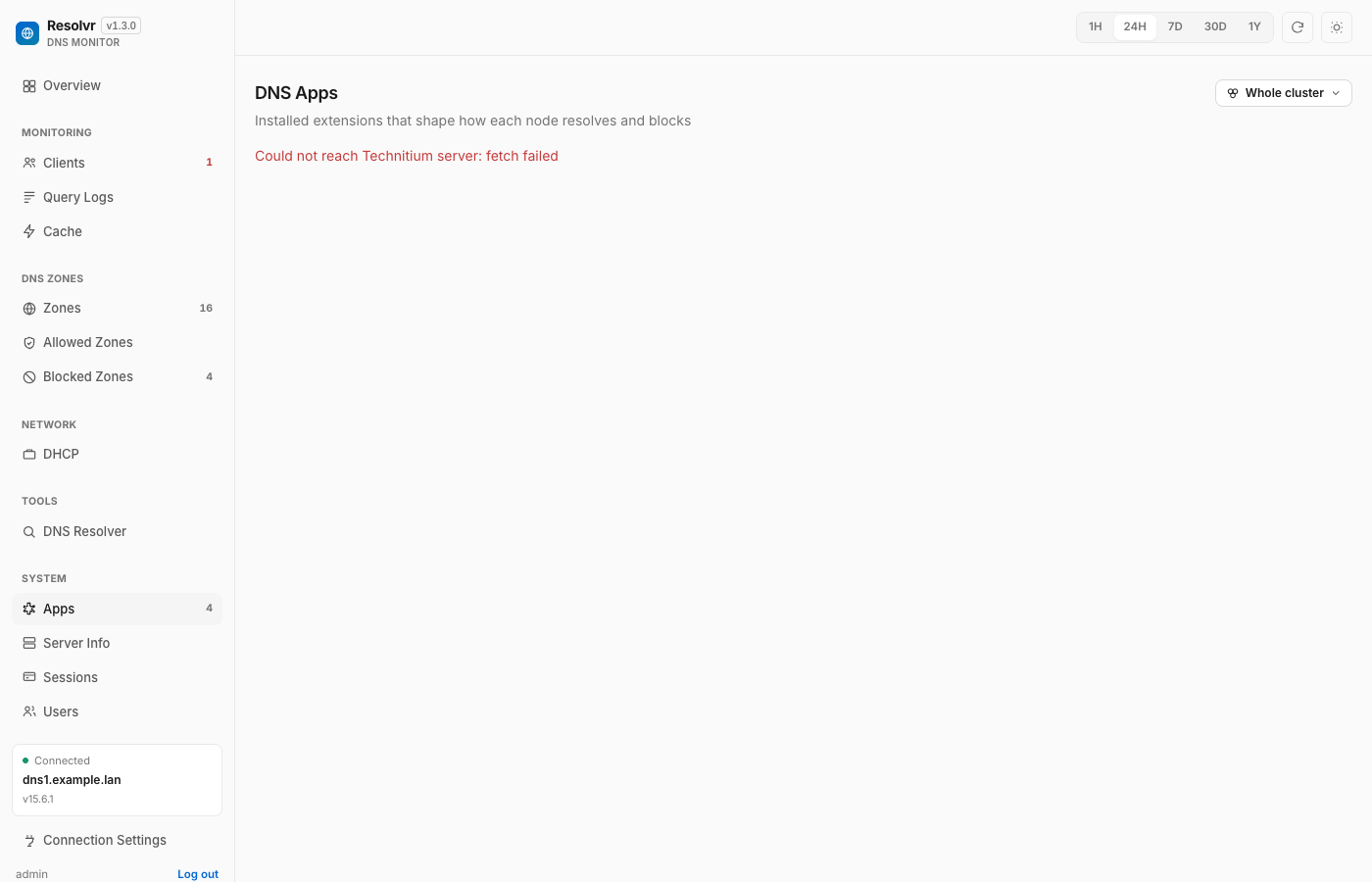 |
The screenshots use made-up data: private-range IPs, generic device names, example.* domains, and a two-node cluster called dns1.example.lan and dns2.example.lan.
Architecture
Two small services:
backend/— a stateless Node/Express proxy in front of Technitium's HTTP API (Technitium sends no CORS headers, so the browser can't call it directly), plus a small SQLite database (better-sqlite3) holding Resolvr's own users, sessions, and the shared Technitium connection config. The main proxy (/api/technitium/*) only forwardsGETrequests on a hardcoded allowlist of read endpoints — nothing else gets through, regardless of what a client sends. Separately, a handful of admin-only action routes (/api/actions/*) each call exactly one specific mutating Technitium endpoint — flush cache, force a block-list update, add/remove a blocked domain, edit block list source URLs, revoke a session, uninstall an app, create/delete a zone, add a record — gated by role, never a general write proxy.frontend/— a Vue 3 + TypeScript + Vite SPA, served as static files in production.
Browser → frontend (static SPA) → backend (Express) → Technitium DNS Server
Deploying
Option 1: Docker with pre-built images (fastest — no cloning)
Pre-built images are published to GHCR on every release: ghcr.io/bassem-elsodany/resolvr-backend and ghcr.io/bassem-elsodany/resolvr-frontend (tagged latest and by version). Save this as docker-compose.yml anywhere and run it — no clone, no build (also available as docker/docker-compose.prebuilt.yml in this repo):
Images are multi-arch (linux/amd64 and linux/arm64 — Raspberry Pi included).
services:
  backend:
    image: ghcr.io/bassem-elsodany/resolvr-backend:latest
    pull_policy: always   # always check the registry, don't reuse a stale local image
    ports:
      - "8787:8787"
    environment:
      - PORT=8787
      - DB_PATH=/app/data/resolvr.db
      - ADMIN_USERNAME=admin
      - ADMIN_PASSWORD=change-me-on-first-login
      - VIEWER_USERNAME=viewer
      - VIEWER_PASSWORD=change-me-on-first-login
      # - COOKIE_SECURE=true   # only if this is behind your own TLS proxy
    volumes:
      - resolvr-data:/app/data
    restart: unless-stopped

  frontend:
    image: ghcr.io/bassem-elsodany/resolvr-frontend:latest
    pull_policy: always
    ports:
      - "8080:80"
    depends_on:
      - backend
    restart: unless-stopped

volumes:
  resolvr-data:
With pull_policy: always, docker compose up -d re-checks the registry itself on every run — no need to remember docker compose pull separately. If you don't set this, Docker silently keeps running whatever image is already cached locally under the latest tag, even after a new one is published.
docker compose up -d
Then open http://<this-machine's-address>:8080 — localhost if you're on the same machine, or its LAN IP/hostname from anywhere else (e.g. a Raspberry Pi reached from your laptop) — and sign in with one of the seeded accounts below (see Configuration — change these passwords immediately from the Users page). No VITE_BACKEND_URL or FRONTEND_ORIGIN configuration needed: the frontend targets whatever host served the page on port 8787, and the backend accepts whatever origin the browser is actually using — both work correctly no matter which address you use to reach the UI.
Option 2: Docker, building from source
Same result as Option 1, but builds both images locally instead of pulling them — useful if you want to modify the code, or need a fixed VITE_BACKEND_URL/FRONTEND_ORIGIN for a split-host setup.
Requirements: Docker and Docker Compose.
cd technitium-dashboard   # this repo
docker compose -f docker/docker-compose.yml up -d --build
To stop it: docker compose -f docker/docker-compose.yml down (add -v only if you also want to delete the persisted database).
Docker environment variables
Set these under the backend service (in docker/docker-compose.yml, or the pre-built-image compose file above) before deploying anywhere beyond your own machine:
| Variable | Default | Purpose |
|---|---|---|
ADMIN_USERNAME |
admin |
Seeded as the first admin account on first boot only. |
ADMIN_PASSWORD |
change-me-on-first-login |
Change this. Only used the very first time the database is empty — changing it later has no effect on an existing install; change the password from the Users page instead. |
VIEWER_USERNAME |
viewer |
Optional — seeded as a read-only account alongside the admin above, on first boot only. Remove both VIEWER_* variables if you don't want one created. |
VIEWER_PASSWORD |
change-me-on-first-login |
Change this too, same first-boot-only caveat as ADMIN_PASSWORD. |
FRONTEND_ORIGIN |
(unset) | Optional. Unset means the backend accepts whatever origin the browser is actually using — correct by default since this app has no single fixed frontend address (localhost, a LAN IP, a hostname — all work). Set one exact origin here only to lock the app down to a single known address; anything else will then be rejected. |
COOKIE_SECURE |
(unset, insecure) | Optional. Unset (or anything other than true) means the session cookie is not marked Secure — required for login to work at all when this app is reached over plain HTTP, which is the normal case for a self-hosted LAN tool. Set to true only if you've put this behind your own TLS-terminating reverse proxy; a Secure cookie is silently dropped by the browser over plain HTTP, which looks exactly like "login succeeds but every next request says Not authenticated." |
DB_PATH |
/app/data/resolvr.db |
Where the SQLite file lives, on the resolvr-data named volume so it survives rebuilds. |
LOG_LEVEL |
info |
How much the backend logs: silent, error, warn, info or debug. See Logging. |
LOG_FORMAT |
text |
text for plain lines, or json for one JSON object per line (for Loki, Datadog and the like). |
LOG_REQUESTS |
true |
Set false to drop the one-line-per-request access log and keep everything else. |
The frontend image also takes a build argument, VITE_BACKEND_URL, left unset by default — the app then targets whatever host served the page, on port 8787, at runtime in the browser. Set it explicitly only for a split-host setup where the backend isn't reachable at that address (it has to be the backend's URL as seen from the browser, not from inside the frontend container, since Vite bakes it into the static build at build time).
If you're instead putting the frontend behind your own reverse proxy — one that forwards /api to the backend somewhere other than "this address, port 8787" (e.g. to the backend on the same public origin, no port) — set the BACKEND_URL container environment variable on the frontend service instead:
    environment:
      - BACKEND_URL=https://resolvr.example.com
Unlike VITE_BACKEND_URL, this is read at container start (see docker/docker-entrypoint.sh), so it works with the pre-built image too — no rebuild needed, and it can differ per deployment.
Option 3: a single container
The API can also serve the web app, so Resolvr runs as one container instead of two. This is the image the Home Assistant add-on uses.
curl -O https://raw.githubusercontent.com/bassem-elsodany/resolvr-dns-dashboard/main/docker/docker-compose.single.yml
docker compose -f docker-compose.single.yml up -d
Open http://<this-machine>:8080 and sign in with the account in the file (change the passwords). The image is ghcr.io/bassem-elsodany/resolvr (amd64 and arm64), tagged with each release version.
Home Assistant add-on
Resolvr also runs as a Home Assistant add-on, in the sidebar. It uses your Home Assistant sign-in, so there is no separate login, and the Technitium address and API token are set in the add-on's Configuration tab. Add https://github.com/bassem-elsodany/homelab-ha-addons as an add-on repository (Settings → Add-ons → Add-on Store → ⋮ → Repositories), then install Resolvr. See the add-on documentation.
Option 4: Standalone (without Docker)
Useful for local development, or if you'd rather run the two services with your own process manager (systemd, pm2, etc.) than with Docker.
Requirements: Node.js 24+.
1. Backend
cd backend
npm install
npm run build
PORT=8787 \
FRONTEND_ORIGIN=http://localhost:5173 \
ADMIN_USERNAME=admin \
ADMIN_PASSWORD=change-me-on-first-login \
VIEWER_USERNAME=viewer \
VIEWER_PASSWORD=change-me-on-first-login \
DB_PATH=./data/resolvr.db \
npm start
(For local development instead of a production run, use npm run dev — it watches for changes.)
2. Frontend
In a second terminal:
cd frontend
npm install
echo "VITE_BACKEND_URL=http://localhost:8787" > .env.local
npm run dev
Open the URL Vite prints (typically http://localhost:5173).
To build the frontend for a static production deploy instead of running the dev server:
npm run build # outputs to frontend/dist/ — serve it with any static file hostWhatever serves frontend/dist/ must be reachable at the origin you set as FRONTEND_ORIGIN on the backend, and the build must have been made with VITE_BACKEND_URL pointing at wherever the backend is reachable from the browser.
Configuration
On first boot (empty database), the backend seeds these accounts from the environment variables above — both are real, working logins on a fresh install:
| Username | Password | Role | Can do |
|---|---|---|---|
admin |
change-me-on-first-login |
Admin | Everything — manage users, edit the Technitium connection, and the handful of mutating actions (flush cache, block-list updates, etc.) |
viewer |
change-me-on-first-login |
Viewer | Every monitoring page, read-only. No Users, no Connection Settings, no mutating actions. |
Change both passwords immediately — from the Users page once signed in as admin. The viewer account is optional (see VIEWER_USERNAME/VIEWER_PASSWORD above); omit those two variables if you don't want one seeded.
After signing in:
- Go to Connection Settings (admin only) and point Resolvr at your Technitium server — its base URL and an API token (create one under Technitium's own Administration → Sessions → Create Token, or use a full login token). This is validated against the real server before it's saved, and shared by everyone who signs into this Resolvr instance.
- Go to Users to change both seeded passwords and add any other accounts —
admin(full access) orviewer(read-only).
Logging
The backend and the frontend container read the same settings, so one pair of variables quiets both. Set them in the container's environment (environment: in the compose file, or -e with docker run). The Home Assistant add-on takes the same three settings as options (log_level, log_format, log_requests) in its Configuration tab; an environment variable wins if both are set:
| Variable | Values | Default | Applies to |
|---|---|---|---|
LOG_LEVEL |
silent, error, warn, info, debug |
info |
backend, frontend |
LOG_REQUESTS |
true, false |
true |
backend, frontend |
LOG_FORMAT |
text, json |
text |
backend |
What each level prints:
| Level | Backend | Frontend (nginx) |
|---|---|---|
silent |
nothing | nothing |
error |
failures, such as Technitium being unreachable | errors |
warn |
+ warnings: failed sign-ins, a failed connection check, a refused proxy path, an admin action that did not go through | + warnings |
info |
+ startup lines, sign-ins and sign-outs, user and connection changes, one audit line per admin action (who, what, which node, result), and one line per request | + one access line per request, and notices |
debug |
+ the container healthcheck and the time each Technitium call took | + nginx's informational messages |
To cut the noise but keep the useful lines, use LOG_LEVEL=warn, or keep info and set LOG_REQUESTS=false. The healthcheck (/healthz) is only logged at debug. Passwords, session tokens and the Technitium API token are never written to the log, and neither are the domains, URLs or request bodies of admin actions. An unrecognised value falls back to the default and says so at startup.
services:
  backend:
    environment:
      - LOG_LEVEL=warn
  frontend:
    environment:
      - LOG_LEVEL=warn
Development
Both services have their own test suite and build:
cd backend && npm test && npm run build
cd frontend && npm test && npm run build
Type-checking runs as part of npm run build in both.