
Android TV Makeover
Debloat an Android TV over Wi-Fi, replace its ad-filled home screen with a clean Apple TV style launcher, control it from your phone, and add a fast live TV app for Indian channels. Everything is reversible.
- Launcher: your photos fading behind the home screen, a dock of 5 apps, a 5-column app grid, clock and greeting, YouTube / Instagram / Facebook follower counters, HDMI/AV switcher.
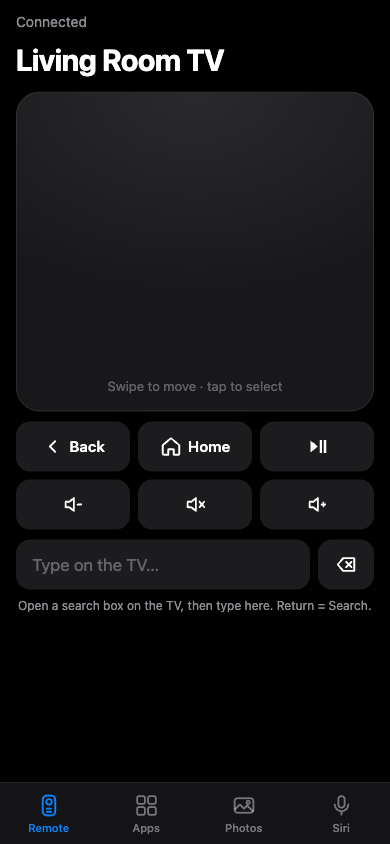
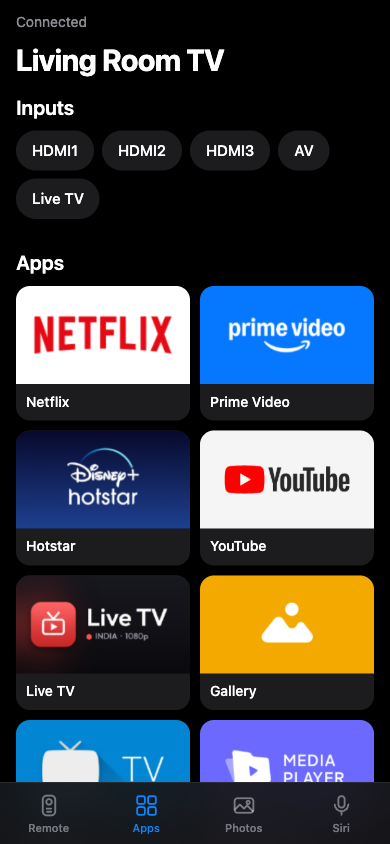
- Phone remote: a web page served by the TV. Trackpad, keyboard, volume, apps, inputs, sending photos to the TV, and Siri shortcuts. Works in Safari on iPhone and in any phone browser.
- Live TV app: Indian channels in categories, 1080p only, smooth on a 1 GB TV.
Built and tested on a Xiaomi MiTV-AXSO0 (Android TV 9, 1 GB RAM). It should work on most Android TV / Google TV sets (Xiaomi, TCL, Hisense, Sony, OnePlus, Realme, Nvidia Shield). It does not work on Samsung Tizen, LG webOS or Fire TV.
| Home screen | Inputs menu |
|---|---|
 |
 |
| App grid (5 per row) | Phone remote |
|---|---|
 |
  |
| Live TV app | Categories |
|---|---|
 |
 |
What's inside
| Path | What it is |
|---|---|
launcher/ |
Native Android TV launcher (Java, AndroidX RecyclerView, minSdk 28, ~40 MB RAM). Rotating photo wallpapers (or pitch black), a dock of five apps with a colour glow sampled from the focused app, a 5-column app grid below (the number per row is a setting), one glass focus highlight, clock and greeting in Outfit, frosted Inputs / Wi-Fi / Settings pills, follower counters, HDMI/AV/Live TV input switcher, deterministic D-pad navigation. Also runs the phone remote's web server. |
apps/live-tv/ |
Live TV app (Flutter), a modified fork of kananinirav/Indian-IPTV-App. Category sidebar, small channel logos, 1080p streams only, instant start from cache, Up/Down channel switching, automatic backup streams. See apps/live-tv/README.md. |
tools/tv |
Tiny ADB client in Python (adb-shell): shell, screenshot, push, pull, key. Works when macOS Local Network privacy blocks the stock adb binary. |
profiles/ |
Debloat profiles: which packages to disable for a given TV. |
PROMPT.md |
The prompt to give a coding assistant (e.g. Claude Code) to do all of this on your TV, step by step, with screenshots. |
Quick start
On the TV: Settings → Device Preferences → About → press OK on Build 7 times, then go back → Developer options → turn on USB debugging (and Network/ADB debugging if your TV shows it).
On a Mac or Linux computer on the same Wi-Fi:
./setup.sh
tools/find-tv.sh
Accept the "Allow USB debugging?" prompt on the TV (tick "Always allow"). Then back up first:
./backup.sh
1. Debloat
Profiles list packages to disable with pm disable-user (nothing is uninstalled). Package names differ
between brands, so for another TV copy the profile and edit it; check what a package does with
tools/tv shell "dumpsys package <name>". Never disable TV input services, the remote/Bluetooth
services, the keyboard, or Play Store/Services.
./disable.sh profiles/xiaomi-mitv-axso0.txt
2. Launcher
Edit launcher/app/src/main/res/values/config.xml (dock apps, hidden apps, greeting name, wallpaper),
then:
./build_and_install.sh
Needs JDK 17 and the Android SDK (platform 34, build-tools 34): brew install openjdk@17 and
brew install --cask android-commandlinetools, then
sdkmanager "platforms;android-34" "build-tools;34.0.0". If several apps claim Home, the script sets
the default with cmd package set-home-activity.
3. Live TV app (optional)
Needs Flutter (brew install --cask flutter):
./build_live_tv.sh
Undo everything
./restore.sh profiles/xiaomi-mitv-axso0.txt --uninstall
Or re-enable a single app: tools/tv shell "pm enable <package>".
Phone remote
The launcher serves a control page on your home Wi-Fi at http://<TV IP>:8080 (the IP is in
.tv-ip after tools/find-tv.sh, or in the TV's Wi-Fi settings).
- Open it in Safari (or any phone browser) on the same Wi-Fi.
- Tap Pair with TV. The TV asks "Allow this phone to control the TV?" over whatever is on screen: press Right, then OK on the remote. Each phone pairs once.
- On iPhone: Share → Add to Home Screen, and it opens full-screen like an app.
Four tabs:
- Remote: a trackpad (swipe to move, tap for OK), Back, Home, play/pause, volume and mute, and a keyboard that types live into whatever search box is open on the TV (Return = Search).
- Apps: every app on the TV with its banner, plus HDMI/AV/Live TV. Tap to open.
- Photos: add photos from the phone and frame them (drag and pinch; dashed boxes show where the clock, buttons and apps sit). They fade in on the home screen straight away. Tap a photo to show it now, re-frame it, replace it or remove it.
- Siri: links to paste into the Shortcuts app ("Get Contents of URL") so "Hey Siri, Netflix on TV" opens apps, and one for playing a shared YouTube link on the TV.
The first time you use the Remote tab, the TV asks Allow USB debugging?: tick Always allow and press OK. That's what lets the trackpad and keyboard press keys (see below).
How the trackpad and keyboard work. Android doesn't let an app press keys in other apps. The TV
already has network ADB switched on for this project, so the launcher connects to its own ADB
(127.0.0.1:5555, via dadb) and keeps one shell open. Each
key press is a single shell-builtin write of raw Linux input events to the remote control's
/dev/input device, so no process is started: it takes a few milliseconds instead of the ~1 s of
input keyevent on a slow TV. Key codes come from the remote's own key layout file, read from
dumpsys input at connect time, so it works on TVs whose remotes use different codes. Keys the
remote doesn't have (Enter, and on some TVs a few letters) fall back to input keyevent /
input text. See KeyInjector.java.
Security. Only paired phones can use the page, and pairing needs someone in the room: it's approved with the TV remote, so there is no code to guess from the network ("Don't allow" is selected first, one request at a time, a refused phone waits a minute). Paired phones get a random token, and "Unpair this phone" revokes it on the TV. Bodies from unpaired callers are capped at 4 KB. The server only answers requests addressed to an IP, which blocks DNS-rebinding attacks from websites. It is still plain HTTP on your home network, and the remote has the same power as network ADB (which anyone on your Wi-Fi can already reach while it's on), so use it on a network you trust.
Using the launcher
- Left/Right moves along a row; Up/Down always moves exactly one row.
- Up from the dock goes to the top buttons; Down from the dock scrolls into the app grid.
- Back returns to the dock. Home while already home also returns to the dock.
- Inputs opens HDMI / AV / Live TV; it switches through Android's TV input framework.
- It remembers the last tile you were on.
Changing the launcher
All in launcher/app/src/main/res/values/config.xml:
- Dock:
dock_packages, package names left to right. Find one withtools/tv shell "pm list packages | grep -i <name>". - Hide an app from the grid: add it to
hidden_packages. - Apps per row:
columns(3 to 6; 5 by default), for the dock and the grid. - Greeting name:
greeting_name(empty for just "Good evening"). - Wallpapers: add photos from the phone page (easiest), or put 1280×720 images named
wallpaper_1.jpg,wallpaper_2.jpg, … inlauncher/app/src/main/res/drawable-nodpi/before building. They're copied into the TV's photo store on first run and then managed from the phone. Awallpaper_1_o.jpgnext to one is its full-size version, used when re-framing. These files are git-ignored so personal photos don't get published.wallpaper_secondssets how often they change (30 by default);use_wallpaperfalsekeeps the background pitch black. - Follower counters:
youtube_channel,instagram_user,facebook_page. Leave any empty to hide it. They're read from each profile's public page every 30 minutes (no API keys), so they can stop updating if a site changes its page; they then keep showing the last number.
Troubleshooting
adbsays "No route to host" on macOS although the port is open: that's macOS Local Network privacy blocking theadbbinary.tools/tvdoesn't have that problem.- Home shows a chooser or the old launcher:
tools/tv shell "cmd package set-home-activity com.kulwant.atvhome/.HomeActivity" - The launcher crashes and Home does nothing:
tools/tv shell "pm enable com.google.android.tvlauncher" - The phone page doesn't load: the phone must be on the same Wi-Fi, and the address must be the TV's IP, not a name. If your router gives the TV a new IP now and then, reserve one for it in the router's DHCP settings, or the page and Siri links stop working.
- Pairing says the TV can't show the prompt:
tools/tv shell "appops set com.kulwant.atvhome SYSTEM_ALERT_WINDOW allow"(build_and_install.shdoes this). - The Remote tab shows a yellow message: accept "Allow USB debugging?" on the TV (tick Always allow). If network debugging was switched off, turn it back on in Developer options.
- Gradle says everything is up to date but the APK didn't change: build with
./gradlew clean assembleDebug --no-watch-fs. - Gradle can't download its distribution (Java connection timeout) but curl works: download the
zip named in
gradle/wrapper/gradle-wrapper.propertieswith curl and pointdistributionUrlat it withfile\:/path/to/zip.
Credits and licences
- Everything in this repo is MIT licensed (
LICENSE), except the parts below, which keep their own licences. - Live TV app: fork of kananinirav/Indian-IPTV-App
(MIT, see
apps/live-tv/LICENSE). It's a player for public playlists from iptv-org and hosts no content. - dadb (Apache 2.0), the ADB client the phone remote uses to press keys.
- Font: Outfit, SIL Open Font License (
fonts/OFL.txt). - App names and logos in screenshots belong to their owners.