
Penguin Mail
Mail and calendar for Linux and macOS, written in Rust.

Website · Watch the tour · Install · Features · Screenshots · Changelog
Penguin Mail is mail and calendar for Linux and macOS. It reads Gmail accounts, Microsoft accounts (Outlook.com, Hotmail, Live and Microsoft 365) and any IMAP and SMTP account, such as Fastmail, iCloud and Yahoo, and finds the server settings for you. It shows your accounts in one inbox or one at a time and keeps your mail on your own computer. On Linux, it can sync from the system tray. Gmail and Google Calendar accounts talk to Google directly, and Microsoft accounts talk to Microsoft Graph, so no other server sees your mail.
It is built with GTK and libadwaita and fits best on GNOME. It also runs on other Linux desktops and macOS. On macOS, Settings lives in the native app menu.
Features
Penguin Mail has mail for Gmail, Microsoft (Outlook.com, Hotmail, Live and Microsoft 365), IMAP and POP3 accounts, a calendar, contacts, OpenPGP and S/MIME, rules, and an optional assistant. An IMAP or POP3 account gets its calendar and contacts over CalDAV and CardDAV where the provider offers them, and an IMAP account its rules over ManageSieve.
Reading
- One inbox for every account, plus each account's Inbox, Flagged, Sent, Drafts and labels. A colored dot tells accounts apart.
- Conversations in one view. Older messages fold down to a line, and quoted text and signatures are dimmed. HTML mail renders in its own sandbox with scripts off and remote images blocked until you ask for them.
- Categories. A bar above the inbox splits it into Primary, Updates, Promotions and Social, using Gmail's own categories. Categorize Sender moves a sender to another category for good.
- Gmail search with its full query syntax, across one account or all, with suggestions for subjects, people and labels as you type.
- Junk, Trash and All Mail, for every account or one, read live from Gmail. Delete Forever asks you to confirm each time, and needs the permission signing in already asked for.
Writing
- A composer that shows formatting as you write. Recipients are chips, Cc and Bcc stay hidden until you want them, and attachments list their sizes. Replies and forwards thread correctly in Gmail, and drafts save to Gmail with their formatting, so they follow you to your phone.
- Markdown when you want it. Turn Markdown into Formatting styles the Markdown in the body, and Write in Markdown goes back. Paste, drop or insert images into the text.
- Recipient suggestions from your contacts and the people you have written to or heard from.
- Undo Send and Send Later. Sent mail waits a few seconds with an Undo button. Send Later schedules a message, which goes out on time while Penguin Mail runs, even in the tray.
- An Outbox. A message that cannot go out waits on this computer through a quit and a restart, and Penguin Mail tries again on a widening interval and as soon as the network comes back. Problems another try would not fix, such as a refused recipient or a message over Gmail's size limit, come back to you instead.
- Templates you drop in at the cursor, and a spelling check while you write.
Organizing
- Select several at once with Ctrl+click, Shift+click or Ctrl+A, then archive, trash, junk, flag, mark or label them together. Ctrl+Z undoes each one.
- One message at a time. Right-click a message inside a conversation to reply to it, archive it, trash it, mark it, flag it, label it or export it on its own. The rest of the thread stays where it is.
- Flags in seven colors, as in Apple Mail. The flag syncs through Gmail's star, and the color stays on this computer.
- VIPs. Their mail gathers in a VIPs mailbox, their rows get a star, and notifications can be limited to them.
- Smart Mailboxes: saved conditions such as sender, subject, label, age, size or attachments, for all accounts or one. They search Gmail, so they reach past the mail kept on this computer.
- Remind Me takes a conversation out of the inbox and brings it back, unread, when you choose. Follow Up lists mail you sent that has had no answer for three days. Mute keeps a noisy thread out of the inbox.
- Labels from the toolbar or with
l, nested as a tree under their account. Drag mail onto any mailbox or label to move it there. - Export a conversation or a selection as mbox, or one message as
.eml.
Gmail settings
- Rules: Gmail's filters, listed in plain words, with a form to add one.
- Automatic replies with a subject, message and optional dates.
- Unsubscribe and Block Sender. List mail shows an Unsubscribe banner that uses the list's one-click link when it has one.
- Hide My Email. Make a plus address, such as
you+kelp.ember795@gmail.com, for each site you sign up to, and turn it off to send its mail to the Trash. Your real address stays visible inside it, so this stops lazy spam, not a determined sender.
Gmail runs all four, so they work with your computer off.
Calendar
- A calendar beside your mail. Every calendar on every account, by day, week, month or a scrolling list, read from this computer. Answer Yes, Maybe or No on an invitation from its event, and search across every account's events.
Security and privacy
- OpenPGP and S/MIME through your own GnuPG. A signed message names its signer and says how far your trust database or the certificate chain vouches for it. An encrypted message opens and says it arrived that way. The composer has one Sign and one Encrypt for both standards and offers Encrypt once every recipient has a key. A Bcc stays blind under OpenPGP, which leaves that reader's key out of the message; S/MIME cannot, so a message with a Bcc is not encrypted under it. A draft of an encrypted message waits in Gmail encrypted to your own key, and opens again in the composer with Encrypt on. Penguin Mail holds no key and asks for no passphrase: gpg, gpgsm and their pinentry do.
- Remote content blocked twice, by a WebKit content filter and by the page's own Content-Security-Policy, with JavaScript off. Loading images is a choice per conversation, or per sender.
- Invitations show as a card above the message, and you can accept, decline or propose another time.
The assistant
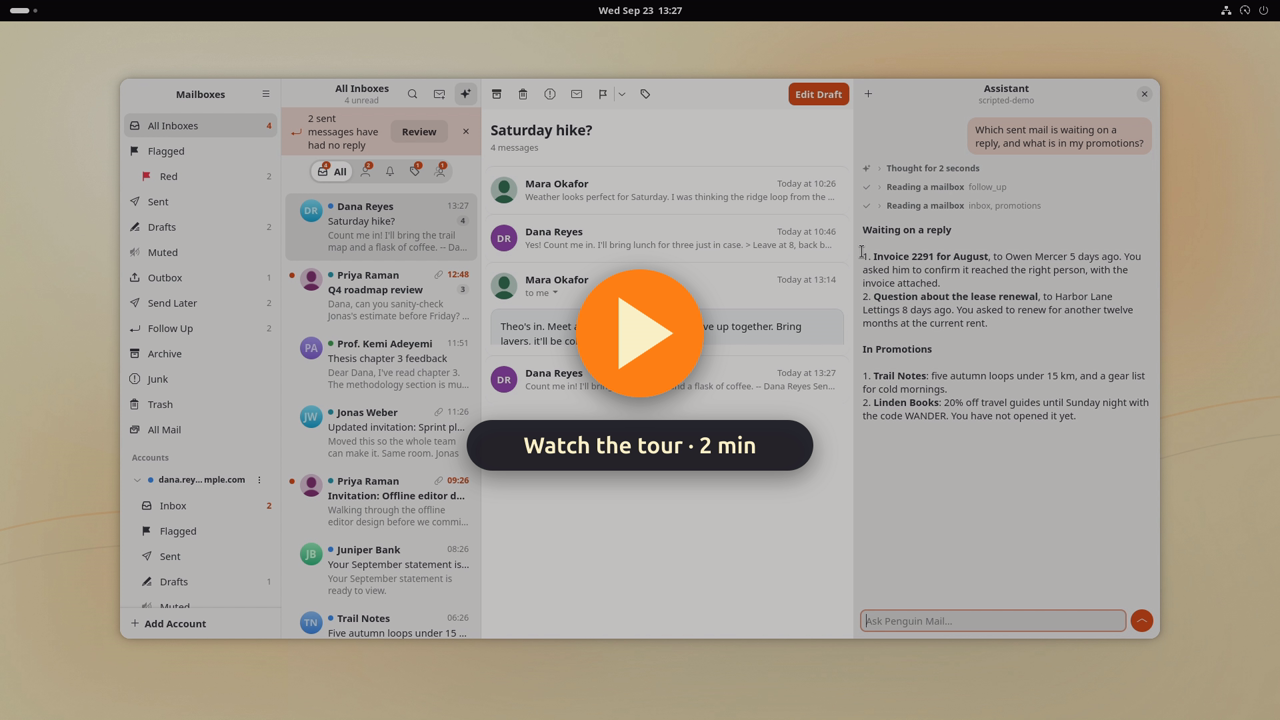
An assistant pane (Ctrl+J) summarizes, sorts, cleans up, drafts replies and changes settings such as an automatic reply, using the app's own tools. It also reads and changes your Google Calendar, finds free time, looks people up in your contacts, and reads attachments.
- Any model, per job. It runs on a local model (LM Studio, Ollama, or any OpenAI-compatible server), an Anthropic API key, or your Claude subscription through Claude Code, and translation can use a different model from the assistant.
- You see the work. Each answer shows the model's thinking and every tool it ran, folded up until you open them, and a line saying what it is doing right now.
- Web search, through Claude's own search or, for a local model, Brave Search or your own SearXNG.
- MCP servers you add give it more tools, and skills teach it your routines. A skill's scripts run in a sandbox with no access to your mail, keys or home folder.
It asks before it sends mail, changes Gmail settings or your calendar, or uses a tool from outside the app, and it is off until you pick a model. docs/assistant.md covers setup.
On the desktop
- Tray and notifications on Linux. An unread count in the tray, and new-mail notifications with Archive, Mark Read, Delete and Reply buttons.
- Light on memory on Linux. In the tray Penguin Mail uses about 55 MB. A minute after you close the window, it restarts itself in the background to give back the memory the window used.
- Apple Mail's shortcuts on Linux with Ctrl in place of Command, plus Gmail's single keys.
- American English, British English, French, German, Greek, Indonesian, Italian, Japanese, Korean, Polish, Romanian, Russian, Spanish, European Portuguese, Simplified Chinese, Traditional Chinese (Taiwan), Turkish, Ukrainian and Vietnamese, chosen in Preferences, with the window's controls named for screen readers.
Screenshots
The screenshots show the Linux build. The macOS app uses the same views with a native app menu.


| Week | Month | Agenda |
|---|---|---|
 |
 |
 |
| Invitation | Event |
|---|---|
 |
 |
| Dark | Writing | Narrow |
|---|---|---|
 |
 |
 |
| Several selected | Automatic reply |
|---|---|
 |
 |
| Flags | VIPs |
|---|---|
 |
 |
| Assistant | Categories |
|---|---|
 |
 |
| Send Later | Rules |
|---|---|
 |
 |
| Hide My Email | Preferences |
|---|---|
 |
 |
Install
Penguin Mail runs on Linux x86_64 and macOS Apple Silicon and Intel. On Linux, the .deb, the rpm and the Arch package need GTK 4.20, libadwaita 1.8 and WebKitGTK 6.0 from your distribution, as Ubuntu 26.04, Fedora 43 and Arch's own repositories have; the snap brings its own. On Ubuntu 24.04 and the releases built on it, such as Pop!_OS 24.04 and Linux Mint 22, apt refuses the .deb for its older GTK and libadwaita; install the snap there. The Flatpak comes from Penguin Mail's own repository, not Flathub. On Linux, the tray icon needs a StatusNotifier host, which Ubuntu's AppIndicator extension provides.
| .deb | rpm | Arch | Flatpak | Snap | |
|---|---|---|---|---|---|
| Updates | Install in the app, or apt upgrade |
dnf upgrade |
Download the new .pkg.tar.zst |
flatpak update |
Snap Store |
| GnuPG | the system's | the system's | the system's | the runtime's, on your ~/.gnupg |
the snap's, on your ~/.gnupg |
| Assistant skills | yes | yes | yes | no | no |
| Claude Code, and MCP servers you run as a command | yes | yes | yes | no | no |
| Tray icon | yes | yes | yes | yes | yes |
Skills are off in the Flatpak and snap because a skill's scripts run in a sandbox of their own, which cannot start inside either package's sandbox. Those sandboxes also keep the app from starting programs installed on your system, such as Claude Code. docs/setup.md has the details.
On macOS
Download the macOS zip for your computer from the
latest release:
macos-arm64 for Apple Silicon or macos-x86_64 for an Intel Mac. Unzip it,
move Penguin Mail.app to Applications, and open it from Finder. The bundle
includes its GTK libraries, so you do not need Homebrew to run it. The app
bundle records the minimum macOS version each build requires.
The macOS builds are not notarized yet, so their zips end in -unsigned
and macOS blocks the first launch. Open the app once, then go to System
Settings → Privacy & Security and choose Open Anyway; from then on it opens
normally. Notarized builds will come with the first release after the Apple
certificates are in place. To update, download the next macOS zip and replace the app in Applications.
Your mail and settings stay in your user folder. The macOS app has no tray
icon. GnuPG and command-line assistants are not bundled.
With apt (recommended on Ubuntu)
Penguin Mail has its own apt repository. Add its key and entry, then install:
sudo curl -fsSLo /usr/share/keyrings/penguin-mail-archive-keyring.gpg \
  https://c9dev.github.io/penguin-mail/penguin-mail-archive-keyring.gpg
sudo curl -fsSLo /etc/apt/sources.list.d/penguin-mail.sources \
  https://c9dev.github.io/penguin-mail/penguin-mail.sources
sudo apt update && sudo apt install penguin-mail
sudo apt upgrade then brings each new version with the rest of the
system. The key's fingerprint is
FE3C 3B6E 699A F939 DC46 70DC F3A8 5303 5C3E 2B8E.
From a release
Download the .deb from the
latest release and
install it, replacing X.Y.Z with the version:
sudo apt install ./penguin-mail_X.Y.Z_amd64.deb
apt pulls in the libraries it needs. The .deb also adds the apt
repository above, so later versions arrive with sudo apt upgrade.
Without root
The same release has a tarball and a zip that install under ~/.local:
tar xzf penguin-mail-X.Y.Z-x86_64.tar.gz
cd penguin-mail-X.Y.Z-x86_64
./install-files.sh .
It starts in the tray at login unless you run it as
NO_AUTOSTART=1 ./install-files.sh ..
To check a download, fetch the release's SHA256SUMS and
SHA256SUMS.asc and the apt repository's key from above, then:
gpgv --keyring ./penguin-mail-archive-keyring.gpg SHA256SUMS.asc SHA256SUMS
sha256sum -c --ignore-missing SHA256SUMS
With dnf, on Fedora
Penguin Mail has a dnf repository beside the apt one, signed with the same key:
sudo curl -fsSLo /etc/yum.repos.d/penguin-mail.repo \
  https://c9dev.github.io/penguin-mail/rpm/penguin-mail.repo
sudo dnf install penguin-mail
dnf asks you to accept the key the first time. sudo dnf upgrade brings
each new version, and the .rpm on the releases page adds the repository
too.
With Flatpak
Install from Penguin Mail's signed Flatpak repository:
flatpak install --user https://c9dev.github.io/penguin-mail/flatpak/penguin-mail.flatpakref
The install adds the repository, so flatpak update brings later versions.
The GNOME runtime comes from Flathub. The repository uses the signing key
shown under apt above.
On Arch
# Build release package from source
yay -S penguin-mail

# OR install the binary release
yay -S penguin-mail-bin
From the Snap Store
sudo snap install penguin-mail --edge
The snap waits for the Snap Store to approve its access to ~/.gnupg and
to the keyring, and the command above finds it once the store has. New
versions reach the edge channel first. The snap is strictly confined, and
signing and encryption use your own keys.
From source
CONTRIBUTING.md has the steps, and how to build the Flatpak yourself.
With Nix, nix run github:c9dev/penguin-mail -- --demo runs the app on
sample mail. See the Nix guide for installation and account
sign-in.
First run
The first screen signs you in with Google. Sign In with Google opens Google's sign-in page in your browser, and Add Account in the sidebar adds each account after that.
Until Google finishes verifying Penguin Mail, that page warns that Google has not verified the app. The warning means Google has not yet reviewed the app's request for Gmail access; choose Advanced, then continue.
Updates
A Penguin Mail installed on Linux from the .deb, tarball or source checks GitHub for a new release once a day. When one is out, it says so in a notification, a banner across the window, and the tray menu, and Install does the rest:
- From the .deb or the apt repository, it downloads the new
.deband installs it with apt. GNOME asks for your password, because apt changes files under/usr.sudo apt upgradeinstalls the same version, if you would rather update that way. - From the tarball or from source, it downloads the new tarball and installs it into the same folder as before, with no password.
Before it installs anything, Penguin Mail checks that the release's
SHA256SUMS carries a good signature from the apt repository's key,
which is built into the app, and then checks the download against those
sums. It refuses a release whose signature is missing or made by any
other key, and the update log says so. Once the new version is in,
Penguin Mail restarts into it. With a message open in
the composer, it waits and shows Restart instead, since a draft saves
only when you save it.
Check for Updates in the tray menu checks at once. To stop the daily
check, turn off Check for Updates under Preferences, Startup. A copy run
with cargo run or as the demo never checks.
The rpm leaves updates to dnf, and the snap to the Snap Store. Those copies never check GitHub and offer no Install of their own; Preferences and the About window say who brings updates.
The macOS app has no in-app installer. Download the next macOS zip from the
releases page and replace Penguin Mail.app in Applications.
To update by hand, download the new release and install it the same way as
the first time. For a copy built from source, pull and run
scripts/install.sh again.
Try it without an account
penguin-mail --demo
On macOS, run "/Applications/Penguin Mail.app/Contents/MacOS/penguin-mail" --demo
from Terminal instead.
The demo opens three sample accounts in a throwaway store. Search, triage, the composer and attachments all work against sample data, and nothing talks to Google.
Usage
Keyboard
On Linux, Apple Mail's shortcuts work with Ctrl in place of Command.
Gmail's single keys work whenever you are not typing. Ctrl+? lists every
shortcut. On macOS, open Keyboard Shortcuts from the window's main menu
to see the keys for that build.
| Key | Action | Key | Action |
|---|---|---|---|
j / k |
Next / previous conversation | Ctrl+R or r |
Reply |
Ctrl+Alt+A or e |
Archive | Ctrl+Shift+R or a |
Reply all |
Delete or # |
Move to trash | Ctrl+Shift+F or f |
Forward |
Ctrl+Shift+J |
Junk | Ctrl+N or c |
New message |
Ctrl+Shift+L or s |
Flag or unflag | Ctrl+Shift+D |
Send |
Ctrl+Alt+1 to Ctrl+Alt+7 |
Flag color | Ctrl+Shift+A |
Attach files |
Ctrl+Shift+U or u |
Mark read or unread | Ctrl+B / Ctrl+I / Ctrl+K |
Bold, italic, link |
Ctrl+Alt+M or l |
Labels | Ctrl+F or / |
Search |
Ctrl+Z |
Undo | Ctrl+1 to Ctrl+9 |
Open a mailbox |
Ctrl+A |
Select all | Ctrl+= / Ctrl+- / Ctrl+0 |
Text size |
Ctrl+Shift+N or F5 |
Check for mail | Ctrl+P |
|
Ctrl+O or double-click |
Open in a new window | Ctrl+Alt+U |
View source |
Command line
penguin-mail --background             # on Linux, start in the tray
penguin-mail --compose                # new message
penguin-mail mailto:ann@example.com   # new message to Ann
penguin-mail --version
On Linux, to make Penguin Mail open mailto: links:
xdg-mime default io.github.c9dev.PenguinMail.desktop x-scheme-handler/mailto
On Linux, the running app answers D-Bus actions, for custom shortcuts:
gdbus call --session --dest io.github.c9dev.PenguinMail --object-path /io/github/c9dev/PenguinMail \
    --method org.gtk.Actions.Activate show-window [] {}
The actions are show-window, hide-window, compose, check and quit.
When built from source, penguin-mail-cli drives the same sync core without
a window: account add, sync, threads, show, triage and export.
Privacy
- Penguin Mail talks to Google's APIs straight from your computer. No Penguin Mail server sits in between.
- Refresh tokens live in Keychain on macOS or the desktop keyring on Linux. The config file holds sync settings and, for accounts added through the old setup page, their Google client ID and secret, readable by you alone.
- Mail is cached in
~/.local/share/penguin-mailon Linux or~/Library/Application Support/penguin-mailon macOS: the last 30 days plus everything in your inbox. Opening an older thread fetches it on demand. - The assistant is off until you pick a model. A local model keeps mail on your computer; the Anthropic API and Claude Code send what the assistant reads to Anthropic. API keys live in the same credential store.
The full policy is in docs/privacy-policy.md.
Help and feedback
Questions, bug reports and ideas are welcome in Issues. CONTRIBUTING.md says what a useful report holds, and how the code is built and tested. SECURITY.md says where to send a vulnerability.
License
Penguin Mail is free software under the GNU General Public License, version 3 or later.
The icon is a penguin holding a letter, drawn on the rounded square and bevel of the Gruvbox Plus icon pack so it sits among that pack's apps.