


frun
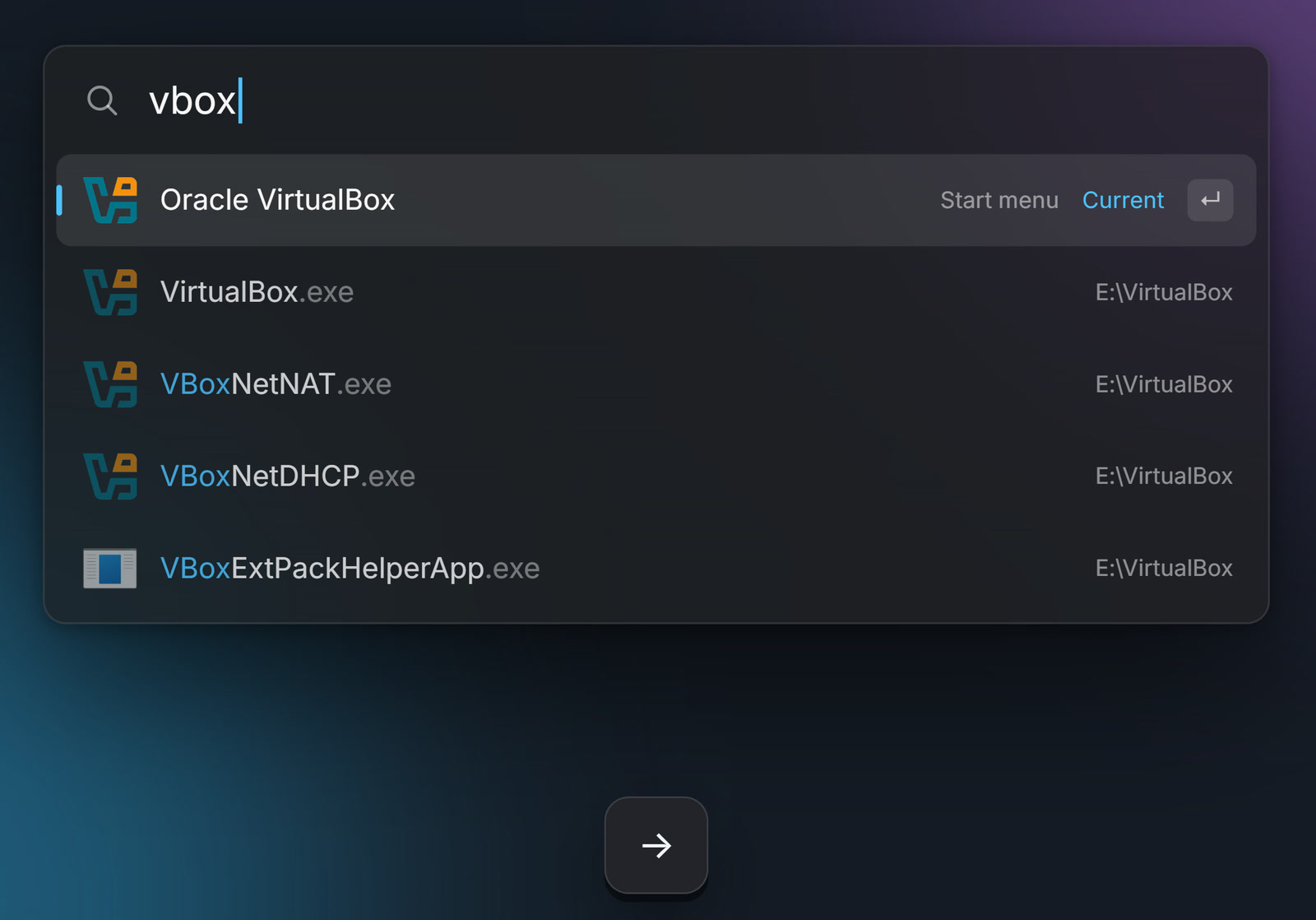
Alt + Space. A few letters. Enter.
A small, quiet program launcher for Windows.
中文 · Keys · Get it · MIT License

frun looks for programs and nothing else. It finds them wherever they live: the Start menu, the Microsoft Store, and the small tools you keep in folders like D:\Tools that never made it into the Start menu. Your documents stay out of the way.
What it does
Type a name, or its pinyin
wx finds 微信 (WeChat), vsc finds Visual Studio Code. Enter opens the top row; Alt + a number opens that row.
One program, one row
A program folder often holds a dozen exes: the app, its updater, crash reporters, helpers. frun lists the program once and keeps the rest behind it. Press → to see them.
Paths work too
Type d:\so, press Tab to complete, keep typing, press Enter, and the folder opens in Explorer.

Right-click for the rest
Open as administrator, open the containing folder, hide a program you never want to see again (Ctrl + Z brings it back), or stop searching a folder.

Light and dark
It follows the Windows theme, or you can pick one. With more than one screen, it opens on the screen your mouse is on.

Open everything as administrator, if you want
Turn on Open as administrator in Settings → General, and every program you start from frun runs elevated. Windows still asks each time, as it should. frun itself never asks for administrator rights. Microsoft Store apps are left alone, because Windows does not let them run elevated this way.


Nothing to set up
On first run frun reads the install records Windows keeps, works out which folders hold your programs, and adds them. When you install something new, it shows up on its own.
Keys
| Key | What it does |
|---|---|
| Alt + Space | Show or hide (you can change it in Settings) |
| Enter | Open |
| Alt + 1 … 8 | Open that row |
| → | Show the other exes in a program's folder (← folds them back); accept a path completion |
| Tab | Accept a path completion; otherwise move to the next row |
| Ctrl + Shift + Enter | Open as administrator |
| Ctrl + Enter | Open the containing folder |
| Ctrl + Delete | Hide this program; Ctrl + Z to undo |
| Ctrl + , | Settings |
| Esc | Back, or hide |
Small on purpose
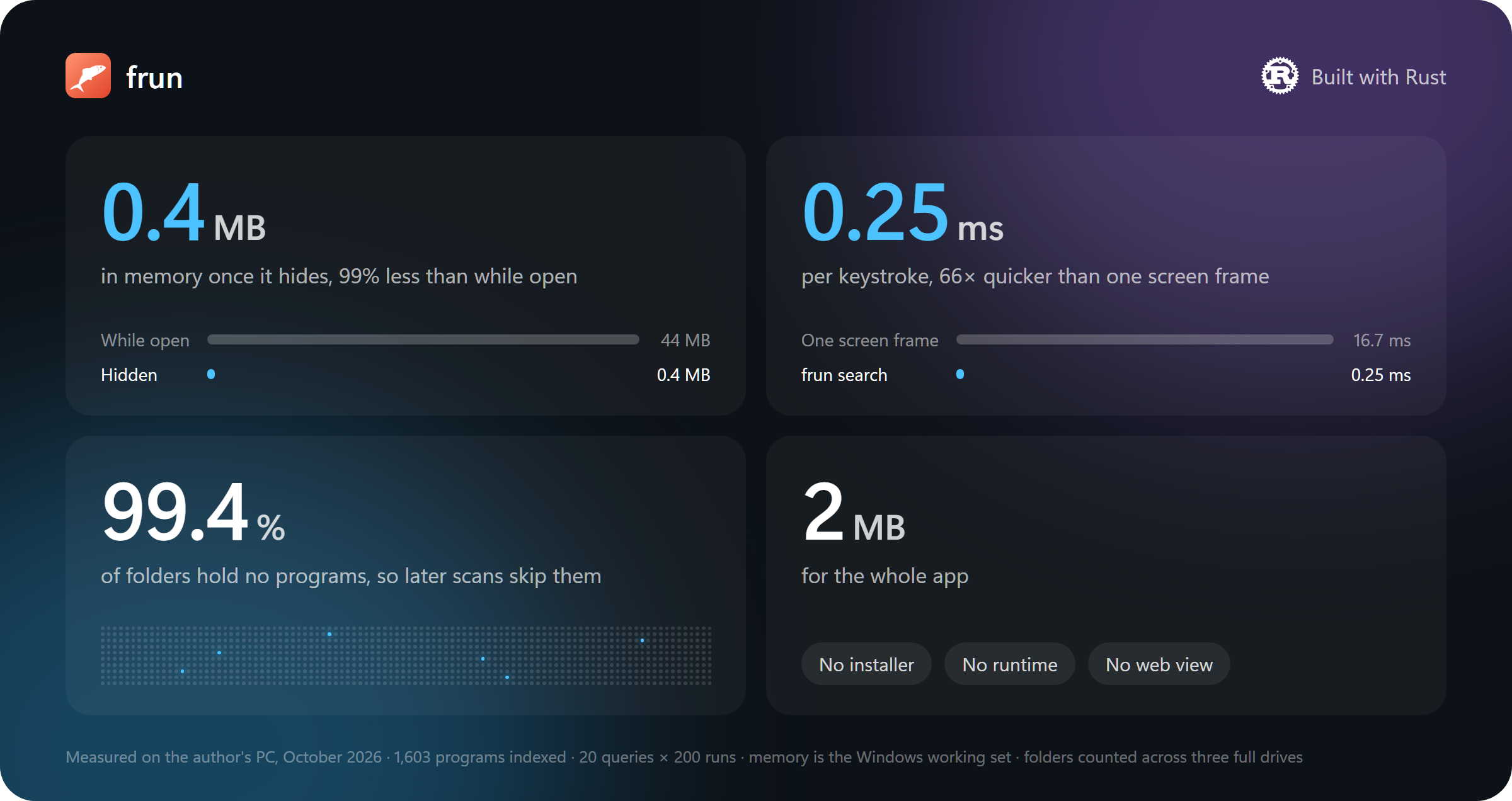
One exe of about 2 MB, written in Rust. No installer, no runtime, no web view. Measured on the author's machine with 1,603 programs indexed:
Get it
Download frun.exe from Releases, put it anywhere you like, and run it. It needs Windows 10 or 11. Turn on Launch at startup in Settings if you want it there after a restart. New versions arrive on their own: frun downloads them in the background, checks them against the published SHA-256, and switches over the next time it hides.
The exe is not code-signed yet, so the first time you run it Windows SmartScreen may say it protected your PC. Choose More info, then Run anyway.
To build it yourself instead, install Rust and run:
cargo build --release
To remove frun, turn off Launch at startup, quit it from the tray icon, and delete frun.exe along with the %APPDATA%\frun and %LOCALAPPDATA%\frun folders.
Your data
Settings and usage counts live in %APPDATA%\frun; the index and icon cache live in %LOCALAPPDATA%\frun and can be deleted at any time. frun sends nothing anywhere. Its only network request is a check of this repository's Releases page, at most once a day, for a newer version. You can turn that off in Settings.
If frun misses a program or shows one it shouldn't, run frun --doctor. It writes a report to %LOCALAPPDATA%\frun\doctor.txt and opens it. The report lists folder and program paths from your computer, so read it before you attach it to an issue. How issues are handled, and why pull requests from outside are not accepted, is in CONTRIBUTING.md.
License
MIT, see LICENSE. The interface font is a subset of Sarasa Gothic under the SIL Open Font License 1.1, see assets/FONT-NOTICE.md. The Rust logo in the figure under Small on purpose is © the Rust Foundation, used under CC BY 4.0 and recolored white; frun is not affiliated with the Rust project.