

Discover AI: A Learning Guide
A desktop app that teaches you how modern AI works by letting you play with it.
There are 51 small hands-on labs. In each one you move a slider, click a word, or train a tiny model, and you watch what changes. Next to every lab there is a short lesson that explains what you just saw. You can read it in short, simple sentences, in plain everyday words, or in the more technical version.
Try it in your browser. There's nothing to install.
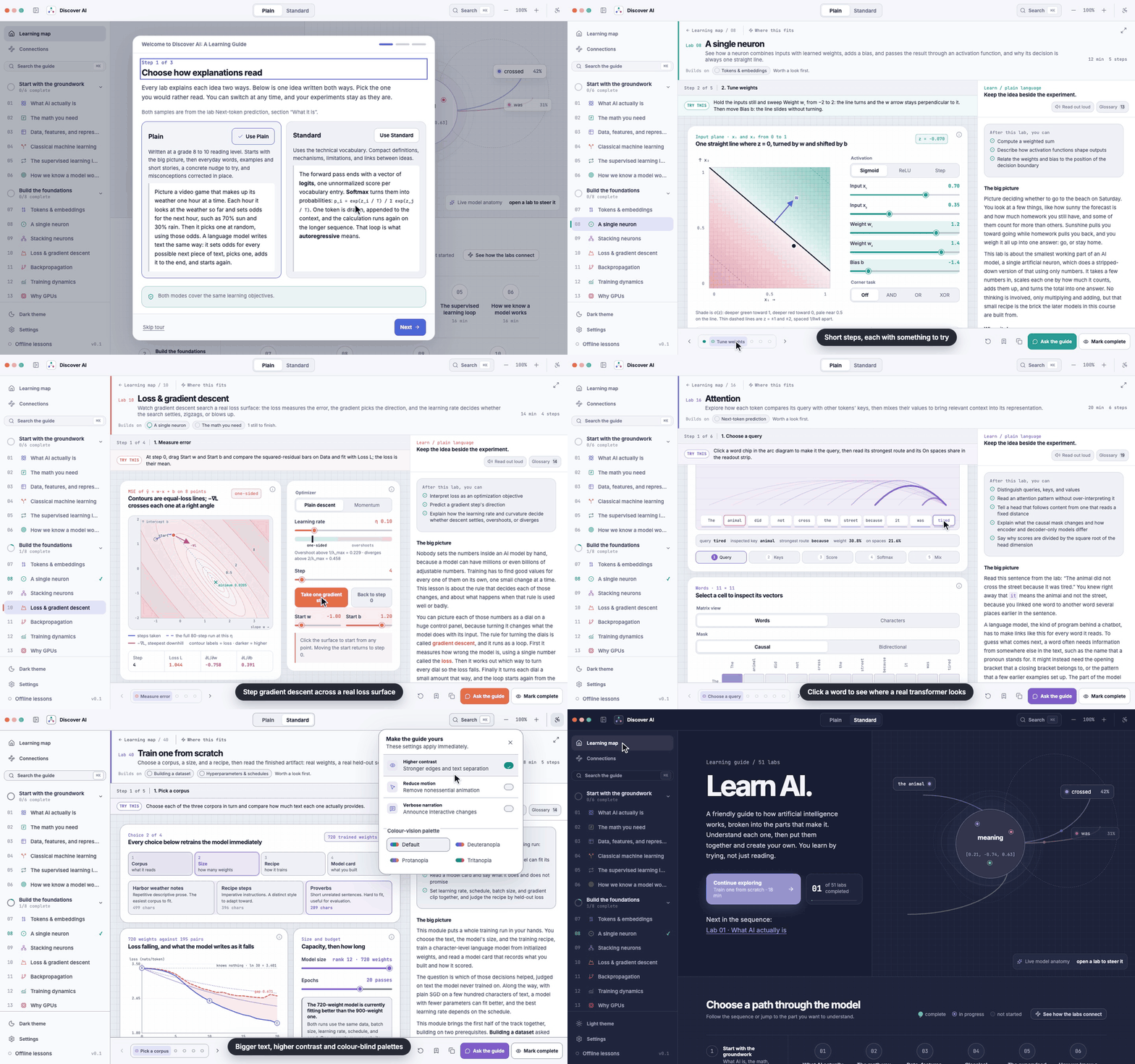
Watch the tour as a video for a sharper version.
About
I wanted to create a single place for anyone to learn AI. One that runs on your own computer, keeps track of what you've learned, lets you challenge yourself when you're ready, and makes hard ideas easier to understand through visuals and hands-on play.
What's inside
The 51 labs are split into six groups. You can go in order or jump to whatever you're curious about.
| Group | What you'll learn |
|---|---|
| Start with the groundwork (1 to 6) | What AI is, the math you need, data and features, classic machine learning, the training loop, and how we know a model works |
| Build the foundations (7 to 14) | Tokens and embeddings, a single neuron, stacking neurons, loss and gradient descent, backpropagation, training dynamics, why GPUs matter, and the main model types |
| Look inside models (15 to 21) | Next-token prediction, attention, the transformer block, the KV cache, attention at scale, scaling laws, and structured decoding |
| Build with a trained model (22 to 27) | Search with embeddings, RAG, tools and function calling, agents, multimodal models, and failure modes and safety |
| Explore the frontier (28 to 35) | Reinforcement learning, post-training, in-context learning and reasoning, diffusion, the AI ecosystem, ethics, and interpretability |
| Train and adapt a model (36 to 51) | A full training run from start to finish: datasets, synthetic data, hyperparameters, training from scratch, fine-tuning, LoRA, model merging, instruction tuning, preference tuning, reasoning models, evaluation, quantization, distillation, serving, and a final "ship it" capstone |
Screenshots
Learning map. The home screen shows all six groups of labs and how far you've got.

Attention lab. Click a word and see which other words it looks at. This one runs a real small transformer right in the app.

Backpropagation lab, in dark theme. Step through the forward pass and then follow the gradients backward, one calculation at a time.

Train one from scratch. Pick some text, a model size, and a training recipe. The model retrains on every change, so you can watch the loss fall and the samples get better.

Connections map. See how all 51 labs link together. Pick one to see what it builds on and what it leads to.

Simple, Plain or Standard. The welcome tour shows the same idea written all three ways, so you can pick the one that suits you.

Features
- 51 interactive labs. Each lab is split into a few short steps with a "Try this" hint, so you always know what to do next.
- Three ways to read. Simple mode uses short sentences an 8th grader can follow. Plain mode uses everyday words. Standard mode uses the proper technical terms. Switch at any time from the top bar.
- Real models where it matters. The attention lab runs a small trained transformer in the app. The training labs train a tiny language model live while you watch.
- Checkpoints. Short quizzes at the end of each lab to check what stuck.
- Progress and snapshots. Your progress is saved. You can save the state of any lab as a snapshot and come back to it later, or copy a link that opens the lab exactly as you left it.
- Search everything. Press
Cmd+Kon Mac orCtrl+Kon Windows and Linux to search labs, lessons, glossary terms, and settings. - Optional AI guide. Ask questions about the lab you're on. Use a small model that runs on your computer, or connect your own OpenAI, Anthropic, or Google key. This is completely optional. Everything else works without it.
- Built to be easy on everyone. Light and dark themes, seven text sizes, high contrast, color-blind friendly palettes, reduced motion, keyboard support, and read-aloud.
- Private and offline. No account and no tracking. Lessons work without the internet, and your data stays on your computer.
Getting started
The quickest way to try Discover AI is to open fazmin.github.io/AILearningGuide in your browser. All the labs and lessons work there.
To install the desktop app, download it from the latest release. Get the .dmg for macOS, the -setup.exe or .msi for Windows, or the .AppImage, .deb, or .rpm for Linux. The app isn't signed yet, so your computer will warn you the first time you open it. On a Mac, go to System Settings > Privacy & Security and click Open Anyway. On Windows, click More info, then Run anyway.
To run it on your own computer, you can use the web version or the desktop app. The desktop app gives you everything, including the local AI guide.
What you need
- Node.js version 20.19 or newer (version 22 or newer is best)
- Git
- For the desktop app only: Rust and the Tauri prerequisites for your system
Option 1: Run the web version
git clone https://github.com/Fazmin/AILearningGuide.git
cd AILearningGuide
npm install
npm run dev
Then open http://localhost:1420 in your browser.
All the labs and lessons work here. The local AI guide and safe storage for API keys only work in the desktop app.
Option 2: Run the desktop app
First install the Tauri prerequisites for your system. Then:
git clone https://github.com/Fazmin/AILearningGuide.git
cd AILearningGuide
npm install
npm run tauri dev
The first run takes a few minutes because Rust has to compile everything. After that it starts much faster.
Build an installer
To make an app you can install and share:
npm run tauri build
You'll find the result in src-tauri/target/release/bundle/.
How to use it
- Pick a reading mode. The welcome tour asks if you want Simple, Plain or Standard. You can change it any time with the switch at the top.
- Open a lab. Start at lab 1 from the home screen, or pick any lab from the sidebar.
- Follow the steps. Each lab has a few steps at the bottom. Read the "Try this" hint, play with the controls, and see what happens.
- Read along. The Learn panel on the right explains what you're seeing. Open the Glossary to look up key words, or use "Read out loud" to listen instead.
- Check yourself. Take the checkpoint at the end, then click "Mark complete".
- See the big picture. Open "Connections" in the sidebar to see how the labs fit together and what to learn next.
Setting up the AI guide (optional)
Open Settings in the desktop app.
- Local model. One click downloads a small open model (Qwen3.5 2B, about 1.3 GB) and the llama.cpp engine to run it. Both files are checked before they run. After that the guide works fully offline and nothing you type leaves your computer.
- Cloud providers. Add your own OpenAI, Anthropic, or Google API key if you prefer a bigger model. Keys are saved in your system's keychain, not in a file.
Once it's set up, click Ask the guide in any lab. The guide knows which lab you're on and what you're looking at.
For developers
Project layout
src/
  components/      the app shell: home, sidebar, settings, lab frame
  modules/<lab>/   one folder per lab: the interactive, lessons, and checkpoint
  module-sdk/      shared building blocks the labs use (charts, the tiny trainable model)
  model-runtime/   runs the small ONNX models in a background worker
  store/           saved settings, progress, and snapshots
src-tauri/         the desktop side (Rust): database, keychain, local AI setup
models/            Python scripts that train and export the small teaching models
scripts/           checks, search index builder, and the new lab generator
docs/              how the app is built and how labs and lessons are written
docs/screenshots/  images used in this README
Run the checks
npm run check
cd src-tauri && cargo test
npm run check checks every lab's files and content, the reading level of the Simple and Plain lessons, the search index, the license list, the model files, types, and the tests. It needs python3 for the model file check.
Add a new lab
npm run new:module -- my-new-lab
npm run check:modules
This creates a new folder in src/modules/ with everything a lab needs. The app finds it on its own, so you don't have to register it anywhere. Read MODULE_AUTHORING.md for how labs work and CONTENT_STYLE_GUIDE.md for how the lessons are written.
Retrain the teaching models
You don't need to do this to run the app. The trained models are already included. If you want to rebuild them yourself, see models/README.md and models/MODEL_CARD.md.
More details
ARCHITECTURE.md explains how the pieces fit together.
Built with
- Tauri 2 and Rust for the desktop app
- React, TypeScript, and Vite for the interface
- MDX for the lessons
- ONNX Runtime Web for running the small models
- llama.cpp for the optional local AI guide
- SQLite for saving your progress
Contributing
Ideas, bug reports, and fixes are all welcome, and you don't need to be an AI expert to help. Pointing out a lesson that didn't make sense to you is one of the most useful things you can do.
- Found a bug or a mistake in a lesson? Open an issue and tell me which lab and what you saw.
- Want to fix something? Fork the repo, make your change on a new branch, run
npm run check, and open a pull request. - Want to add a lab? Please open an issue first so we can talk about it.
CONTRIBUTING.md has the details: how to set up, which checks to run, and how lessons and labs are written.
License
Discover AI is released under the MIT License. You're free to use it, change it, and share it.
The app also uses open source libraries, fonts, models, and datasets that have their own licenses. You can see the full list inside the app under Settings > About.
Thanks
Thanks to everyone who builds and shares open tools, models, and datasets. This project would not exist without them.
Cite this project
If you use Discover AI in your work, teaching, or writing, you can use this reference:
@software{discover_ai_2026,
  title  = {Discover AI: A Learning Guide},
  author = {{Discover AI contributors}},
  year   = {2026},
  url    = {https://github.com/Fazmin/AILearningGuide},
  note   = {An interactive desktop app for learning how modern AI works}
}