
unidex
A pocket e-ink OS for the Waveshare ESP32-S3 1.54" e-paper board. It shows your next class with a live countdown, records voice notes and tidies them into Markdown for Obsidian, and keeps a little Pet you can dress up, which meets your friends' Pets on their unidex (they visit, chat and swap badges). It also flips through name badges, plays a WiFi collection game and four one-button games, and goes to sleep whenever you aren't pressing a button, looking after its battery and your files as it goes.
It runs on two buttons and a battery. The code is public, and you're free to use, fork and improve it for non-commercial use. Installing takes about a minute from your browser, with no tools to set up.
Featured on XDA.
Don't have the board? Pre-orders for a fully assembled and tested unidex are now closed. To hear when more are available, join the wait list at unidex.shop.
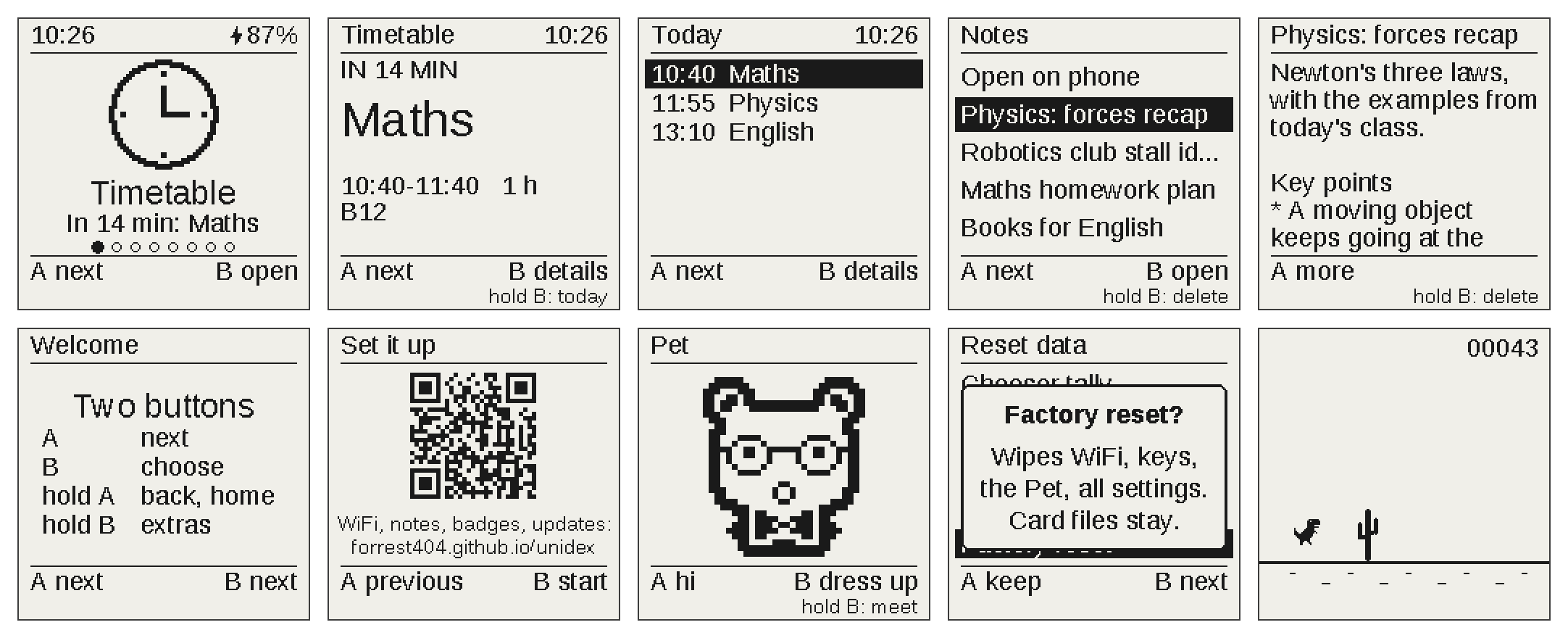
| App | What it does |
|---|---|
| Timetable | Your next class or calendar event with a live countdown, and today's list. |
| Notes | Hold a button and talk: the note is transcribed, tidied up and saved, and can go to GitHub for Obsidian. |
| Pet | A cute creature you dress up and name. Bring two unidex together and the Pets visit, chat, become friends and swap badges. |
| Badge | Full-screen name tags, logos and photos. |
| Dex | A WiFi collection game: every new network name nearby is logged with a rarity. |
| Chooser | Pick 2–6 squares, spin, get a random winner. |
| Games | Four one-button games: Flappy, Dino, Stack and Jetpack, with best scores. |
| Settings | Date and time, sleep, invert, battery and info, reset data, factory reset. |
New in v1.6: it looks after a low battery (and switches off when it's flat), saves files so a full card or a power cut doesn't lose what was already saved, restarts itself if it ever freezes, has a factory reset for passing it on, welcomes new owners with the buttons and a link to the website, and keeps your Pet's friends on the SD card. Every change is in CHANGELOG.md.
If unidex is useful to you, a star on GitHub helps other people find it.
Getting started
You'll need:
- the Waveshare ESP32-S3-ePaper-1.54 board, V2 (or a ready-made unidex: join the wait list);
- a USB-C data cable and a computer with Chrome or Edge;
- a micro SD card (FAT32) for your files;
- optionally, a 3.7 V LiPo battery on the board's battery connector, so you can use it away from USB.
Then:
- Install. Open https://forrest404.github.io/unidex/, plug the board in, press one of its buttons so it's awake, and click Install. There's nothing to download. The first time it starts, it shows the buttons and a QR code for the website.
- Set up the SD card. Copy the contents of the
starterfolder to the card (a few badges and an empty timetable) and put it in the board's slot. - Add your timetable. Send your calendar from the website's
Tools page, or edit
timetable.csvon the card (see Timetable). - Voice notes, if you want them. Set up WiFi and your API keys on the Notes page (see Notes).
The buttons
There are two: A (BOOT) and B (PWR). They do the same thing everywhere:
| Press | Meaning |
|---|---|
| A | next (row, item, page) |
| B | select / open / do |
| hold A | back; from an app, home; on the home screen, the previous app |
| hold B | the screen's extra (shown at the bottom, e.g. hold B: delete) |
Each screen shows what A and B do along the bottom. Anything that can't be undone asks first (A keeps it, B goes ahead), and short messages like "Clock set" or "Deleted" appear for a moment.
The home screen shows one app at a time, with a live line under it ("In 12 min: Maths", "3 notes", "Mochi,
2 friends"). A moves to the next app and B opens it. The top right shows the time and battery (14:32 87%), and a
small lightning bolt means it's on USB power.
- Sleep: after a few seconds without a press (10 s, or whatever you set in Settings) it goes to sleep. The screen keeps showing what it last drew, and any button wakes it. It stays awake on USB, and while a note is still sending.
- Restart: hold A and B together for 1 second, then let go. Your files, settings and the clock are kept.
The apps
Timetable
It shows your next class or event as "IN 42 MIN", "NOW, UNTIL 16:00" or "TOMORROW 09:30", with the title, the time, the room and what comes next. A moves to the next one, B opens the details (date, time, room, notes), and hold B shows today's list.
Classes that repeat every week go in timetable.csv on the SD card:
day,start,end,module,room
Mon,09:00,10:00,Maths,B12
Wed,18:00,19:30,Robotics Club,Lab 1
Calendar events (Apple, Google, Outlook...) come from the website's Tools page. Export a .ics file from your
calendar and send it, or let Sync everything send it each time you plug in. On a Mac, the automatic calendar
sync on the Tools page sends your calendar whenever the board is plugged in and awake. The time zone is London.
Notes
Hold B and talk, then let go to stop (a note can be up to 3 minutes). You're back on the screen in about a second, and the rest happens in the background, with progress shown on screen:
- the recording is transcribed (OpenAI Whisper, about $0.006 a minute),
- it's tidied up (by OpenAI or Claude, or not at all): a title, a one-line summary, a clean version that keeps every fact, topics, and a calendar event if you described a dated plan,
- it's saved to the SD card as Markdown next to the recording, and
- if you switch it on, it's sent to your GitHub repo, ready for Obsidian.
Press B on the Notes screen to send anything still waiting, or A to open the list (B opens a note and hold B deletes it). Inside an open note, B is Open on phone. It shows a QR code: join the device's own WiFi and you can browse, search, share and copy your notes on your phone. Hold A to stop it.
Set it up on the Notes page. You can add your WiFi (including eduroam and work networks), your OpenAI key, which model tidies up (and an Anthropic key if you pick Claude), and GitHub (a repo and a fine-grained token with Contents: Read and write on that repo only). Each has a Test button. Your keys stay on the device: the page can't read them back, and they're never in the code or on the card. Treat the device like an unlocked phone, because anyone holding it could use them.
Pet
The Pet is a creature built from a body (blob, cat, bear, bunny, frog or robot), eyes, a mouth, a hat and an extra. It blinks every few seconds, and A says hi. B opens Dress up: A moves between rows, B changes the part, and hold B goes back one. The Name row names it a letter at a time, and the name shows as a tag over its head. You can also dress it up and name it with a mouse on the website's Tools page.
Meet (hold B on the Pet) is for two unidex side by side:
- Bring them close. The dots at the top fill up. When it says "press B", press B on either one.
- The two screens become one room. The title shows which way round to hold them. The Pets greet each other, then B sends your Pet to visit the other screen (the other one steps aside and they chat in speech bubbles), A says something, and hold B swaps screens or sends a badge. Every few seconds they also play something by themselves.
- Become friends. The first time two Pets meet, both screens ask "Be friends?". If you both say yes, you get a heart, their own greeting next time, and a friends list (A on the searching screen).
- Send a badge to a friend (hold B in the room). Pick one, and your friend sees it first and chooses whether to keep it.
- Pull them apart and each Pet walks home.
The radio is only on while Meet is open. It talks directly to the other device (no internet), and it stops after 2 minutes without a press. Your Pet and its friends are kept through restarts and updates.
Badge
Badge flips through full-screen badges: A for the next one, hold B for the previous one, and B for a
picker with thumbnails. Make badges in the badge maker on the website's
Tools page: drop in any image, adjust it, and Send to device
(it opens straight away) or download it for the card's badges folder. They're shown in file name order, up to 32.
Dex
Dex is a WiFi collection game. B scans for about 2 seconds and tells you "NEW!" with the best new find, or how many networks are nearby. A lists everything you've found, and hold B shows the counts per rarity. It only listens and never connects, and it doesn't keep the networks' hardware addresses.
Chooser
A sets the number of squares (2–6) and B spins, landing on a random winner. Hold B shows how often each number has won.
Games
There are four: Flappy, Dino, Stack and Jetpack. A picks one and B plays. In a game, B is the one action (tap or hold, depending on the game). Best scores are kept on the device.
Settings
- Date & time: set the clock by hand (the website, the Mac sync and WiFi can also set it).
- Sleep: stay awake for 10, 20, 30 or 60 seconds after the last press.
- Invert: white on black.
- Battery & info: battery voltage and %, firmware version, storage used, and the device's name (
unidex-1A2B, handy when you ask for help). - Reset data: clear the Chooser tally, the Dex, calendar events, the Pet's friends, or everything (settings, Dex, tally and calendar; your badges, timetable, notes, keys and Pet stay). Each one asks first.
- Factory reset (at the bottom of Reset data, and it asks twice) is for passing the device on. It wipes the WiFi and keys, the Pet and its friends, every setting, the calendar and the Dex, then starts like new. Notes, badges and the timetable on the SD card stay, so format the card on a computer as well.
The website
Everything runs in Chrome or Edge on a computer and talks to the device over USB. Nothing is uploaded anywhere.
- Install has Install, which puts unidex on a board (it erases the board first), and Update, which installs the newest version and keeps your settings, keys and files.
- Tools has Sync everything (the newest firmware, the clock, your calendar file, and notes waiting to send, in one click, and optionally every time you plug in), the badge maker, the Pet designer, the clock and calendar, and the automatic Mac calendar sync.
- Notes is where you set up WiFi, API keys and GitHub, run the tests, and download notes.
To update, use Update on the Install page, or Sync everything on Tools, which updates by itself when there's a newer release.
Battery
The percentage is an estimate from the battery's voltage. While charging, it climbs slowly to 100% over the last stretch instead of jumping there, and 100% means it has been topping up long enough. The board can't tell a finished plain wall charger from a battery, so it may go to sleep while on one. How long a charge lasts depends on how much you use it: it sleeps between presses, and WiFi is only on while Notes sends, during a Dex scan or a time sync.
When the battery gets low, the things that need a lot of power (WiFi, the Pet's Meet, Dex scans and recording a note) say "Battery too low". When it's flat, the screen shows "Charge me" and the device switches itself off so the battery isn't drained further. Plug in USB to charge it, then press PWR.
Troubleshooting
- The website can't find the device. It's asleep, so press a button and try again. If it's a brand-new board (or one with other firmware), unplug it, hold BOOT while you plug it back in, let go, then try again.
- "No SD card". Check that the card is FAT32 and pushed fully into the slot. Timetable, Badge and Dex need it.
- "Time not set". Set it in Settings, or use Set the clock or Sync everything on the Tools page.
- It froze. It restarts by itself after 30 seconds, or you can hold A + B for a second to restart it now.
- Still stuck, or found a bug? Open an issue with the firmware version and what happened. For security problems, see SECURITY.md.
Privacy
unidex has no account, analytics or tracking. PRIVACY.md covers what the device and website send and where (Notes, the Pet's Meet, the website).
Licence
Copyright 2026 Forrest. From version 1.5, unidex is licensed under the PolyForm Noncommercial License 1.0.0 (LICENSE). Here's the short version, though the licence itself is what counts:
- You can use it, study it, fork it, change it and share your changes, for non-commercial purposes: personal use, hobby projects, study and research, and use by schools, charities and other non-commercial organisations.
- You can't sell it or use it commercially without written permission from Forrest. That includes selling devices with unidex on them, selling the software, or building it into a paid product. To ask about a commercial licence, open an issue on GitHub.
- Anyone who gets a copy from you must also get the licence and its
Required Notice:line.
Releases v1.0 to v1.4 were published under the GNU General Public License v3.0 or later, and those copies carry that licence. Third-party libraries, fonts and data in the firmware, and their licences, are listed in THIRD_PARTY_NOTICES.md.
For developers
Building from source, the project layout, adding an app, tests, the website, the USB protocol and the hardware
details are in docs/DEVELOPING.md. Contributions are welcome under the terms in
CONTRIBUTING.md. The board doesn't check firmware signatures, so any build you make will run
(pio run -t upload).