

Sofatap
Your iPhone, your living-room remote.
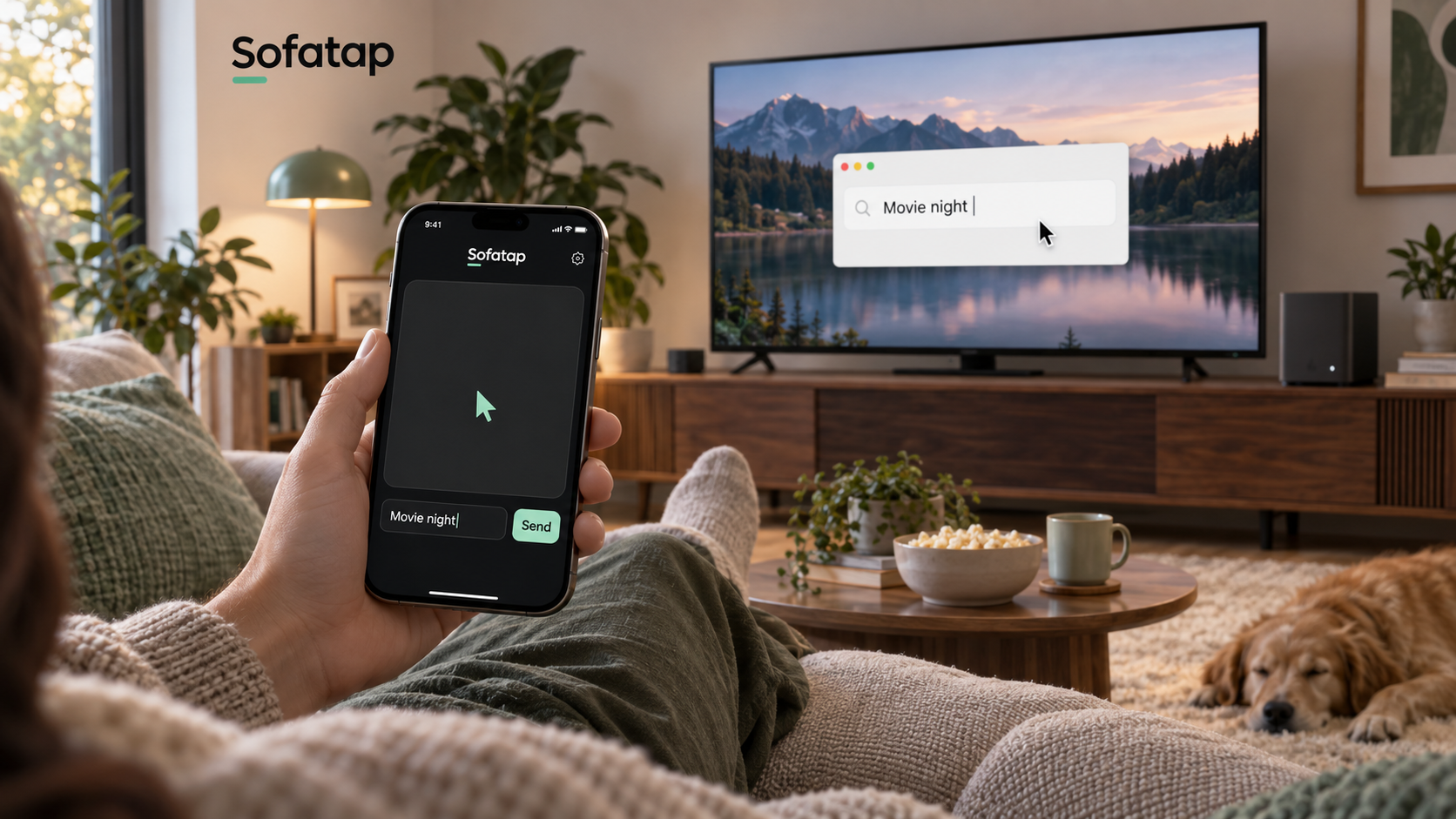
AI-generated product scenario illustration; not an application screenshot.
Sofatap is an open-source remote by chekusu. Turn your iPhone into a gesture-driven mouse and voice/text input surface for a Windows, Mac or supported Linux computer. Keep the computer's picture on your TV and control it from the sofa.
Releases · Issues · MIT license
Receiver startup update: desktop 0.7.3 beta.1 and Android/Google TV 0.1.2 beta.1 add a native startup option, enabled on the first normal launch. Computer receivers start after desktop login; closing their window keeps receiving, while explicit Quit stops them. TV startup remains subject to Android and vendor policy. See behavior and verification.
Watch the film
A one-minute tour of pointer gestures, typing on the phone keyboard and voice dictation, all from the sofa. Watch the film on sofatap.app or download the captioned MP4: English · Simplified Chinese.
What you can do
- One rounded touch surface contains the current device selector, a dedicated help button, microphone and keyboard controls. A gently flowing dot matrix fills the surface; touch warps nearby dots and taps send ripples through it. There is no on-surface instruction text. Reduce Motion keeps the grid static with simpler touch feedback.
- Slide to move and tap anywhere for a left click. In build 16, double-tap the invisible left half for two left clicks, or the right half for two right clicks; earlier build 15 uses a double-tap anywhere for one right click. Hold still for 300 ms to drag, and use two fingers to scroll. The touchpad has no dividing line or extra labels.
- Tap the bottom microphone for on-device dictation when supported, or use the iPhone keyboard / Typeless. In supported fields, live input is the default: confirmed keyboard text, deletions, selections and speech recognition updates synchronize without a Send button. Unsupported fields and older receivers retain the review-and-send composer. No extra Enter or form-submit action is appended.
- Pair by scanning a QR code in a native desktop window: AppKit/SwiftUI on Mac, WinForms on Windows and GTK3 on Linux. No browser is needed for pairing.
- The three desktop receivers share the selected Mint Calm (暮色薄荷) design: charcoal background, pale mint actions and a clear white QR area. The current beta packages include this design and the current Sofatap icon. See the design specification.
- Connect over your home network with WSS/TLS, certificate pinning and locally stored pairing credentials. Live input pauses on conflicting desktop edits or a lost connection; it never automatically replays uncertain edits.
TestFlight build 15 includes device management and native localization matching the website: English, Simplified Chinese, Japanese, Korean, German, French, Spanish, Brazilian Portuguese, Russian, Arabic, Hindi and Indonesian. Arabic text follows right-to-left layout while the scroll strip stays physically on the right. See the language coverage and verification record.
Current public beta: iPhone 1.0 (18) has passed TestFlight external review and is available through the public invitation, with a limit of 10,000 testers. Use desktop receiver 0.7.3 beta.1 for Windows, Mac and Linux, or Android/Google TV receiver 0.1.2 beta.1 for the experimental TV adapter. TV automatic reconnect requires phone build 17 or later and receiver 0.1.1 beta.1. See the Build 18 distribution record and TV software verification. The household Sony and Xiaomi TVs remain untested on site. The formal App Store build 15 submission is a separate process.
Reconnection update: iPhone 1.0 (16) and receiver 0.7.2 beta.1 add recovery after a desktop receiver restart. While the phone app is active, it retries the selected saved computer without rescanning; the receiver preserves its pairing when an unrelated network adapter is added. Pending text and mouse actions are never replayed. Certificate replacement still requires pairing, and existing duplicate devices are not merged automatically. See the automated reconnection checks; physical iPhone-to-Windows restart acceptance remains pending.
Earlier scoped 0.7.0 (10) iPhone-to-Windows checks passed existing-text import, multilingual/emoji/newline append, keyboard deletion, Select All and deletion to empty in a native RichEdit field. Final-build live speech and further cases remain pending. The 0.6.0 record separately covers gestures, microphone dictation and explicit text sending. Receiver packaging and notarization checks do not replace physical input acceptance. Bluetooth and a hosted relay service are not implemented. See the interaction specification and future standalone CUA direction.
Two-finger scrolling follows the content: slide up to see farther down the page, or down to see earlier content. The strip inside the touch surface’s right edge follows scrollbar direction: slide down to scroll down. The circular mint Send button sits inside the input box with its own space on the right, clear of the text. Smaller Clear and keyboard-toggle icons sit below it on the left, without backgrounds; the keyboard arrow switches down/up, with animation and haptic feedback. Actionable connection and delivery notices sit alongside these icons on the right. No character counter or permanent live-input capability caption is shown. In review-and-send mode, continuing an acknowledged draft sends only the added text. See the composer preview.
Tap the named device at the top left to open the device-management sheet: save multiple computer or TV pairings, switch the active target, rename a device locally, disconnect, or remove its local pairing. Removing a pairing does not revoke access for other phones. The top-right question mark opens a separate illustrated guide. The text composer appears only when needed, below the touch surface. Supported fields open as live editors; other fields keep draft review and explicit sending. View the offline simulator layout and dot-matrix preview. These show local rendering, not physical iPhone input or performance.
New in build 15: Add Device now opens one Scan QR Code page, with the camera above the supported-platform information. Scan or paste a computer or Android/Google TV code without choosing a device type first. The app selects the connection adapter automatically, displays any supplied platform/name, then offers a name after the authenticated connection succeeds. Keep the suggested name or save your own; you can rename it locally later in My Devices. LG webOS still uses manual IP entry and approval on the TV. Android/Google TV remains experimental; no TV model or third-party TV app is qualified yet.
Receiver 0.7.1 beta.1 and newer include platform and name in their desktop pairing codes, so the phone can identify Windows, Mac or Linux automatically. These codes require iPhone 1.0 build 15 or newer; earlier phone builds cannot read them. Build 15 also accepts the older codes from receiver 0.7.0 beta.1. QR labels identify the candidate device; certificate and pairing-credential checks establish the connection.
Roadmap: Free manual mouse/touch control covers computers today, with direct TV control next. TV pointer support must be verified separately from direction-key navigation. Basic voice-to-text remains free input. Paid voice-goal automation will target multi-step tasks on Windows, macOS and Linux first, then TVs. TV control remains an experimental preview in this beta; autonomous operation and subscriptions are not enabled. See the roadmap and acceptance goals and automation research.
TV development preview: The source now includes native LG webOS pairing by private IPv4 address and a pointer adapter for movement, tap, scrolling, Back and Home. It has passed local protocol/TLS tests, but no TV model is qualified yet. Discovery and TV typing/dictation remain pending. See the technical plan and verification scope.
Android/Google TV beta: Receiver 0.1.2 beta.1 is a development-signed APK. With iPhone build 17 or later, the selected saved TV reconnects automatically while the app is active; valid pairing survives receiver restarts and unrelated adapter changes. The native receiver provides an accessibility overlay pointer, conditional node clicks/scrolling and separate Back/Home/focus navigation. TV text, dictation, drag and right-click remain unavailable. The household Sony and Xiaomi TVs have not been field-tested. See the install guide, recovery tests and pending hardware acceptance.
The keyboard opens automatically when a compatible receiver detects a new writable native or web field that exposes accessibility metadata. This background detection reads no field contents. Opening a live editing session then imports the supported field’s complete text and selection to the paired phone, so Backspace and Select All → Delete can edit existing computer text. Detection support and live-editing support are separate: Windows live input currently supports native Edit/RichEdit controls; Mac requires writable Accessibility selected-text and selection-range attributes. Browsers, custom controls without that support, Linux and older receivers use the review-and-send fallback. Protected and read-only fields cannot start live editing. See focus detection, data handling and platform limits.
Windows lock-screen PIN control (under validation): the target is iPhone touchpad + manual PIN entry, with optional Face ID-authorized saved PIN entry. Sofatap does not require a Microsoft account password. The earlier account-password pilot is retired and disabled in ordinary discovery and iPhone UI. Pointer diagnostics, native PIN acceptance and iPhone end-to-end tests are separate gates; none is implied by pairing or compilation. See scope and verification.
In build 16, keyboard Backspace edits an unsent fallback draft locally. After clearing the local draft, keyboard Backspace can delete text at the computer’s focused input position. The separate computer Backspace icon acts on that position without deleting the phone draft. Live editing continues to synchronize deletions normally. These changes passed physical iPhone-to-recording-receiver checks, which do not establish Windows application acceptance; earlier build 15 retains its earlier behavior.
Custom gestures (Build 18)
Build 18 adds a gear button on the touchpad. Choose Sofatap, Trackpad habits or Press for shortcuts, then assign actions to taps, left/right double-taps, two/three-finger taps, holds and slides. Computer and TV preferences are saved separately on the iPhone. Adjust timing and scroll direction, restore a preset, or try gestures in the offline practice pad. TV choices are limited to the receiver’s capabilities. See gesture settings for details and validation limits. Available in public TestFlight 1.0 (18). Physical settings and local-practice checks passed on the dedicated iPhone and iPad; receiver effects remain separately qualified.
Platform status
| Platform | Current status |
|---|---|
| iPhone | iOS 17+. Version 1.0 (18) supports 12 interface languages and is available in public TestFlight. TestFlight installation of build 16 on the dedicated test iPhone is verified; final-build Windows restart and input acceptance remain pending. Earlier camera pairing and input checks retain their actual tested versions in the 0.7.1 record and build 16 development record. |
| Windows | Receiver 0.7.3 beta.1 is available with native Edit/RichEdit live editing. Earlier scoped physical RichEdit keyboard checks passed; further device cases and current restart acceptance remain pending. Windows binaries are not Authenticode-signed. |
| Mac | macOS 15+. Receiver 0.7.3 beta.1 Apple Silicon and Intel packages are signed and notarized. Earlier scoped Apple Silicon input checks passed; current live editing and Intel input still need physical acceptance. |
| Linux | Receiver 0.7.3 beta.1 GTK3 packages are available for x64 and ARM64. The earlier 0.7.1 ARM64 receiver ran in isolated Xvfb; a physical iPhone passed scoped camera pairing, Linux identification, naming and rename persistence with that version. Earlier X11 input checks are separate. Real Wayland compositors and physical Linux desktop input remain unverified; see the 0.7.1 device-test record. |
The Mac verification record covers real camera pairing, TLS, exact text readback and selected key/pointer actions on 2026-10-11. The Linux verification record covers native GTK rendering, X11 input on an isolated Xvfb desktop and a mock Wayland portal on a private D-Bus. Neither record establishes complete application compatibility.
Pointer, shortcut and fallback text input use Win32 SendInput on Windows and Quartz on Mac after an explicit local Accessibility grant. Live text instead edits and verifies the supported native field through Win32 Edit/RichEdit messages or Mac Accessibility selected-text operations, preserving text outside the changed span. Linux X11 requires libX11, libXtst and libxdo; Wayland requires a compatible RemoteDesktop portal and a native user permission grant. Linux currently uses review-and-send text, accepts up to 2,048 Unicode scalar values per text action, and does not read or replace the clipboard. Unsupported Wayland sessions remain unavailable, with no XWayland fallback. See Linux requirements and limits.
Get started
Install the desktop receiver
| Computer | Download | Instructions |
|---|---|---|
| Windows x64 | Windows ZIP | Extract and run SofaTap.exe. Allow firewall access only on your trusted home private network. Windows guide |
| Mac | Apple Silicon ZIP · Intel ZIP | Both packages are notarized. Follow the Mac installation and permission guide. |
| Linux x64 / ARM64 | x64 archive · ARM64 archive | Install the system GTK/input dependencies, extract and run ./sofatap. The native window includes the Wayland authorization action. Linux guide |
All downloads above are 0.7.3 beta.1, with matching SHA256 files and release notes. The packages include the .NET runtime; Linux still requires its listed system dependencies. --dry-run previews connectivity without generating desktop input. Older acceptance records remain labeled with the versions actually tested.
Install the iPhone app and pair
- Join the public TestFlight beta and install iPhone 1.0 (18) with receiver 0.7.3 beta.1 for the reconnection fix. Receiver QR codes require at least iPhone build 15. To build it yourself, open
ios/SofaTap.xcodeprojin Xcode, select your development team and connected iPhone, and run the app; this requires development signing, device pairing and Developer Mode. See the iOS build guide. - Connect the iPhone and computer to the same reachable home network. Guest Wi-Fi device isolation may prevent a connection.
- Tap the top-left device selector and choose Scan QR Code under Add Device. Computers and Android/Google TV share the scanner, and a naming step appears after successful authentication. Scan the QR in the receiver’s native window or paste its complete pairing link.
- Select a field on the computer and open the phone keyboard or microphone. A supported field synchronizes typing, deletion and recognized speech automatically; an unsupported field shows Send for a reviewed draft. If live input pauses after a focus conflict or disconnect, inspect the computer and explicitly reopen the editor. Uncertain edits are never replayed automatically.
Pairing links contain control credentials: keep them on your own devices. If upgrading from the earliest Tiltro releases, follow the upgrade guide: those releases used different identifiers and storage, and their pairings and drafts do not migrate automatically. The current Sofatap spelling update preserves existing Sofatap pairings.
Privacy and permissions
Sofatap connects directly over the local network. The project has no hosted relay service. Pairing uses a pinned TLS certificate; credentials are stored in iPhone Keychain, Windows DPAPI, or current-user-only receiver files on Mac/Linux. Mac input requires Accessibility permission; Wayland input requires the desktop's explicit portal grant.
The microphone starts only after an explicit tap and the required permissions. Supported on-device recognition keeps audio on the phone; Sofatap does not upload audio or silently switch to cloud recognition. In a live editing session, partial recognized text and later corrections synchronize to the computer. In the fallback composer, text stays local until Send. System dictation and third-party keyboards have their own data handling.
Live editing sends the current supported field’s complete text and selection directly to the paired phone over pinned TLS. The phone keeps imported live text in memory without automatically saving it as a draft. After switching devices, explicitly allowing the retained text to be sent again promotes it to a locally saved review-and-send draft; switching alone never sends it. The receiver keeps bounded text-bearing acknowledgements in connection memory for duplicate suppression until the connection ends. The separate review-and-send draft remains stored locally for recovery. Field text is not logged or sent to a hosted service; background focus hints contain only metadata.
Pairing QR codes travel through a private local pipe to the native desktop UI, not a web pairing page. Never publish pairing codes, credentials or signing material. The repository includes no developer account, signing certificate or provisioning profile. See PROTOCOL.md for the transport and input behavior, and the acceptance checklist for remaining device checks.
Build from source
The receiver requires the .NET 10 SDK and Python 3. Set SOFATAP_DOTNET to the dotnet executable if your SDK is in a custom location.
# Windows distribution, built on Mac/Unix
bash scripts/build-windows.sh

# Mac distributions, built on macOS
bash scripts/build-macos.sh arm64
bash scripts/build-macos.sh x64

# Linux distributions; cross-building is supported
bash scripts/build-linux.sh x64
bash scripts/build-linux.sh arm64
Packages are written to artifacts/ with licenses and SHA256 files. Windows and Mac outputs are named SofaTap-Windows-x64.zip and SofaTap-macOS-<architecture>.zip; Linux outputs are SofaTap-Linux-<architecture>.tar.gz. Mac builds use an ad-hoc development signature by default. Distribution signing and Apple notarization are documented in NOTARIZATION.md.
Windows developers can build the underlying receiver in PowerShell; the complete package above also includes its native window:
dotnet publish host/SofaTap.Host.csproj -c Release -r win-x64 --self-contained true -p:PublishSingleFile=true -p:IncludeNativeLibrariesForSelfExtract=true
Redistributed builds must include LICENSE, THIRD-PARTY-NOTICES.md and the relevant dependency licenses. The packaging scripts collect the licenses for the resolved runtime/NuGet versions.
For iPhone, open the checked-in Xcode project. After changing ios/project.yml, regenerate it with xcodegen generate --spec ios/project.yml. The iOS guide also describes direct compilation; a successful device build is separate from signing and installation.
Development checks
On macOS with .NET 10, Python 3 and Xcode installed:
python3 -m pip install websockets==16.0
dotnet run --project tests/host/SofaTap.Host.Tests.csproj -c Release
dotnet run --project desktop/windows-login/Tests/Sofatap.Login.Tests.csproj -c Release
SOFATAP_DOTNET="$(command -v dotnet)" python3 tests/smoke.py
swiftc ios/SofaTap/Core/Pairing.swift tests/PairingTests.swift -o /tmp/sofatap-pairing-tests
/tmp/sofatap-pairing-tests
swiftc ios/SofaTap/Core/ReceiverState.swift tests/ReceiverStateTests.swift -o /tmp/sofatap-receiver-tests
/tmp/sofatap-receiver-tests
swiftc ios/SofaTap/Core/GestureConfiguration.swift ios/SofaTap/Core/TouchGestureState.swift tests/TouchGestureTests.swift -o /tmp/sofatap-gesture-tests
/tmp/sofatap-gesture-tests
python3 tests/text_focus_linux.py
bash ios/scripts/build-manual.sh device
The host runner uses fake input. TLS/WebSocket checks launch a temporary receiver with --dry-run and inject no system input. The last command compiles an unprovisioned ARM64 iOS app without installing it. CI also runs platform builds and isolated Linux desktop checks; see the Linux guide for the relevant commands.
Build, protocol, virtual-desktop and physical-device checks establish different things. The 0.7.0 physical record confirms RichEdit import, append, deletion and selection. Live speech, plain Edit, middle-of-text replacement, conflicts, reconnects, Mac live editing, Typeless and additional applications remain outside that completed scope.
Repository layout
| Path | Contents |
|---|---|
ios/ |
Native iPhone app, Xcode project and project-generation configuration |
host/ |
Shared receiver protocol, Windows/Mac input backends and Linux worker bridge |
desktop/ |
Native pairing windows and Linux input workers |
tests/ |
Protocol, authentication and input-boundary checks |
PROTOCOL.md |
Wire protocol |
docs/ |
Installation guides and acceptance records |
scripts/build-*.sh |
Desktop distribution builds |
licenses/ |
Third-party license and notice texts |
Local build artifacts, pairing credentials and signing material are not source files. For naming background, see NAME.md.
Contributing and license
Issues and pull requests are welcome. Read CONTRIBUTING.md before contributing.
Sofatap is released under the MIT license. See THIRD-PARTY-NOTICES.md for dependency notices.