

 Quota Manager

Split your metered internet bundle fairly across every person in the house. Each user gets an allowance (fixed GB, or an equal share of what's left), their devices all share it, and the moment the allowance runs out every device they own is cut at once.
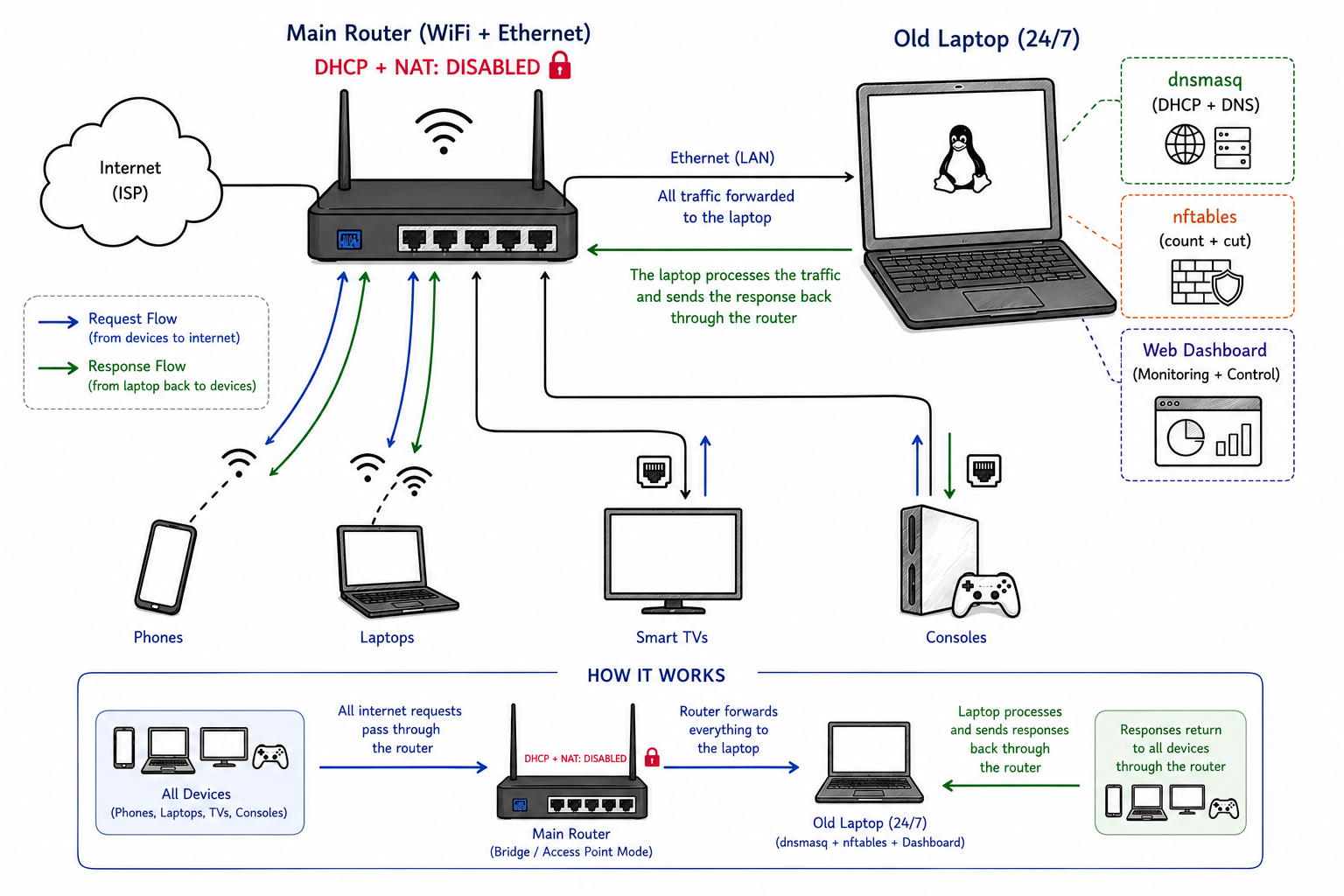
In countries where internet bundles are metered (e.g. Egypt's 140 GB/month plans), phones, TVs, laptops and consoles all fight over one connection with no way to budget it. Quota Manager turns an old laptop running 24/7 into a smart gateway:
- Counts exactly what every device and every user consumes each month
- Gives each user a monthly allowance their devices share
- Hard-cuts a user's internet the moment they run out (a per-device exempt flag keeps one device online)
- Caps any device's or user's internet speed and keeps gaming ping low while others download
- Automotive Speedometer Gauge: A live tachometer-style dial showing your monthly bundle with a safe zone (0–80%) and glowing scarlet redline warning zone (80–100%), featuring 3 selectable physical models (Sports Needle, Digital Segmented LED, and Electric Horizon Arc)
- Themes & Background FX Engine: Switch between 4 visual color themes (Obsidian Glass, Cyberpunk Neon, Emerald Mint, Sunset Crimson) and 4 ambient background particle modes (Network Mesh, Cosmic Starfield, Digital Rain Matrix, or Clean Static)
- Temporary Device Kick (5-Second Disconnect): Instantly disconnect any device for 5 seconds to force connection drops or IP lease renewals without permanently blacklisting it
- Native VPN Manager (sing-box & Clash API): Built-in proxy core (VLESS, VMess, Shadowsocks, Trojan, WireGuard) with live speed meters, node configuration editor, persistent auto-connect, and per-user/device policy routing
- Ultra Network Ad-Blocker & Content Filters: Hardware-level ad & tracker blocking (HaGeZi PRO + AdGuard + StevenBlack) plus parental control category filters (Adult content, Gambling, Social media, Streaming) with zero client apps needed
- Telegram WAN IP Change Trigger: Automatic alerts to your Telegram bot whenever the ISP-assigned public IP changes, with direct dashboard URLs for effortless remote management
- Browsing History & Domain Analytics: Real-time traffic breakdowns showing the most active websites and apps (YouTube, TikTok, Netflix, Facebook) and per-device daily timelines
- Static DHCP IP Reservations: Assign fixed IP addresses to servers, printers, or gaming consoles directly from the dashboard with one click
- Serves a dark obsidian-glass dashboard with instant zero-flicker tab switching that you can open from any phone on the LAN — the whole UI (dashboard, milestone page, and consumption report) is phone-friendly and touch-first
For developers — how the app actually works (architecture, config, API, tests, release process): Structure_README.md.
Screenshot

Table of contents
- Screenshot
- Installation
- Using the dashboard
- Strong (WAN) mode & Telegram Notifications
- Native VPN Manager (sing-box)
- Ultra Network Ad-Blocker & DNS Filtering
- Securing the dashboard (HTTPS)
- Day to day
- Upgrading / removing
- Troubleshooting
- Known limits
Installation
You need a computer with one wired Ethernet port, powered 24/7, running Kali or Debian — an old laptop, a used mini PC, or a Raspberry Pi all work. It becomes the gateway that every device routes through.
No spare machine? Use the PC or laptop you already have (wired only)
If you don't own a second computer, the gateway can run inside a Debian virtual machine on the PC or laptop you already use. Three things matter:
- A wired connection. The machine must reach the router with an Ethernet cable (a cheap USB-to-Ethernet adapter works). WiFi will not work — the gateway must sit on the router's network at the hardware level, which a wireless link can't provide.
- Bridged networking. Set the VM's network adapter to bridged so it appears on the router's network like a real computer.
- Always on. The machine must stay running 24/7 — when it sleeps, shuts down, or restarts, everyone loses internet.
- A fixed address — reserve it or set it static. The gateway must keep a permanent IP on the router's network: either reserve one on the router (a DHCP reservation for the VM's MAC) or set it static on the box (the setup script does this by default). If the VM's IP ever changes, everyone loses access — see The gateway's addresses (LAN mode) below. In a VM, bridged networking puts the box on the router's LAN exactly like a real machine, so the same rule applies.
From there, follow the steps below as usual: the .deb installs inside the
VM, and the whole gateway (routing, network stack, dashboard) runs there. This
is also a great way to try Quota Manager before committing any hardware.
1. Install the package
Method A — apt repository (Debian / Kali)
Easiest for bare-metal installs (one-time key + repo setup, then upgrades via apt update && apt upgrade):
sudo install -d /etc/apt/keyrings
curl -fsSL https://UserJoo9.github.io/QuotaManager/quota-manager.gpg | \
  sudo gpg --dearmor -o /etc/apt/keyrings/quota-manager.gpg
echo "deb [signed-by=/etc/apt/keyrings/quota-manager.gpg] https://UserJoo9.github.io/QuotaManager stable main" | \
  sudo tee /etc/apt/sources.list.d/quota-manager.list
sudo apt-get update
sudo apt-get install quota-manager
The repository is signed with the key above and re-published automatically on
every release, so upgrades are just sudo apt-get update && sudo apt-get upgrade.
Method B — downloaded .deb
Download the latest quota-manager_<version>_all.deb from the
Releases page, then:
sudo apt install ./quota-manager_0.2.1_all.deb
Fresh Kali/Debian box? Run
sudo apt-get updatefirst. A brand-new install has never downloaded package lists, so apt reports "no installation candidate" for every dependency (python3-venv,dnsmasq, …) and aborts. On Kali a missing signing key shows up first asNO_PUBKEY …/ "repository … is not signed" — fix withsudo apt install --reinstall kali-archive-keyring, thensudo apt-get update, then retry the install. (Full table in Troubleshooting.)
The package installs everything automatically: the Python app, the network stack (dnsmasq, nftables), and a service that starts the gateway at boot. Your device must be connected to the router by cable with internet during this step.
2. Set your bundle
The dashboard asks for your bundle the first time you log in (step 4): a one-time welcome panel appears with two required fields —
- Internet bundle this month (GB) — your real monthly allowance, e.g.
140for a 140 GB/month plan - Reset day of the month — the day your ISP resets the bundle (
0= no auto-reset; you recharge from the dashboard instead)
plus a bundle type selector:
- Renew day (default) — the bundle resets on your configured reset day
- End of month — the ISP's month-end bill: the same configured day drives
the reset (many ISPs close the month on the 25th/28th), and day
0falls back to the calendar end (the 1st)
It also lets you change the admin password in the same step. All values can be changed later in the dashboard's Bundle settings card.
3. Turn off the router's DHCP
Log into the router admin page (usually http://192.168.1.1), find the DHCP /
LAN settings, and switch DHCP off. Keep WiFi (same SSID and password)
and NAT on — devices still join the router's WiFi, but now get their IP,
gateway and DNS from the laptop. Also disable IPv6 / Router Advertisement
(RA) on the router (Quota Manager is IPv4 only).
Optional — electric-cut fallback. If you'd rather devices keep the internet during a power cut, don't switch DHCP fully off — give the router a small pool on a different subnet (e.g.
192.168.1.201–250). The laptop only serves192.168.2.x, so the pools never overlap. Devices return to the managed pool as their leases renew.
4. Log in
Reconnect every device to the WiFi (toggle airplane mode / reboot) so it gets a new address from your DHCP, then open the dashboard from any device:
http://192.168.2.1:8080
Default password is admin — change it immediately (Admin tab).
Can't reach the dashboard? A device still holding an old
192.168.1.xlease can't reach192.168.2.1. Reconnect it so it re-leases, or openhttp://192.168.1.110:8080instead.
Done. New devices appear in the dashboard automatically the first time they join — but as a safety lock they join disabled: a brand-new device's user gets 0 GB and no share of the bundle, so the device is cut off until you open its user/device edit modal and assign Shared (auto) or Fixed GB. Set each person's allowance from Add user and you're running.
The gateway's fixed address (LAN mode)
The gateway box needs a permanent IP on the router's network. Either
reserve one on the router (a DHCP reservation for the machine's MAC) or
the setup script sets one by default (192.168.1.110). If the IP changes,
everyone loses internet.
The dashboard is at http://192.168.2.1:8080 from client devices. If a device
still holds an old 192.168.1.x lease, try http://192.168.1.110:8080 instead.
Running from source (developers)
See Structure_README.md → Running from source.
Low-Power 24/7 Deployment (Android Phone & OpenWrt)
Running a full-sized desktop PC 24/7 consumes 50–100 Watts, which can add noticeable cost to your monthly power bill. Because QuotaManager relies strictly on line-rate Linux kernel primitives (nftables, tc, and dnsmasq), it runs smoothly on ultra-low-power devices consuming only 2–5 Watts (virtually zero electricity cost):
Option A: Old Android Phone (Rooted + OTG Ethernet)
An old spare Android phone (Android 7–14 with root / Magisk / KernelSU) makes an ideal, silent, battery-backed gateway:
-
Hardware Setup:
- Connect a USB Type-C (or Micro-USB) OTG Hub with an Ethernet port and pass-through charging (PD/5V).
- Plug the Ethernet cable directly into your main ISP router's LAN port.
- (Recommended) To protect the phone's battery when plugged in 24/7, use apps like ACC (Advanced Charging Controller) to cap charging at 60–70%, or remove the battery and power the phone via a direct dummy battery connection.
-
Software Setup (Debian Chroot via Termux):
- Install Termux from F-Droid, open it, and obtain root permissions:
su
- Deploy a lightweight Debian 12 (ARM64) root filesystem using standard chroot managers (such as
LinuxDeployor a Debian chroot script). - Inside the Debian environment, install QuotaManager directly from our official APT repository:
curl -fsSL https://UserJoo9.github.io/QuotaManager/KEY.gpg | gpg --dearmor -o /etc/apt/trusted.gpg.d/quota-manager.gpg
echo "deb https://UserJoo9.github.io/QuotaManager/ stable main" > /etc/apt/sources.list.d/quota-manager.list
apt-get update
apt-get install -y quota-manager
- Open
http://192.168.2.1:8080(or the phone's static IP) to access your dashboard!
- Install Termux from F-Droid, open it, and obtain root permissions:
Option B: OpenWrt Router
If you have a dedicated OpenWrt router (or an old supported router flashed with OpenWrt 22.03+):
-
System Requirements:
- Router with 128MB+ RAM and storage (for 16MB/32MB flash routers, enable ExtRoot using an inexpensive USB flash drive).
- Install prerequisites via
opkg:opkg update opkg install python3 python3-pip nftables kmod-nft-core ip-full dnsmasq-full
-
Clone & Setup:
git clone https://github.com/UserJoo9/QuotaManager.git /opt/QuotaManager cd /opt/QuotaManager pip install -r requirements-linux.txt -
Autostart Service (Procd): Enable and start the background daemon using the bundled OpenWrt service script:
cp /opt/QuotaManager/scripts/quota-manager.openwrt /etc/init.d/quota-manager
chmod +x /etc/init.d/quota-manager
/etc/init.d/quota-manager enable
/etc/init.d/quota-manager start
Using the dashboard
| Tab | What it does |
|---|---|
| Management | Speedometer Bundle Gauge (live tachometer dial with safe zone & scarlet redline, with 3 selectable physical styles) + reorganized 3-row metrics (Remaining GB, Days left, Period badge, and Users/Devices/Blocked counters), Pinned Protected Gateway as the top card, and a card per user (with Grid/Masonry/List views, speed caps, quota allowances, block toggle, 5s temporary kick/disconnect, and usage breakdown). Devices show vendor logos, active IP, MAC, live ping presence LED, and quota bars. Users can be flagged Exempt from quota. |
| Network | bundle settings, Guest mode (auto-register new devices with a small allowance + speed limit + guest cap + STOP NEW CONNECTIONS), Reset month now, speed shaping master switch (set your real line rates), Static DHCP IP reservations, Decline random MACs, MAC whitelist / blacklist, and a live network overview |
| VPN | Built-in sing-box Manager: Import VLESS, VMess, Shadowsocks, Trojan, and WireGuard links with QR / clipboard support, test latency, edit outbound protocols & transport settings via the Interactive Proxy Editor modal, monitor real-time Clash API speed meters & session traffic, and selectively route or bypass individual users and devices |
| WAN | direct PPPoE dialing ("strong" mode) with automated periodic IP renewal schedule and Telegram Bot notification trigger on public IP changes |
| DNS | Ultra Network Ad-Blocker (Hardware-level HaGeZi PRO + AdGuard + StevenBlack shield with master switch), Category & Content Filters (Parental Controls for adult content, gambling, social media, and streaming), custom domain rules (block/allow/redirect), and hosts/adblock list importer |
| History | real-time query timeline and domain consumption analytics: pick a device + look-back window → its top domains (with share %), hourly activity, and recent queries |
| Firewall | network-level access rules: default security posture (LAN: open outward; WAN: block all new inbound), custom rules, automatic brute-force / port-scan bans, port forwarding, DMZ target, and live Firewall log |
| Admin | Appearance & Themes (4 themes: Obsidian, Cyberpunk, Emerald, Sunset; 4 background particle modes; 3 Speedometer gauge physical styles), security & credentials (change password, 2FA with QR code), Software updates (one-click check & self-install), and System Logs in a dedicated scrollable console window (level filter, search, export) |
The sidebar footer's eye toggle masks on-screen sensitive details — MAC addresses (device rows, rogue rows, the device modal) and the saved PPPoE credentials (the username AND password fields are cleared while it is on and re-prefilled from the DB when turned off) — so the dashboard can be shown without giving away device identities. The preference is remembered; only the display is masked, nothing is ever lost. A bell icon in the top-right corner shows a red badge when there are new security alerts (failed logins, WAF blocks, default-password warning); click it for a timestamped list with a "Clear all" button.
On a phone? The whole UI is built for it. The tab bar becomes a swipeable strip, the bundle ring shrinks and the cards stack to one column, and every modal/overlay scrolls instead of clipping. The same applies to the household milestone page and the consumption report — nothing needs a desktop.
Speed limits per device/user — set them in the Network tab first (switch ON
and enter your real down/up Mbps), then open a user's or device's edit modal
and set limit down / limit up (0 = unlimited). Limits apply within seconds.
Speed caps apply to internet traffic only — LAN transfers pass through
at full speed.
Decline random MACs (Network tab) — while on, devices with randomized MACs are refused at the DHCP level (dnsmasq never hands them an address).
STOP NEW CONNECTIONS (same section) — while on, dnsmasq refuses brand-new devices outright. Already-registered devices and guests are unaffected.
Exempt from quota — a user's edit modal has an "Exempt from quota" checkbox: an exempt user is never quota-blocked, however much they use. Handy for the box's own VPN relay or an always-on server.
Browsing history per device — the History tab shows what domains each device resolves (top domains, activity by the hour, recent queries). Retention is 7 days by default (a user's edit modal has a "History retention" field).
Domain filtering — the DNS tab blocks, allows or redirects domains straight from the box's DNS. Pick a user or device, enter a domain (wildcards work), and an action. Turn on a blocklist preset (ads-tracking, social-media, streaming, gambling) and the box fetches the curated lists itself. Rules apply within seconds. One honest limit: a client using DNS-over-HTTPS/TLS bypasses it.
Strong (WAN) mode
The default LAN setup has two ways a determined static-IP cheater can slip past the box. Strong (WAN) mode closes them by having the gateway laptop dial the PPPoE line itself — the router becomes a pure bridge/AP and every byte must cross the box.
It's off by default. Turn it on only if you need the airtight boundary.
Workflow — all from the WAN tab:
- Set your PPPoE credentials (from your ISP contract)
- Click Test PPPoE connection to verify credentials work
- Rewire the router to bridge/AP mode
- Click Apply now — the box rewires itself and restarts
To leave WAN mode: put the router back in routed/NAT mode, then Revert to LAN.
Heads up: the physical router rewiring is always manual — no panel can move the cable. If you apply WAN before the router is actually bridged, internet is cut for everyone until it is.
The architecture behind this is in Structure_README.md → Strong (WAN) mode.
Telegram WAN IP notifications (Remote access)
When running in Strong (WAN) mode, dynamic-IP ISPs periodically reset connections and assign a fresh public IP. To control your home network when you're away:
- Open the WAN tab and navigate to the Telegram WAN IP Trigger card.
- Enter your Telegram Bot Token (from
@BotFather) and your Chat ID (from@userinfobot). - Click ⚡ Send Test Message to verify your bot immediately.
- Once saved, Quota Manager automatically monitors your Public IP (via
ppp0or external probe) and sends a notification directly to your Telegram chat with the new Public IP, timestamp, and clickable dashboard URL (http(s)://<public_ip>:<port>). - The card displays a live Firewall Remote Access Status banner confirming whether the web dashboard port is exposed or blocked to WAN traffic in the Firewall tab.
Native VPN Manager (sing-box)
Quota Manager v0.4.0 includes a fully integrated, hardware-level VPN subsystem powered by the high-performance sing-box engine, eliminating the need for external proxy clients:
- Universal Proxy Link Import: Paste or scan any standard VLESS, VMess, Shadowsocks, Trojan, or WireGuard link directly into the VPN tab.
- Interactive Proxy Node Editor: Click the pencil icon on any node to view and customize outbound parameters — adjust the remote address, port, UUID, TLS/reality security, ALPN, transport protocol (TCP, WebSocket, gRPC), path, and host headers on the fly.
- Global "Allow Insecure" Toggle: Easily switch certificate validation off across all nodes if using self-signed or unverified proxy certificates.
- Real-time Clash API Gauges: Live telemetry on
127.0.0.1:9090renders real-time download/upload speed gauges, session data counters, active connections, and latency ping meters. - Granular Policy Routing: The VPN routing table lets you selectively route or bypass any user or individual device through the VPN tunnel with one click.
- Connection Persistence & Auto-Healing: When connected, the active node is permanently remembered in SQLite. If the gateway restarts, the browser is refreshed, or the tunnel drops, Quota Manager automatically re-establishes the connection without manual intervention.
Ultra Network Ad-Blocker & DNS Filtering
Say goodbye to browser extensions and intrusive ads across smart TVs, mobile apps, and streaming devices. The DNS tab features:
- Ultra Network Ad-Blocker (Hardware Shield):
- Centralized ad & tracking shield operating directly at the local resolver level.
- 🔥 Ultra PRO: Aggressive multi-engine blocklist combining HaGeZi Multi PRO, AdGuard, and Anudeep (180,000+ domains) protecting against web banners, mobile app trackers, video pre-rolls, and smart TV telemetry.
- ⚡ Standard Protection: Lightweight StevenBlack unified blocklist with zero false positives.
- 🛡️ Category & Content Filters (Parental Controls):
- One-click network-wide domain blocks for Adult Content (Cloudflare Family DNS 1.1.1.3 + local blacklist), Gambling, Social Media (Facebook, Instagram, TikTok, Twitter/X, Discord), and Streaming Platforms (Netflix, YouTube, Prime, Twitch).
- Custom Domain Rules & Importer:
- Add custom whitelist (
allow), blacklist (block), or IP redirects per device, per user, or globally. - Import external blocklists in standard Hosts or AdBlock Plus format.
- Add custom whitelist (
Day to day
Open the dashboard and check the bundle ring — are you on pace for the month? Scan the user cards for Quota exceeded tags and decide whether to top up or leave them cut off. Name any new "Unnamed" device (its manufacturer tag helps tell phones from TVs). That's the whole loop.
To top up a user mid-month: user card → top-up → enter GB. They're unblocked instantly if they were cut.
"How much do I have left?" — the household page. Any device on the quota
network can open http://<gateway-ip>:8080/milestone (no login). It shows that
device's user: their used / allowance, a progress bar, and a per-device
breakdown (each device's own GB, with ↑/↓ split). Crossing 50% / 75% / 100%
is flagged once per month on the page (a "new" pill), and acknowledging it is
a one-time click — the flag won't nag again until the period rolls.
Software updates
The Admin tab's Software updates card checks the GitHub releases page for
the box (by default every 24 h; disable with the "Check automatically" toggle
or updates.enabled: false in config.yaml). When a newer version exists a
banner appears across the top of the dashboard — click Show details for a
scrollable list of every new version's changelog (a box that's far behind lists
all the intermediate versions). The banner shows once per version.
From the same card you can check now (Check for updates), and install the
update from the dashboard — the box downloads the .deb and runs the
install behind the scenes (it stays online throughout; the gateway service
restarts once as part of the upgrade, so internet drops for a few seconds).
"Auto-install" does the same automatically whenever a check finds a newer
version. Your config and database are preserved on upgrade (see below).
The check needs the box to reach
api.github.com. If it shows "Couldn't reach GitHub" (e.g. a timeout), it retries automatically at the next interval — verify the box has internet (WAN tab) first.
Upgrading / removing
# Upgrade (apt repository): your config + database survive
sudo apt-get update
sudo apt-get install --only-upgrade quota-manager

# ...or download the new .deb and install it (no repository)
# sudo apt install ./quota-manager_<new-version>_all.deb

# Remove (keeps config + database)
sudo apt remove quota-manager

# Remove entirely (also deletes /opt/quota-manager)
sudo purge quota-manager
Back up your database occasionally (while the service is stopped) — it
holds every device, allowance, and history: /var/lib/quota-gateway/quota.db
Troubleshooting
| Symptom | Likely cause | Fix |
|---|---|---|
| Devices have no internet after setup | Router DHCP still on, or wrong client IP | Disable router DHCP; reconnect devices; reboot |
| "nftables engine unavailable" in the log | nft missing or not run as root |
Install nftables; the service runs as root |
| Devices get DHCP but aren't counted | their gateway isn't the laptop, or the NAT is missing | Check a device's gateway is 192.168.2.1 |
| Devices use the internet but aren't counted | client IPv6 bypasses the gateway (router hands out RA) | Disable IPv6/RA on the router — Quota Manager is IPv4 only |
| No internet after applying WAN mode | ppp0 down — wrong credentials, or router not bridged/AP yet |
WAN tab: check the ppp0 state; press Apply now again |
| Forgot the admin password | — | Stop the app, delete the admin_password setting from the DB, restart |
| Dashboard only reachable from the laptop | web.host is 127.0.0.1 |
Set web.host: 0.0.0.0 |
| Software updates card says "Couldn't reach GitHub" | the box can't reach api.github.com |
Verify the WAN/internet dot; check retries automatically next interval |
| Speed limits don't apply | Network tab never configured (switch off or rates still 0) | Network tab → toggle ON → set your real down/up Mbps → Save |
| Internet died after a reboot | gateway service not enabled | sudo systemctl enable --now quota-gateway |
Known limits
- Counting is approximate (the dashboard shows "≈") — counters are read every ~15 s, so the live split lags slightly.
- Hard blocks, not throttles. Exceeded users are cut off (kernel drop); speed caps exist separately in the Network tab.
- IPv4 only. If your router/ISP is dual-stack, WiFi clients may take IPv6 straight from the router — disable IPv6/RA on the router.
- Single point of failure. A power cut to the laptop takes down the managed network unless the electric-cut fallback pool is set (see Installation step 3).
- Deleting a device or user is permanent until you say otherwise. The device is blacklisted and stays kernel-blocked even while connected — remove its MAC from the deny list to let it back in.
- Update checks need the box to reach GitHub. A box without internet shows "Couldn't reach GitHub" and retries at the next interval. The check never affects internet, DNS or quota for devices.
- The household milestone page (
/milestone) is public — no login, by design. It only shows the requesting device's own user.
License
MIT — free to use, modify, and distribute, with attribution. Not affiliated with any ISP.