


Your personal 3D model library.
Collect, organize, preview, and manage your 3D printing models
from the places where you discover them.
Website · Docs · Features · Blog


About
If you do 3D printing, you probably discover models across MakerWorld, Printables, Thingiverse, and other 3D model platforms.
Over time, those bookmarks, downloads, ZIP files, and random folders become a mess.
Thingport is your personal, self-hosted 3D model library.
Bring your models together in one place, keep them organized, and preview them directly in your browser.
Instead of having your collection scattered across different websites and your filesystem, Thingport gives you a single place to manage the models you actually want to keep.
Screenshots
 Dashboard |
 Models |
 Model Details |
 3D Preview |
 Collections |
 Synced Collection |
 Tags |
 Downloads |
 My Models |
 Dark Theme |
 Profile & Activity |
 Configuration — Providers |
 Thingport Grab — Collections |
 Thingport Grab — Printables |
 Thingport Grab — Thingiverse |
 Thingport Grab — MakerWorld |
 Thingport Grab — Sync a Collection |
Installation
Step-by-step guides for Docker Compose, Unraid, TrueNAS SCALE and CasaOS are also on the Thingport website.
Docker Compose
Runs entirely from the pre-built images on GHCR -- no local build, no git clone needed. Works on any Docker host, including a NAS (Synology, QNAP, Unraid, etc).
Unraid users: see docs/install/unraid/README.md for an Unraid-flavored compose file (appdata paths, Docker tab icons/WebUI) and Compose plugin setup steps.
TrueNAS SCALE users: see docs/install/truenas/README.md for a TrueNAS-flavored compose file (dataset-backed appdata paths) and both the Custom App (YAML) and SSH setup steps.
CasaOS users: see docs/install/casaos/README.md for a CasaOS-flavored compose file (
/DATA/AppDataappdata paths) and both the customized-app and SSH setup steps.
Create a folder for Thingport and add these two files to it:
docker-compose.yml
services:
  db:
    image: postgres:16-alpine
    restart: unless-stopped
    environment:
      - POSTGRES_USER=${POSTGRES_USER:-thingport}
      - POSTGRES_PASSWORD=${POSTGRES_PASSWORD:-thingport}
      - POSTGRES_DB=${POSTGRES_DB:-thingport}
    volumes:
      - thingport_db:/var/lib/postgresql/data
    networks:
      - app-net
    healthcheck:
      test: ["CMD-SHELL", "pg_isready -U ${POSTGRES_USER:-thingport}"]
      interval: 5s
      timeout: 5s
      retries: 10

  flaresolverr:
    image: ghcr.io/flaresolverr/flaresolverr:latest
    restart: unless-stopped
    environment:
      - LOG_LEVEL=${FLARESOLVERR_LOG_LEVEL:-info}
      - TZ=${TZ:-UTC}
    networks:
      - app-net

  backend:
    image: ghcr.io/tautvydasderzinskas/thingport-backend:latest
    restart: unless-stopped
    environment:
      - PUID=${PUID:-1000}
      - PGID=${PGID:-1000}
      - AUTH_SECRET=${AUTH_SECRET:-changeme-secret}
      - AUTH_TOKEN_TTL=${AUTH_TOKEN_TTL:-43200}
      - PUBLIC_URL=${PUBLIC_URL:-}
      - SMTP_HOST=${SMTP_HOST:-}
      - SMTP_PORT=${SMTP_PORT:-587}
      - SMTP_SECURE=${SMTP_SECURE:-false}
      - SMTP_USER=${SMTP_USER:-}
      - SMTP_PASS=${SMTP_PASS:-}
      - SMTP_FROM=${SMTP_FROM:-Thingport <no-reply@localhost>}
      - FILE_STORAGE=/app/storage
      - DATABASE_URL=postgresql://${POSTGRES_USER:-thingport}:${POSTGRES_PASSWORD:-thingport}@db:5432/${POSTGRES_DB:-thingport}?schema=public
      - CORS_ORIGINS=${CORS_ORIGINS:-}
      - FLARESOLVERR_URL=${FLARESOLVERR_URL:-http://flaresolverr:8191/v1}
    depends_on:
      db:
        condition: service_healthy
      flaresolverr:
        condition: service_started
    volumes:
      - thingport_storage:/app/storage
      # Optional consume folder: files and folders dropped in it are imported automatically
      # (Administration -> Settings -> Consume Folder). Uncomment and point it at a host folder.
      # - /path/to/consume:/app/consume
    networks:
      - app-net

  frontend:
    image: ghcr.io/tautvydasderzinskas/thingport-frontend:latest
    restart: unless-stopped
    ports:
      - "${WEB_PORT:-80}:80"
    depends_on:
      - backend
    networks:
      - app-net

volumes:
  thingport_storage:
  thingport_db:

networks:
  app-net:
    driver: bridge
.env
# Required
# AUTH_SECRET signs login tokens -- use your own random value
AUTH_SECRET=b1193c7014e833a063f750d6e4644d615e90e6ee81dbde619e1818e9675a3374
POSTGRES_PASSWORD=change-this-password

# Optional (defaults shown)
PUID=1000
PGID=1000
WEB_PORT=80
POSTGRES_USER=thingport
POSTGRES_DB=thingport
# e.g. https://thingport.example.com -- needed for links in verification emails
PUBLIC_URL=
# login token lifetime, in seconds
AUTH_TOKEN_TTL=43200
SMTP_HOST=
SMTP_PORT=587
SMTP_SECURE=false
SMTP_USER=
SMTP_PASS=
SMTP_FROM=Thingport <no-reply@localhost>
# first-run default only; once Thingport has started, change it in Administration -> Connections -> FlareSolverr
FLARESOLVERR_URL=http://flaresolverr:8191/v1
TZ=UTC
Then start it:
docker compose up -d
Thingport will be available at http://<host>:<WEB_PORT> (default port 80). The first
account you register becomes the admin account.
Just want to try it? On Linux or macOS, one command creates a
thingportfolder with the same two files, generates the secrets in.envand starts Thingport on port 80:curl -fsSL https://thingport.net/install.sh | shEdit
.envthere and rundocker compose up -dagain to change settings. Pick the folder and port up front withcurl -fsSL https://thingport.net/install.sh | WEB_PORT=8080 sh -s -- ~/thingport. The script is install.sh in this repo.
Building from source instead
git clone https://github.com/TautvydasDerzinskas/Thingport.git
cd Thingport
cp .env.example .env
docker compose up -d
This builds the images locally rather than pulling from GHCR.
Consume folder
To have Thingport import whatever you drop into a folder, uncomment the consume volume in docker-compose.yml
and point it at a folder on the host, then run docker compose up -d again:
volumes:
  - thingport_storage:/app/storage
  - /path/to/consume:/app/consume
Files and folder structures dropped there are picked up within a few seconds of the copy finishing, turned into
models, and moved into Thingport's storage, so the folder empties itself. Folders become folders in Thingport and
ZIPs are unpacked as if they were folders. In Administration → Settings → Consume Folder, choose whose library the
models go to and whether each model file becomes its own model (the default) or each folder of model files becomes one
model. Anything that can't be imported is moved to a Not imported folder inside the consume folder. Files are moved
out as the backend's user, so PUID/PGID need write access to the folder. The
consume folder guide walks through importing a whole library this way.
Features
- 🌐 Import from MakerWorld, Printables and Thingiverse — paste a link, or use the Thingport Grab browser extension. Whole collections, likes and MakerWorld print profiles come across with their title, description, tags, photos and author. Big imports run in the background and notify you when they finish, and a model you already have is never imported twice. Synced collections pick up models added to a provider collection later, as often as every hour.
- 📂 Bring your existing library — upload STL, 3MF, STEP, OBJ and LightBurn files, whole folder trees or ZIPs from the browser, and your folders come across as folders. Choose whether each file is a model, or each folder is one model with its images as photos and its manuals and notes attached. See how to bring in your library.
- 📥 Consume folder — for big libraries and NAS shares: mount a folder, copy your files, folder trees and ZIPs into it, and Thingport imports everything and empties it, with a notification once it's done. Anything it can't import is set aside, never lost.
- 🧊 3D previews — STL, 3MF, OBJ and STEP in the browser, with a thumbnail for every plate of a multi-plate 3MF. Very complex models can be simplified for the preview only.
- 🗂️ Organize and search — nested categories, collections, tags, favourites and browsing history, with full-text search across names, tags, notes and authors. Pin the collections and tags you use most to the sidebar.
- 📊 Dashboard — library stats, recently added models, your most viewed and most used models, and top authors.
- 📈 Profile and activity — a year-long activity heatmap and a month-by-month timeline of the models you imported, uploaded, downloaded, opened in a slicer or deleted, plus a read-only API token for connecting other apps to your library.
- 👤 Author pages — every model you've saved from an author, with a preview card when you hover their name.
- 🖨️ Open in your slicer — Bambu Studio, OrcaSlicer, PrusaSlicer, Cura, Creality Print, Anycubic Slicer Next, Elegoo Slicer and Snapmaker Orca, choosing the file when a model has several.
- 💡 Normalized MakerWorld 3MFs — slicers that mis-read Bambu Studio projects get an "Open normalized" option that keeps painted colours, plates and the designer's print settings.
- 📎 Everything to print it — keep instructions, notes and a sliced, ready-to-print file next to the model.
- 📦 Download as ZIP — a model's files, or a whole category, tag or collection in one archive.
- 💾 Plain files on your disk — choose the folder layout (existing files are reorganized when you change it) and back up with any tool.
- 👥 Multi-user — a separate library per person, open or invite-only registration, optional email verification and captcha, admin logs, and an update check that tells you when new Thingport images are out.
- 🌍 Light and dark themes, in English and Lithuanian.
- 🐳 Self-hosted — runs anywhere Docker does, from a NAS to a spare PC.
Synced Collections
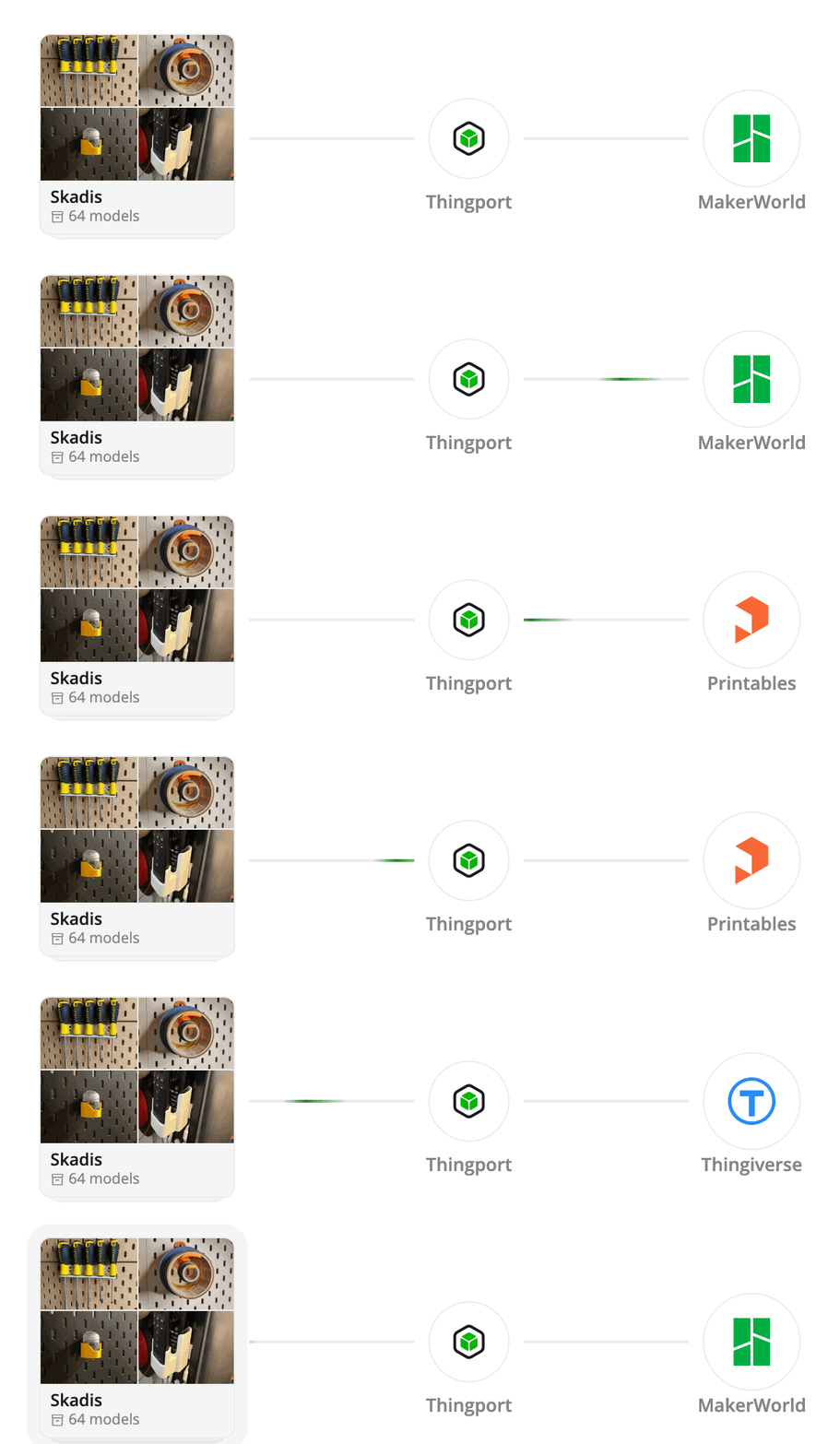
Link a MakerWorld, Printables or Thingiverse collection to Thingport once, from the collection in Thingport or with one tick in Thingport Grab, and every model added to it later is imported into your library on its own. Thingport checks it once a day, or every 6 hours or every hour, imports new models one at a time and sends a notification saying what came in. Sync only ever adds: nothing is deleted on either side. See the synced collections guide.
Companion Apps
Thingport ships two small companion tools, each downloadable from the in-app Download page or GitHub Releases:
- Thingport Bridge — a lightweight desktop helper that makes "Open in {Slicer}" work for slicers (Bambu Studio, PrusaSlicer, Cura, Anycubic Slicer Next) whose own URL-protocol handlers won't accept a link from a self-hosted domain.
- Thingport Grab — a browser extension for Chrome, Edge and Firefox that imports MakerWorld, Thingiverse, and Printables models straight from their own pages, without leaving the site (see the screenshots above). Even without a Thingport instance, it adds a "Download normalized" button to MakerWorld model pages that converts Bambu Studio projects into 3MFs other slicers open with their colours and settings. Get it from the Chrome Web Store, Firefox Add-ons or Microsoft Edge Add-ons.
Provider Setup
Printables imports work with no setup. MakerWorld and Thingiverse each need a credential from your own account first. Connect them under Configuration → Providers (from the user menu): right-click a provider to connect or disconnect it. See docs/PROVIDER_SETUP.md for how to create a Thingiverse Access Token and how to grab a MakerWorld session cookie.
Bring Your Existing Library
Already have folders of STLs, 3MF projects and ZIPs? You don't have to add them one at a time:
- Upload files and ZIPs — a few models at a time, with ZIPs unpacked into models and folders.
- Upload a folder — a whole folder tree from the browser, kept as folders, as one model per file or one model per folder.
- Consume folder — copy a large library into a folder on the server and Thingport imports it on its own.
Contributing
Bug reports and pull requests are welcome. See CONTRIBUTING.md for the branch, commit and pull request workflow, and docs/DEVELOPMENT.md for how to run Thingport locally with hot reload.
Honourable contributors
 Ruivalim 


|
Support
If Thingport is useful to you, consider supporting its development:
License
Thingport is free software: you can redistribute it and/or modify it under the terms of the GNU Affero General Public License, version 3 (AGPL-3.0-only), as published by the Free Software Foundation.